What Is AirPlay?
By  Vlad Karatai · Updated · 4 min read
Short answer
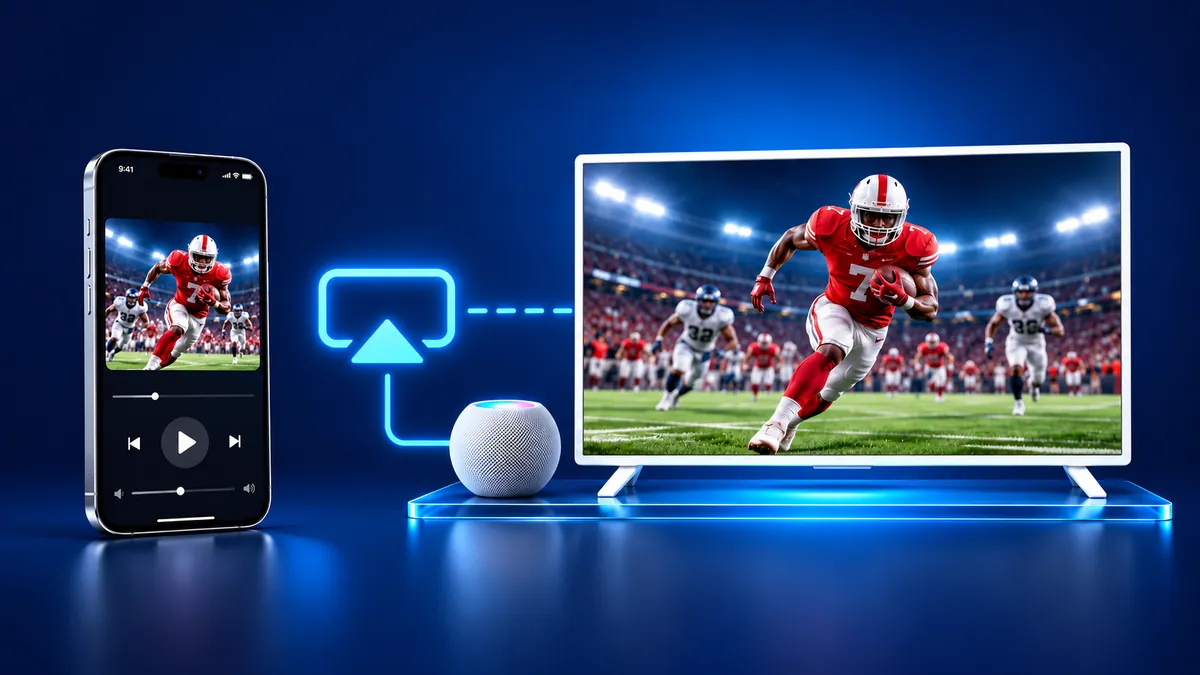
AirPlay is Apple's technology for sending video, photos, music, or your iPhone screen wirelessly to a TV, Mac, or HomePod. The TV needs an Apple TV HD, an Apple TV 4K, or a smart TV with AirPlay 2. Usually both share the iPhone's Wi-Fi network. No receiver? The Screen Mirroring · Smart TV app finds your TV on its own.
Contents
What is AirPlay on my iPhone?
It means wireless playback from an Apple device on another screen or speaker. Apple's deployment guide defines AirPlay as the technology for streaming photos, video or audio and for mirroring from Apple devices to Apple TV. On an iPhone it does four jobs:
- Stream video: tap the AirPlay button in a video app, pick the TV, and use the playback controls on your iPhone.
- Send photos: in the Photos app, tap the Share button, then the AirPlay button.
- Mirror the screen: the TV shows exactly what is on your iPhone.
- Play audio: send music or a podcast to a Mac, a TV, or a HomePod.
How does AirPlay work on TV?
Your iPhone finds the receiver on the same Wi-Fi network, then sends the video, photos, audio, or screen to it. Apple's iPhone guide asks that both devices have Wi-Fi turned on and share one network.
Apple TV can also be found over Bluetooth, and Apple says devices don't need to be on the same network, or on any network at all. That covers Apple TV HD on tvOS 9 or later and Apple TV 4K on tvOS 11 or later. For other smart TVs, Apple and the TV makers describe one shared network. For more, see can you AirPlay without Wi-Fi.
Which TVs and devices work as receivers?
A receiver is the device that accepts the stream: Apple TV 4K, a smart TV with AirPlay 2, or a Mac. Apple's TV list, saved in December 2025, names 213 models from 40 brands. Samsung says the feature is on select 2018 to 2025 models and publishes no model list.
| Receiver | AirPlay | Note |
|---|---|---|
| Apple TV HD, Apple TV 4K | Yes | Both have a built-in receiver. |
| Mac | Yes | Turn on AirPlay Receiver first. |
| Samsung, LG, Sony TVs | Some | Only listed models and years. |
| Fire TV Stick | No | No generation has a receiver. |
| Chromecast, Google TV Streamer | No | Cast only, no AirPlay. |
How do I AirPlay my iPhone to my TV?
Mirroring the whole screen takes five steps, as described on Apple's AirPlay page.
- Connect your iPhone to the same Wi-Fi network as your Apple TV or compatible smart TV.
- Open Control Center: on an iPhone X or later, swipe down from the upper-right corner of the screen.
- Tap Screen Mirroring.
- Select your TV from the list.
- If an AirPlay passcode appears on the TV, enter it on your iPhone.
To stop, open Control Center, tap Screen Mirroring, then tap Stop Mirroring. For one video or photo, use the AirPlay button in the app. The AirPlay icon has its own guide.
That route needs an Apple TV or a TV with AirPlay 2, one Wi-Fi network, and a few taps in Control Center. It may also ask for a passcode the first time. The app needs only the Wi-Fi network and finds your TV on its own. It remembers the TV, so next time is one tap, no codes.
Screen mirroring or streaming: what is the difference?
Screen mirroring is one of the things AirPlay does, and streaming is the other. Streaming sends one video, photo, or song, and the TV plays it. Mirroring copies the entire screen, so the TV shows whatever appears on your iPhone.
That includes alerts. In iOS 27, notifications are allowed by default during Screen Mirroring, and you can turn them off.
Which apps and TVs won't work?
It can't play every app, and it can't reach every TV.
- Netflix: its Help Center says Netflix doesn't support AirPlay. Netflix removed AirPlay in 2019, as Variety reported.
- Other video apps: Apple warns that some video apps might not support AirPlay.
- Fire TV Stick: Amazon's mirroring page says iOS devices don't support screen mirroring to it.
- Chromecast: Google's help pages describe Cast only and never mention AirPlay.
What if your TV has no receiver?
The Screen Mirroring · Smart TV app works with Roku, Fire TV, Chromecast, Samsung, LG and other major smart TVs. Both the iPhone and the TV need the same Wi-Fi network. Sound plays on your TV speakers. Free download on the App Store.
What to remember
- AirPlay sends video, photos, audio, or your iPhone screen to Apple TV, a smart TV with AirPlay 2, a Mac, or a HomePod.
- The iPhone and receiver usually share one Wi-Fi network. Apple documents peer-to-peer only for Apple TV.
- Mirroring shows the whole screen. Streaming sends one video, photo, or song.
- Fire TV Stick and Chromecast have no receiver, and Netflix doesn't support AirPlay.
Questions people ask
How do I turn on AirPlay?
You turn it on by using it. Open Control Center, tap Screen Mirroring, and pick your TV, or tap the AirPlay button in a video app. On Apple TV 4K, open Settings, then AirPlay and Apple Home, and use the AirPlay switch (tvOS 27).
Where is AirPlay on my iPhone?
Look for Screen Mirroring in Control Center, or the AirPlay button inside a video app. In Photos, tap Share, then AirPlay.
How do I know if AirPlay is on?
While mirroring, the TV shows your iPhone screen. To check, open Control Center and tap Screen Mirroring: Stop Mirroring appears. While streaming video, the app's AirPlay button leads to Turn Off AirPlay in iOS 27.
Read next
More guides
- Arcelik TV Screen Mirroring From an iPhone (2026)
- How to AirPlay to Samsung TV: Steps and Menu (2026)
- Vestel TV Screen Mirroring: iPhone and Android (2026)
- How to Mirror iPad to Roku TV: Steps and Models (2026)
- TV Not Showing Up on AirPlay? How to Fix It (2026)
- AirPlay Password: Where the TV Code Comes From (2026)
- How to Fix No Sound in Screen Mirroring (2026)
- Apple TV Screen Mirroring From iPhone (2026)
- Hisense TV AirPlay: How to AirPlay on Hisense TV (2026)
- TCL TV AirPlay: How to AirPlay to TCL TV (2026)
- How to AirPlay on Google TV: Which TVs Have It (2026)
- How to Cast to Chromecast From an iPhone (2026)
- How to Cast iPad to Samsung TV (2026)
- How to Mirror iPad to TV: 3 Ways That Work (2026)
- AirPlay Not Working on Samsung TV: Fixes (2026)
- Vizio AirPlay: Mirror Your iPhone to a Vizio TV (2026)
- How to Cast to Samsung TV: iPhone and Galaxy (2026)
- Can You AirPlay to Firestick? Only Some Fire TVs (2026)
- LG TV AirPlay: Which Models Have It and How to Use It
- How to AirPlay on Roku: iPhone Steps and Models (2026)
