How to Screen Mirror on LG TV from iPhone in One Tap
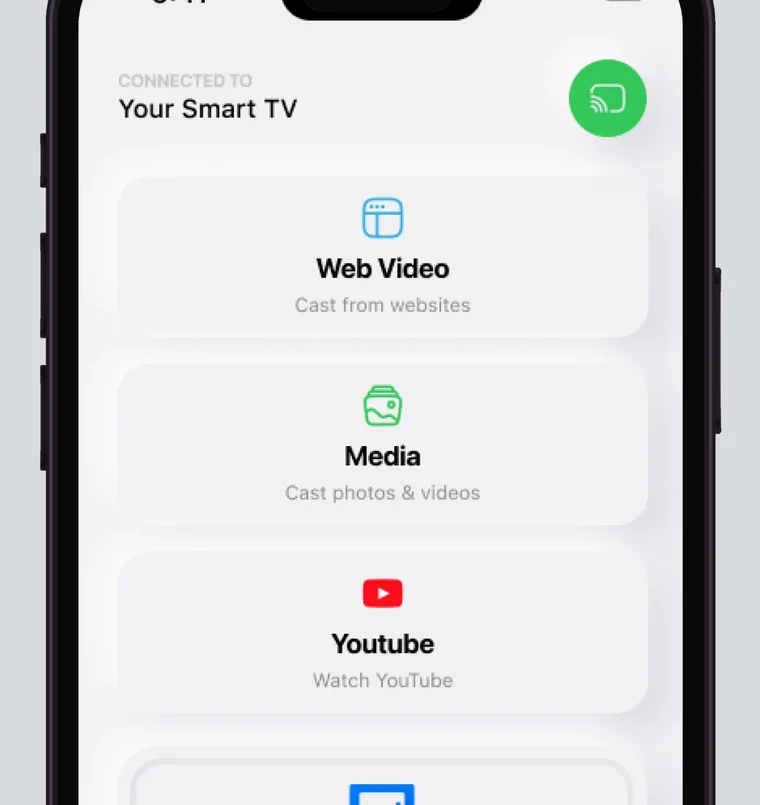
LG lists AirPlay 2 on specific series from webOS 4.0 (2018) through webOS 24 (2024), and its table stops there. Screen Mirroring · Smart TV, an iPhone app for iOS 15.0 or later, supports LG. You pick your LG from the list once, the app remembers it, and after that it is one tap.
 4.61
4.61How to cast to LG TV with the app
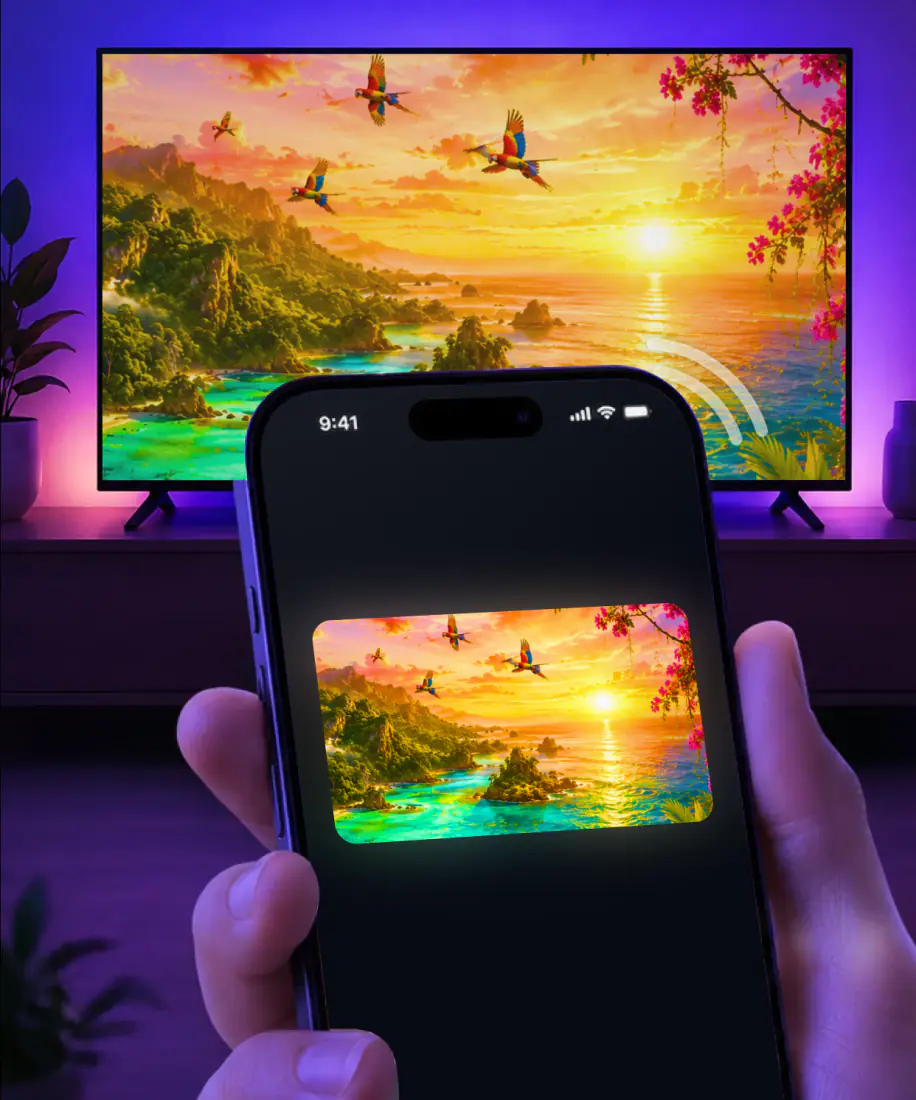
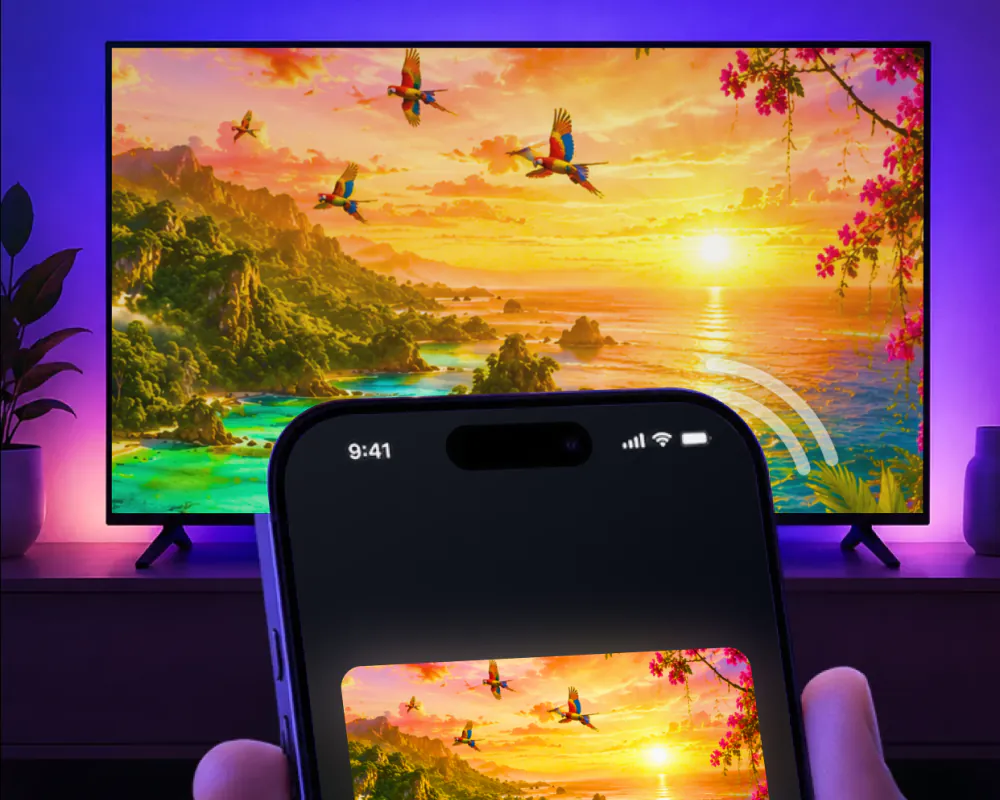
Screen Mirroring · Smart TV mirrors your iPhone screen to your LG in real time. LG is one of the TV brands the app supports, along with Roku, Fire TV, Chromecast, Samsung and other major smart TVs.
Once you're connected, whatever you open on the iPhone appears on the LG: videos, photos, games and apps on a larger screen, with high-quality streaming and minimal lag.
The first time, getting started takes three steps:
- Connect your iPhone and your LG TV to the same Wi-Fi network.
- Select your LG from the list of available devices.
- Start screen mirroring and enjoy your content on the big screen.
What you need before you start
Three things to have in place before the first connection:
- An iPhone or iPad on iOS 15.0 or later.
- VPN and proxy turned off on the iPhone while you connect, for the best performance.
- The app on your iPhone. Free download on the App Store, with the subscription billed by Apple inside the app. It comes from AQUIN VENTURES LTD and has been on the App Store since November 2023.
FAQ
Screen Mirroring · Smart TV works on iPhone and iPad. Connect your iPad and LG TV to the same Wi-Fi network, open the app, and select the LG from the list. Start mirroring, and your iPad screen appears on the TV in real time. The app remembers your LG, so next time is one tap, with no codes to type.
Yes, on the models LG lists. LG names AirPlay 2 for specific series from webOS 4.0 (2018) through webOS 24 (2024), and from 2021 through 2024 that includes all OLED and all QNED models. LG's table doesn't cover 2025 or 2026 sets. To put an iPhone on an LG, use Screen Mirroring · Smart TV: the app supports LG and remembers your TV.
LG TV AirPlay by webOS version
AirPlay is Apple's way to stream video or mirror the iPhone screen. It needs a receiver in the TV: an Apple TV 4K or a smart TV with AirPlay 2, such as the LG series below. On those sets, the iPhone's own Screen Mirroring in Control Center can reach the TV.
LG publishes its AirPlay 2 list by webOS version, and each version matches a model year. Every row needs an iPhone on iOS 12.4 or later and the TV on the same Wi-Fi network.
| webOS version | LG series | AirPlay 2 |
|---|---|---|
| webOS 4.0 (2018) | OLED B8, C8, E8, W8 and Z8; UHD UK and SK Series | Yes, with one dispute: LG lists the C8, but 9to5Mac and LG's community say the 2018 C8 never got AirPlay 2. |
| webOS 4.5 (2019) | OLED B9, C9, E9, W9 and Z9; UHD UM and SM Series | Yes |
| webOS 5.0 (2020) | OLED BX, CX, GX, WX, ZX and RX; UHD UN Series and NANO Series | Yes |
| webOS 6.0 (2021) | All OLED; all QNED; UHD UP Series and NANO Series | Yes |
| webOS 22 (2022) | All OLED; all QNED; UHD UQ Series and NANO Series | Yes |
| webOS 23 (2023) | All OLED; all QNED; UHD UR Series and NANO Series | Yes |
| webOS 24 (2024) | All OLED; all QNED; UHD UT Series and NANO Series | Yes, and it's the newest row in LG's table. |
| 2025 and 2026 sets | Not covered | Unknown. LG hasn't published a statement for these years. |
Sources: LG on which TVs support AirPlay 2 and Apple on AirPlay, checked September 9, 2026.
Already have AirPlay on your LG?
If your set is on LG's list, here is what the app adds on top of AirPlay.
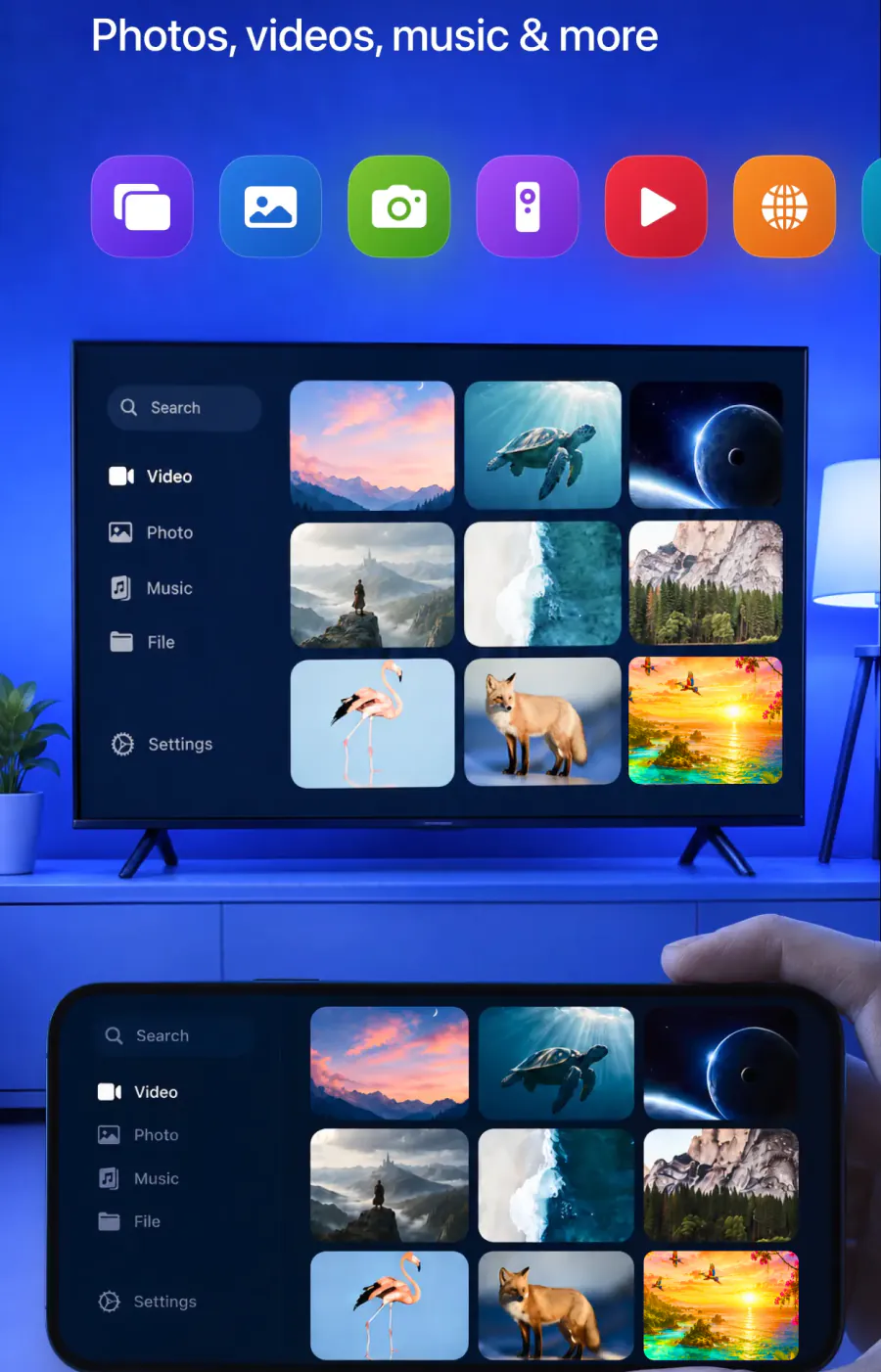
- 1One tap after the first time
Pick your LG from the list once. The app remembers your TV, and after that mirroring is one tap.
- 2No codes
The first AirPlay connection can bring up a passcode on the TV that you type on the iPhone. The app has no codes to type.
- 3A built-in IPTV player
Along with mirroring and casting, the app comes with an easy-to-use IPTV player.
- 4Smoother since version 1.5
The August 26, 2026 update brought a faster TV connection, smoother screen mirroring and improved streaming stability.
LG screen share from your iPhone
Screen sharing puts your whole iPhone screen on the LG in real time. The app also casts photos and videos from your gallery and online videos from the web. Here is what goes up on the TV and what doesn't.
Yes. Real-time screen sharing on a stable wireless display.
Yes. Cast them to the big screen from the app.
Yes. Stream videos from apps like these to the LG.
Yes. Cast online videos directly from the web.
Yes. Play mobile games on the TV for a bigger experience.
Yes. Share presentations and documents, and put video calls on the TV for better visibility.
No. Your iPhone and the LG need the same Wi-Fi network.
When the LG doesn't connect
Match what you see to one of these. The AirPlay not working and screen mirroring not working guides have more checks.
Your LG isn't in the list. Put the iPhone and the TV on the same Wi-Fi network, then check the list again.

AirPlay can't find the LG. LG's AirPlay 2 needs iOS 12.4 or later and the same Wi-Fi network, and LG lists it only for the series in the table above.
There's no Wi-Fi where the TV is. The app needs the iPhone and the TV on one Wi-Fi network. The screen mirror without Wi-Fi guide covers what's possible without one.

The picture stutters or drops. Turn off any VPN or proxy on the iPhone and keep the app up to date.
You want to stop showing your screen. Stop the broadcast on your iPhone. For photos or videos shown from the app, tap the stop button in the app.
Your iPhone on the LG
Pick your LG from the list once. The app remembers it, and there are no codes to type.
Subscription is billed by Apple inside the app. 4.61★ from 7,860 ratings.