1
Pick your TV
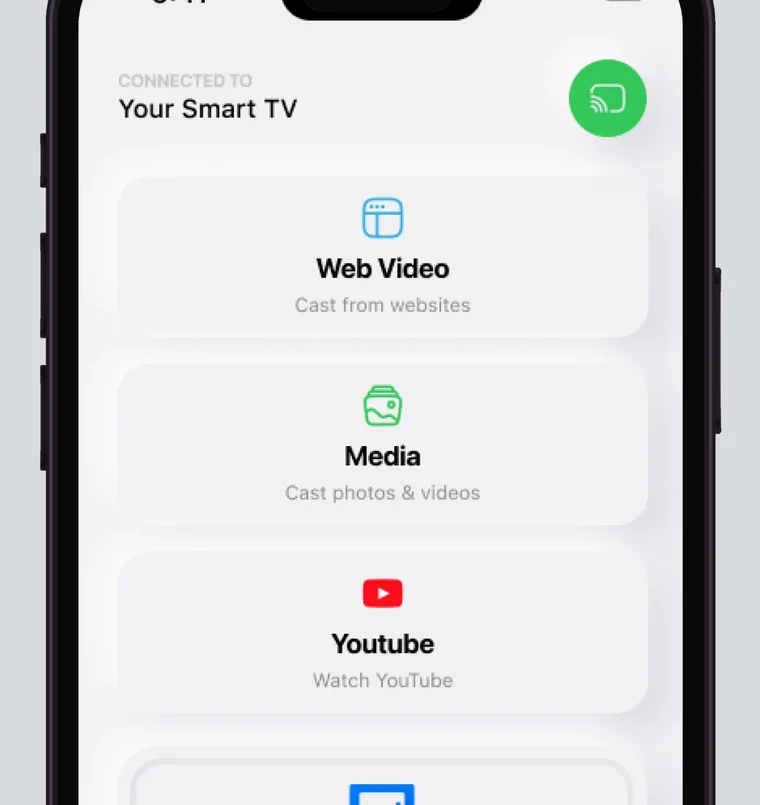
Open the app on the same Wi-Fi network as your TV and select the TV. After the first time, the app remembers it.
Put your iPhone and TV on the same Wi-Fi, open the app, pick your TV and start mirroring. Screen Mirroring · Smart TV remembers your TV, so next time it is one tap with no codes to type. It needs iOS 15 or later, supports Roku, Fire TV, Chromecast, Samsung and LG, and is rated 4.61 on the App Store.
 4.61
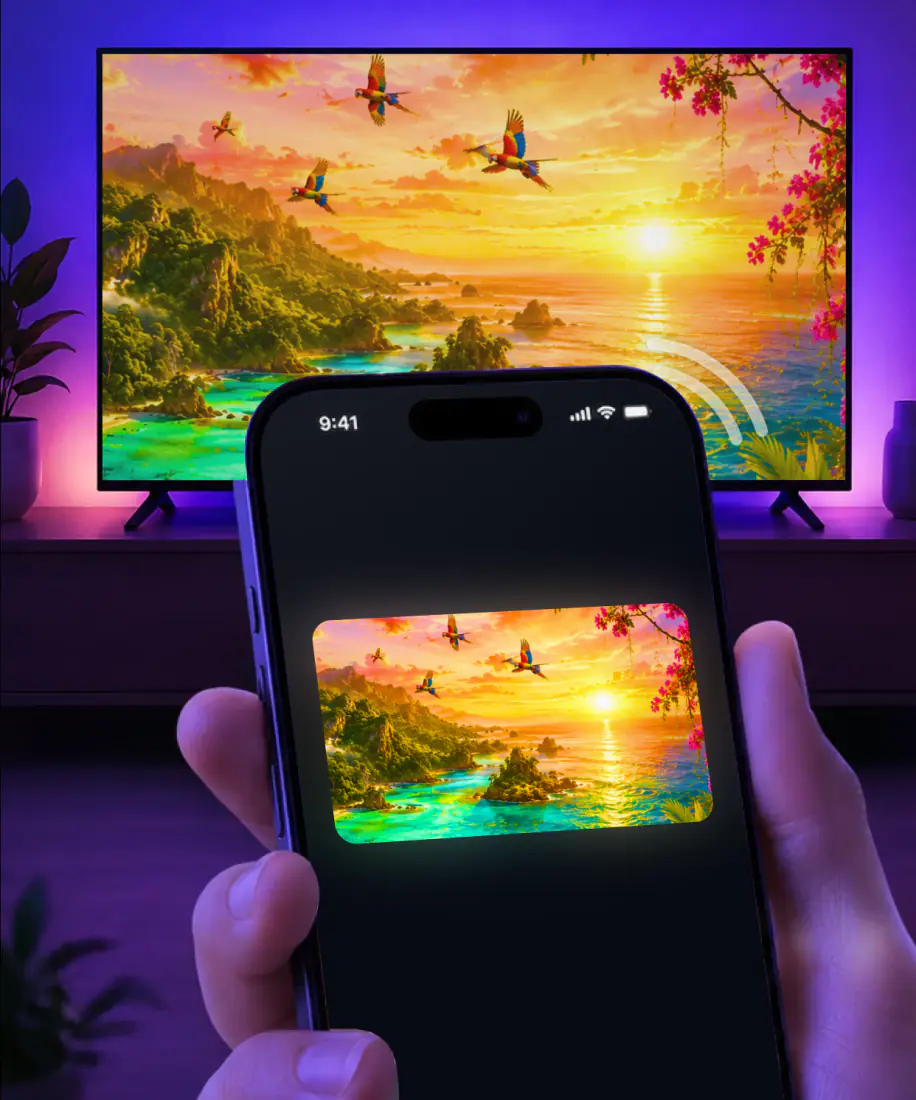
4.61Mirroring puts your iPhone screen on the TV in real time, so apps, photos, games and video calls show up on the big screen as you use them. Screen Mirroring · Smart TV does it wirelessly, and you don't need any additional hardware or software. Video streams in high quality with minimal lag.
You need an iPhone on iOS 15 or later and a TV or streaming device the app supports: Roku, Fire TV, Chromecast, Samsung, LG or another major Smart TV. The app is also compatible with AirPlay. The first time, it takes three steps:
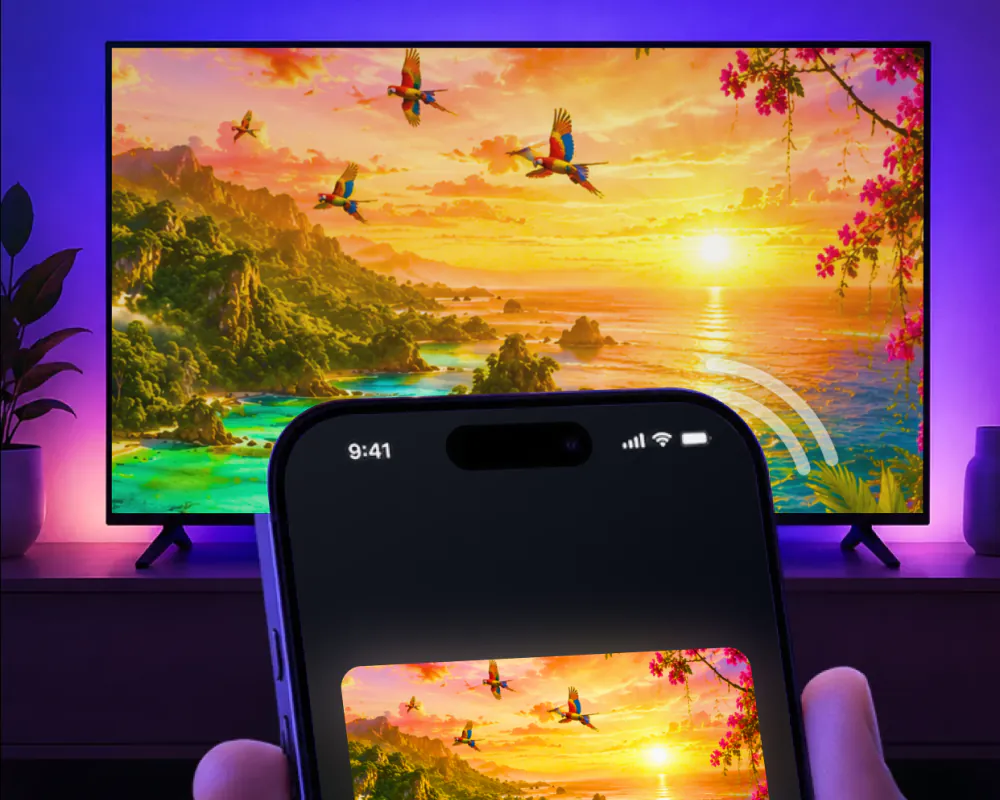
Screen Mirroring · Smart TV works on iPhone and iPad the same way, and needs iPadOS 15 or later. Put the iPad on the same Wi-Fi network as the TV, open the app and select your TV from the list of available devices, then start mirroring. The iPad screen appears on the TV, and the picture is up in about 3 seconds.
Pick the TV once, and after that mirroring an iPad is one tap. The app remembers your TV, so there are no codes to type and no ads along the way. On iPad, Apple's own Screen Mirroring lives in Control Center too, the same as on iPhone. When you are done, stop the broadcast on your iPad.
Mirroring isn't the only way to get something on the TV. The app also casts photos, videos and online video, plays movies and TV shows in high definition, and has a built-in IPTV player.
3seconds, typical
Open the app on the same Wi-Fi network as your TV and select the TV. After the first time, the app remembers it.
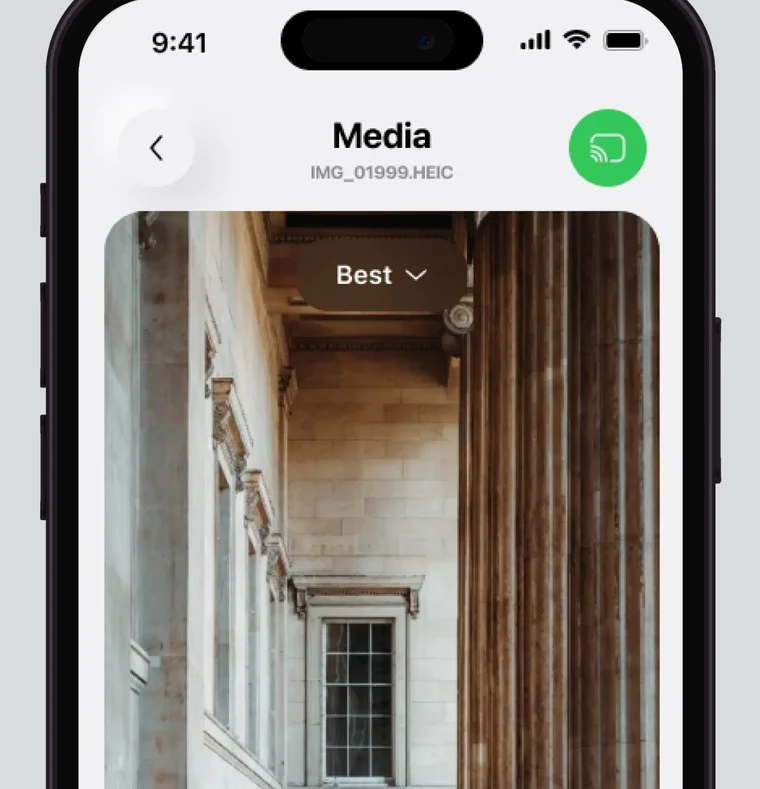
Choose them from your gallery and cast them to the big screen.
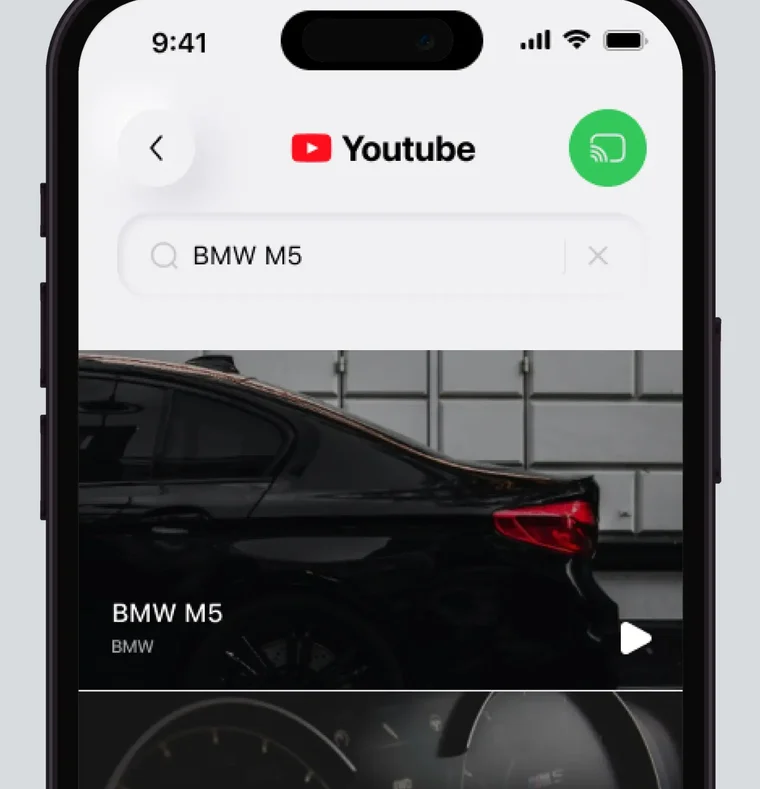
Cast online videos directly from the web, or stream videos from apps like Instagram, TikTok and YouTube.
When you are done, tap the stop button in the app.
Vacation photos for the whole family, a workout video, slides for a meeting or a video call with the grandparents: here is what the app puts on the TV over a stable wireless connection, and the three cases where it won't work.
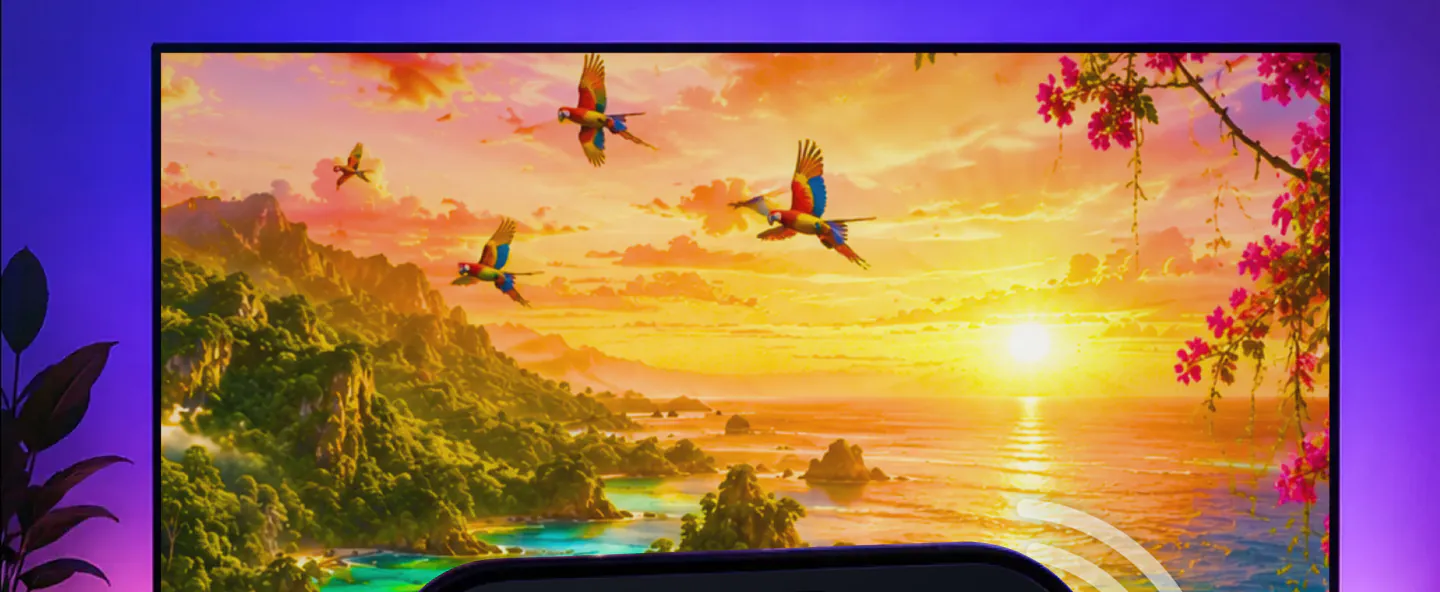
Yes. The app mirrors it to the TV in real time, home screen and all.
Yes. Cast them to the big screen, from last weekend's trip to a birthday video.
Yes. Stream them to the TV.
Yes. Cast it directly from the web.
Yes. Play them on the big screen.
Yes. Share presentations and work materials on the TV, and scroll through them on the iPhone.
Yes. Put the call on the TV so everyone on the couch can see it.
No. Your iPhone and TV have to share one Wi-Fi network.
No. The app requires iOS 15.0 or later.
No. Netflix doesn't support AirPlay.
On iPhone, Apple's own Screen Mirroring lives in Control Center and works with TVs that have an AirPlay receiver. Apple's wired option is an adapter, such as a Digital AV adapter, that connects the iPhone to a TV. AirPlay leaves a few gaps:
AirPlay streams to Apple TV and to smart TVs with AirPlay 2 built in. Fire TV Sticks, Chromecast and the Google TV Streamer don't have one, and older Roku players, such as Roku 1, 2 and 3, aren't in Roku's AirPlay lists. The app supports Fire TV and Chromecast.
Samsung lists AirPlay 2 on select models from 2018 to 2025 and publishes no model list. LG's table stops at webOS 24, from 2024.
The TV can show a passcode that you type into your iPhone. The app has no codes to type.
Apple notes that some video apps might not support AirPlay.
Here is what each TV maker, or Apple's own list, says about built-in AirPlay, next to what the app supports. Apple TV HD and Apple TV 4K have AirPlay built in.
The app supports Roku, Fire TV, Chromecast, Samsung, LG and other major Smart TVs. TCL, Hisense, Sharp and Philips Roku TVs run Roku, and Insignia and Toshiba Fire TV sets run Fire TV, so the app covers them through those platforms.
In all, the app works with 12 platforms: Samsung, LG, Sony, TCL, Hisense, VIZIO, Philips, Roku, Fire TV, Chromecast, Android TV and Apple TV.
| TV | Built-in AirPlay | With the app | Guide |
|---|---|---|---|
| Samsung | AirPlay 2 on select models from 2018 to 2025. Samsung publishes no model list. | Supported by the app | Screen mirroring iPhone to Samsung TV |
| LG | Series by series from webOS 4.0 (2018) to webOS 24 (2024), with iOS 12.4 or later and the same Wi-Fi. LG's table stops at 2024. | Supported by the app | Screen mirror on LG TV |
| Roku | Listed Roku TVs and players on Roku OS 9.4 or later, some on 10.0 or later. Roku Select and Plus Series TVs on any Roku OS version. | Supported by the app | Screen mirror on Roku |
| Fire TV | None on Fire TV Stick, in any generation. Some Fire TV smart TVs only. | Supported by the app | Cast to Firestick |
| Chromecast | None on Chromecast or the Google TV Streamer. Google offers Cast only. | Supported by the app | |
| TCL | Select TCL Roku TVs, plus the QM and Q5K Google TV lineup and later. | Supported by the app on TCL Roku TVs, through Roku | TCL screen mirroring |
| Hisense | Varies by platform: VIDAA, Google TV, Roku TV or Fire TV. Apple's list carries 38 Hisense entries for 2022 and 2023. | Supported by the app on Hisense Roku TVs, through Roku | Hisense screen mirroring |
| Sharp | Sharp Roku TV models, including the 2023 OLED models. | Supported by the app on Sharp Roku TVs, through Roku | Sharp TV screen mirroring |
| Philips | Philips Roku TVs are in Apple's AirPlay list and follow Roku's rules. | Supported by the app on Philips Roku TVs, through Roku | Screen mirror on Philips TV |
| Insignia | 4K UHD Fire TV (2020) and F30 Series Fire TV sets. Amazon's rule applies: not every Fire TV smart TV has it. | Supported by the app on Insignia Fire TV sets, through Fire TV | Screen mirror on Insignia TV |
| Toshiba | US Fire TV models from 2020 to 2023 fall under Amazon's rule. Apple's list carries eight Toshiba series. | Supported by the app on Toshiba Fire TV sets, through Fire TV | Toshiba screen mirroring |
| Vizio | Vizio said AirPlay would roll out to new and existing SmartCast TVs dating back to 2016. | Among the other major Smart TVs the app supports | Vizio screen mirroring |
| Sony | All Google TV BRAVIA models and listed Android TV series, some after a software update. Other BRAVIA sets don't have it. | Among the other major Smart TVs the app supports | Sony TV screen mirroring |
AirPlay support as published by Apple, Samsung, LG, Roku, Amazon and Google, checked September 2026.
If your TV doesn't show up in the app, check that your iPhone and TV are on the same Wi-Fi network, and turn off any VPN or proxy on the iPhone. For anything else, these guides go further.
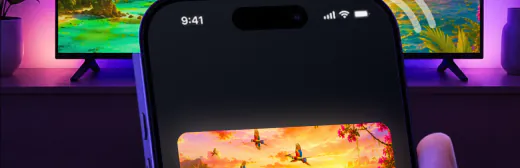
Your TV still doesn't show up, or AirPlay fails. The checks for that are in AirPlay not working.

The picture lags or stutters. Turn off any VPN or proxy and keep the app up to date: version 1.5 brought less delay and fewer interruptions. More fixes are in screen mirroring not working.

The TV plays the sound but not the picture. That case has its own guide: AirPlay only playing audio.

There's no Wi-Fi where you are. Two guides cover setups without a router: screen mirror without Wi-Fi and AirPlay without Wi-Fi.
Your iPhone connects to a TV on its own. When you play video from an app, your iPhone can suggest or automatically connect to devices you regularly use with AirPlay. To change that, see how to turn off AirPlay and how to turn off screen mirroring.
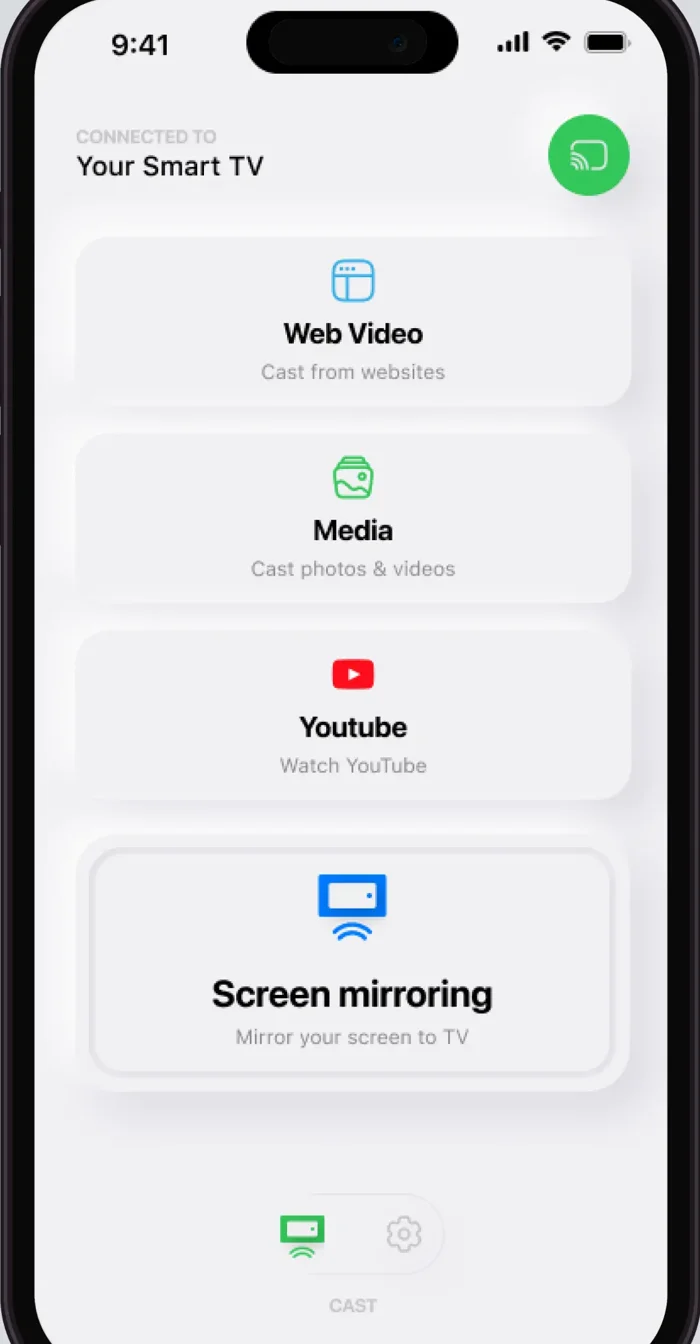
Mirroring puts your iPhone screen on a TV while you use it, so apps, photos, games and video calls show on the bigger display. Screen Mirroring · Smart TV does it over Wi-Fi in real time. You pick your TV the first time, and after that the app remembers it, so it is one tap.
Your iPhone sends what is on its screen to the TV as you use it. With Screen Mirroring · Smart TV, you connect your iPhone and TV to the same Wi-Fi network, select your TV from the list of available devices and start mirroring. There are no codes to type along the way.
Connect your iPhone and TV to the same Wi-Fi network, open Screen Mirroring · Smart TV and select your TV. Then cast videos from your gallery or online videos straight from the web, or stream them from apps like Instagram, TikTok and YouTube. When you are done, tap the stop button in the app.
Your TV is one tap away
Pick your TV the first time. After that, the app remembers it and there are no codes to type.
Subscription is billed by Apple inside the app. 4.61★ from 7,860 ratings.