AirPlay Not Working? What to Check, Symptom by Symptom
Start with three checks: the TV needs an AirPlay receiver, a smart TV has to share your iPhone's Wi-Fi network, and AirPlay must be switched on at the TV. Receivers vary by model: Samsung lists AirPlay 2 on select models from 2018 to 2025, LG's table stops at its 2024 sets, and Fire TV Sticks have none.
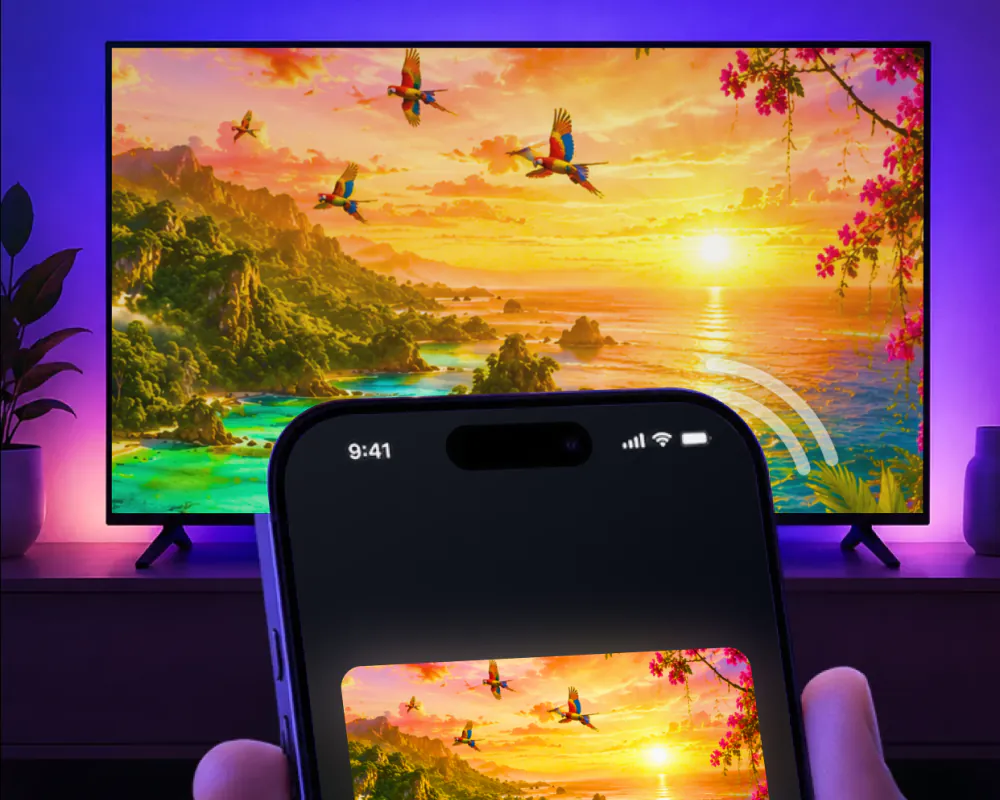
Run these six checks first
The checks below come from Apple's AirPlay help and the TV makers' own support pages. Go through them in order and stop at the first one that fails.
If you're mirroring your whole screen rather than playing a video, our separate guide on screen mirroring not working covers that case in more detail.
- Both devices are switched on and close to each other.
- Your iPhone and the TV are on the same Wi-Fi network (an Apple TV can also connect peer-to-peer).
- The iPhone and the TV both run their latest software.
- AirPlay is switched on in the TV's own settings.
- You've restarted both the iPhone and the TV.
- No VPN on the iPhone is blocking local networking.
Why can't I AirPlay to my TV?
AirPlay needs a receiver on the TV side: an Apple TV, or a smart TV with AirPlay 2 built in. If your set has neither, AirPlay has nothing on it to connect to, however well the network is set up.
Several popular devices have no receiver at all: Fire TV Sticks of every generation, Chromecast and the Google TV Streamer, the Nvidia Shield TV, and Xbox and PlayStation consoles. Older Roku players, including the Roku 1, 2 and 3 and the Roku LT, are missing from Roku's AirPlay lists.
Fire TV and Google TV aren't all-or-nothing, though. Some Fire TV smart TVs do have a receiver, and so do Panasonic's Fire TV sets from the Z95A and Z93A on. On a Google TV set, AirPlay comes from the set maker rather than from Google, which is why every Google TV BRAVIA has it while Chromecast doesn't.
Screen Mirroring · Smart TV lists Fire TV and Chromecast among the platforms it supports, next to Roku, Samsung, LG and other major smart TVs.
On smart TVs, AirPlay depends on the brand, the model and the year. Here is where the common US brands stand, going by the makers' own support pages and Apple's AirPlay list.
| TV or device | AirPlay | Details |
|---|---|---|
| Apple TV HD and Apple TV 4K | Yes | Built-in AirPlay receiver in every generation. |
| Samsung | Yes, select models | AirPlay 2 on select models from 2018 to 2025; Samsung publishes no model list. Guide: screen mirroring iPhone to Samsung TV. |
| LG | Yes, listed series | Listed series from webOS 4.0 (2018) to webOS 24 (2024), with iOS 12.4 or later on the iPhone. LG's table has no row for 2025 or 2026 sets. Guide: screen mirror on LG TV. |
| Vizio | Yes | Vizio said AirPlay would roll out to new and existing SmartCast TVs dating back to 2016. Guide: Vizio screen mirroring. |
| Sony BRAVIA | Yes, listed series | Every Google TV BRAVIA supports AirPlay 2, and the W8K and X74K/X75K series need a software update first. Sony lists the Android TV series that have it, some only after an update; other BRAVIA sets don't. Guide: Sony TV screen mirroring. |
| Roku TVs and players | Yes, listed models | Listed models need Roku OS 9.4 or 10.0 or later, depending on the model; Roku Select and Plus Series TVs have it on any Roku OS version. Guides: screen mirror on Roku and Roku AirPlay not working. |
| Older Roku players | Not listed | Roku 1, 2 and 3, Roku LT, Express 3900, 3930 and 3960, and Streaming Stick 3400, 3500, 3600 and 3800 are missing from both of Roku's AirPlay lists. |
| TCL | Yes, select models | TCL confirms AirPlay on select TCL Roku TVs. Its AirPlay page doesn't cover its other sets. Guide: TCL screen mirroring. |
| Sharp and Philips Roku TVs | Yes | Sharp Roku TV models, including the 2023 OLED sets, and Philips Roku TVs follow Roku's own OS and model rules. |
| Hisense | Yes, some models | It depends on the platform the set runs: VIDAA, Google TV, Roku TV or Fire TV. Apple's AirPlay list carries 38 Hisense entries for 2022 and 2023. Guide: Hisense screen mirroring. |
| Fire TV smart TVs | Yes, some models | Amazon notes that not every Fire TV smart TV is compatible with AirPlay. Insignia and Toshiba Fire TV sets follow the same rule, and Apple's AirPlay list carries eight Toshiba series. Guides: screen mirror on Insignia TV and Toshiba screen mirroring. |
| Panasonic Fire TV sets | Yes | Z95A and Z93A models and later, from 2024. |
| Fire TV Stick | No | No AirPlay receiver in any generation: Fire TV Stick, 4K, 4K Max, Lite or HD. Guide: cast to Firestick. |
| Chromecast and Google TV Streamer | No | Google's own documents offer Cast only. |
TV not showing up on AirPlay
When the TV does have a receiver but doesn't appear in the list on your iPhone, start with the network. Apple wants the iPhone and the TV on the same Wi-Fi network. The exception is Apple TV: Apple also documents a peer-to-peer connection to it that needs no shared network at all, and our guide to AirPlay without Wi-Fi covers when that works.
Some networks keep devices apart even when both look connected. Samsung explains that most mobile hotspots don't allow communication between devices, so AirPlay won't work with its TVs over a hotspot. In hotels, a TV without an AirPlay hospitality platform has consumer AirPlay removed, and the Wi-Fi keeps guests' devices isolated, so the phone and the TV can't see each other even on the same network name. Where a hotel does offer AirPlay on its TVs, you connect by scanning a QR code on the screen, and Apple notes that AirPlay in hotels isn't available in all countries or regions.
Then look at the TV. Its AirPlay receiver can be switched off: on a Samsung the setting lives in Apple AirPlay Settings, on a Fire TV smart TV it sits under AirPlay & HomeKit, and Roku tells you to make sure AirPlay is set to On. On a Hisense set that has AirPlay, it appears as a source under Inputs.
An Apple TV also has its own AirPlay on and off setting.
A TCL Roku TV adds one more condition. Without Fast TV Start turned on, the set drops off the network when it's powered off, and AirPlay can't wake it.
On a first connection, the TV may show a passcode for you to type on the iPhone, so glance at the TV screen if nothing seems to happen. With an Apple TV, later connections skip the passcode unless its on-screen code settings are turned on, and it can also be set to require a password before anyone streams to it.
On the iPhone, Apple warns that a VPN whose configuration blocks local networking may interfere. A private Wi-Fi address is unlikely to be the cause: Apple says it doesn't affect how you join or use most Wi-Fi networks, and on a network with WPA2 or stronger security the iPhone keeps a fixed private address by default. To rule it out anyway, Apple suggests installing the latest updates and trying again before you turn the feature off.
The app starts from the same place: your iPhone and TV on the same Wi-Fi network, and for best performance, no VPN or proxy while you connect. The first time, you select your TV from the list of available devices. After that the app remembers your TV, so reconnecting is one tap.
AirPlay black screen
AirPlay does two different jobs: it streams a video from an app that supports it, or it mirrors exactly what's on your screen.
If the TV goes black inside one video app while photos and everything else come through, look at that app first. Apple notes that some video apps might not support AirPlay.
For a video app that won't play over AirPlay, Apple suggests checking the App Store on your Apple TV to see whether the same app is available there.
If the whole picture goes black, including photos and the home screen, treat it as a failed connection. Restart the iPhone and the TV, then check that both run the latest software, the two fixes Apple lists for AirPlay and screen mirroring trouble.
For your own photos and videos, there's also the app: it casts them from your gallery to the big screen, and it streams videos from apps like Instagram, TikTok and YouTube.
AirPlay sound not working
A picture with no sound, or sound in the wrong place, is not usually a new problem. Treat it the same as any other AirPlay connection: restart the iPhone and the TV, update both to their latest software, and confirm they're still on the same Wi-Fi network.
If that doesn't settle it, the fix is more specific to audio than to AirPlay itself, and our guide to AirPlay only playing audio covers it in depth, including the reverse case: sound with no picture at all.
What to do when AirPlay keeps disconnecting?
Switch to Screen Mirroring · Smart TV. Its latest update, version 1.5, lets you mirror your screen with less delay and fewer interruptions, and the app remembers your TV, so reconnecting after a drop is one tap. Keep the iPhone and the TV on the same Wi-Fi network, and turn off any VPN or proxy before you connect.
Mirror in one tap with the app
Screen Mirroring · Smart TV mirrors your iPhone screen to your smart TV in real time. It supports Roku, Fire TV, Chromecast, Samsung, LG and other major smart TVs, and it's compatible with AirPlay and popular streaming devices.
Connect your iPhone and TV to the same Wi-Fi network, then select your TV from the list of available devices. You only pick it once: the app remembers your TV, so from then on mirroring is one tap, with no codes to type. There are no cables and no extra hardware or software to add.
Version 1.5, from August 2026, brought a faster TV connection, smoother screen mirroring and better streaming stability.
To finish, stop the broadcast on your iPhone. For photos and videos you sent from the app, tap the stop button in the app.
The app runs on iPhone with iOS 15.0 or later, and the subscription is billed by Apple inside the app. Our main guide, Connect iPhone to TV, walks through the full setup, and the Screen Mirroring · Smart TV home page has an overview of the app.
Get Screen Mirroring · Smart TV on the App Store
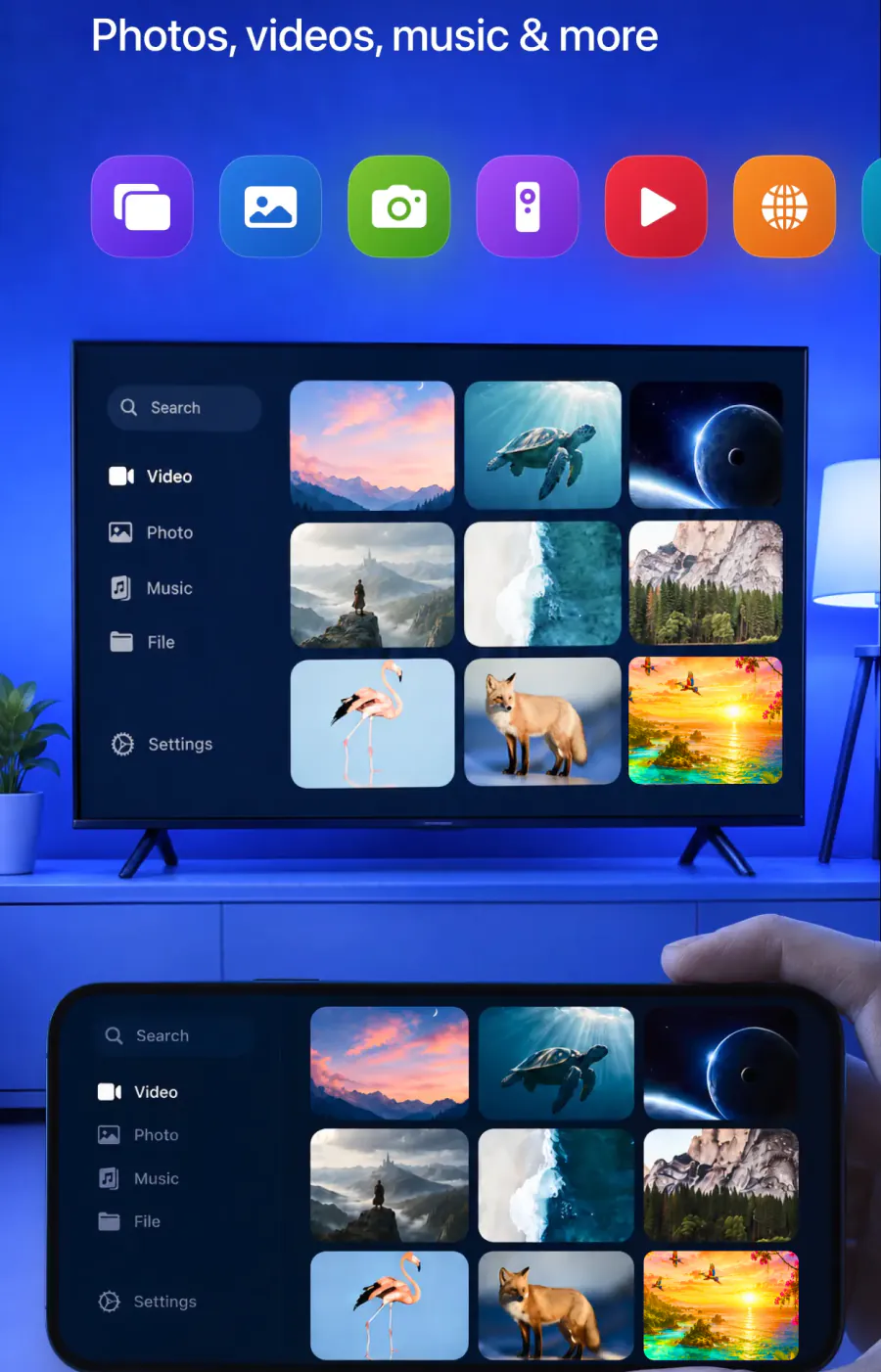
Here's what you can put on the TV:
- Your whole iPhone screen, in real time
- Photos and videos from your gallery
- Videos from apps like Instagram, TikTok and YouTube
- Online videos, cast directly from the web
- Mobile games, presentations and documents
- Video calls, for better visibility
- IPTV, with the built-in player
Mirror your iPhone in one tap
Answer a few quick questions about your TV and what goes wrong, then get the app. It remembers your TV, so next time it is one tap, with no codes to type.
Subscription is billed by Apple inside the app. 4.61★ from 7,860 ratings.