Hisense Screen Mirroring From Your iPhone in One Tap
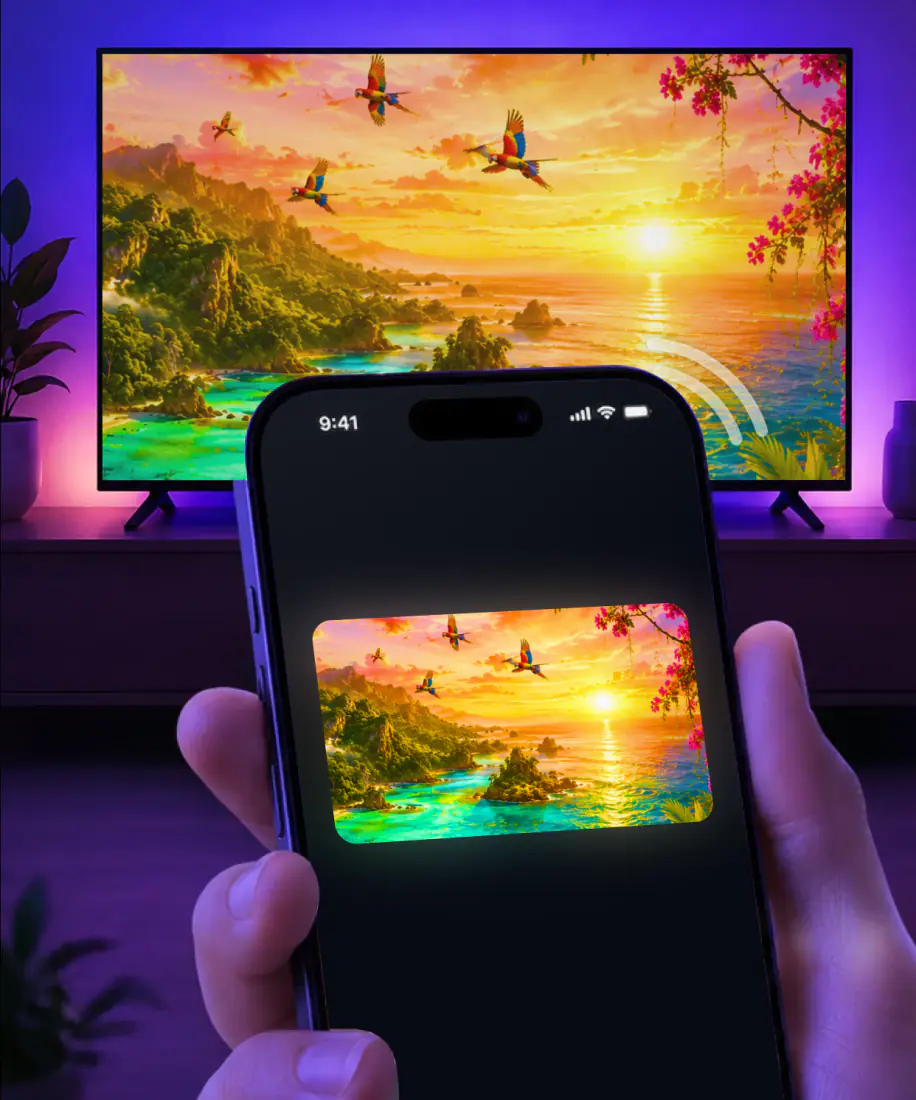
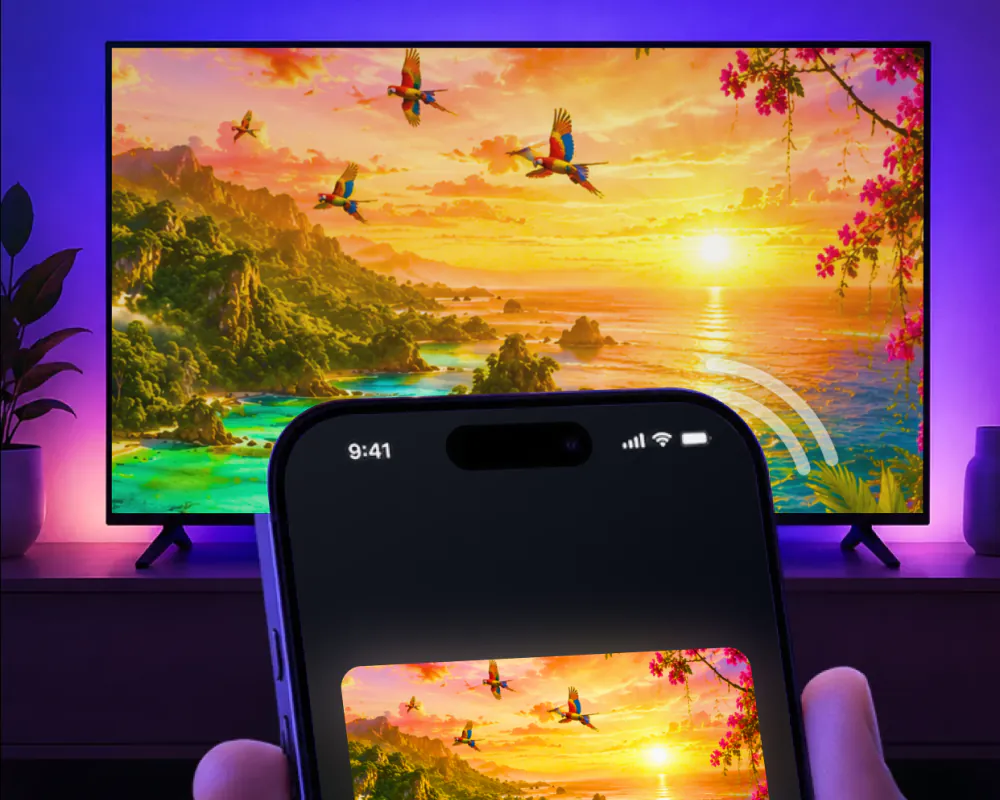
Hisense screen mirroring from an iPhone is one tap once the app knows your TV. The first time, put both on the same Wi-Fi network, select your Hisense from the list and start mirroring; Screen Mirroring · Smart TV remembers it, with no codes to type. Apple's AirPlay list has 38 Hisense entries for 2022 and 2023.
 4.61
4.61How to cast to Hisense TV from your iPhone
Screen Mirroring · Smart TV mirrors your iPhone screen to the TV in real time, with no cables and no extra hardware. It supports Roku, Fire TV, Chromecast, Samsung and LG by name. Roku is on that list, so a Hisense Roku TV is covered. Hisense also builds sets on Google TV, and Chromecast is on that list too, so a Hisense with Chromecast built in works the same way. VIDAA models without Chromecast built in aren't covered.
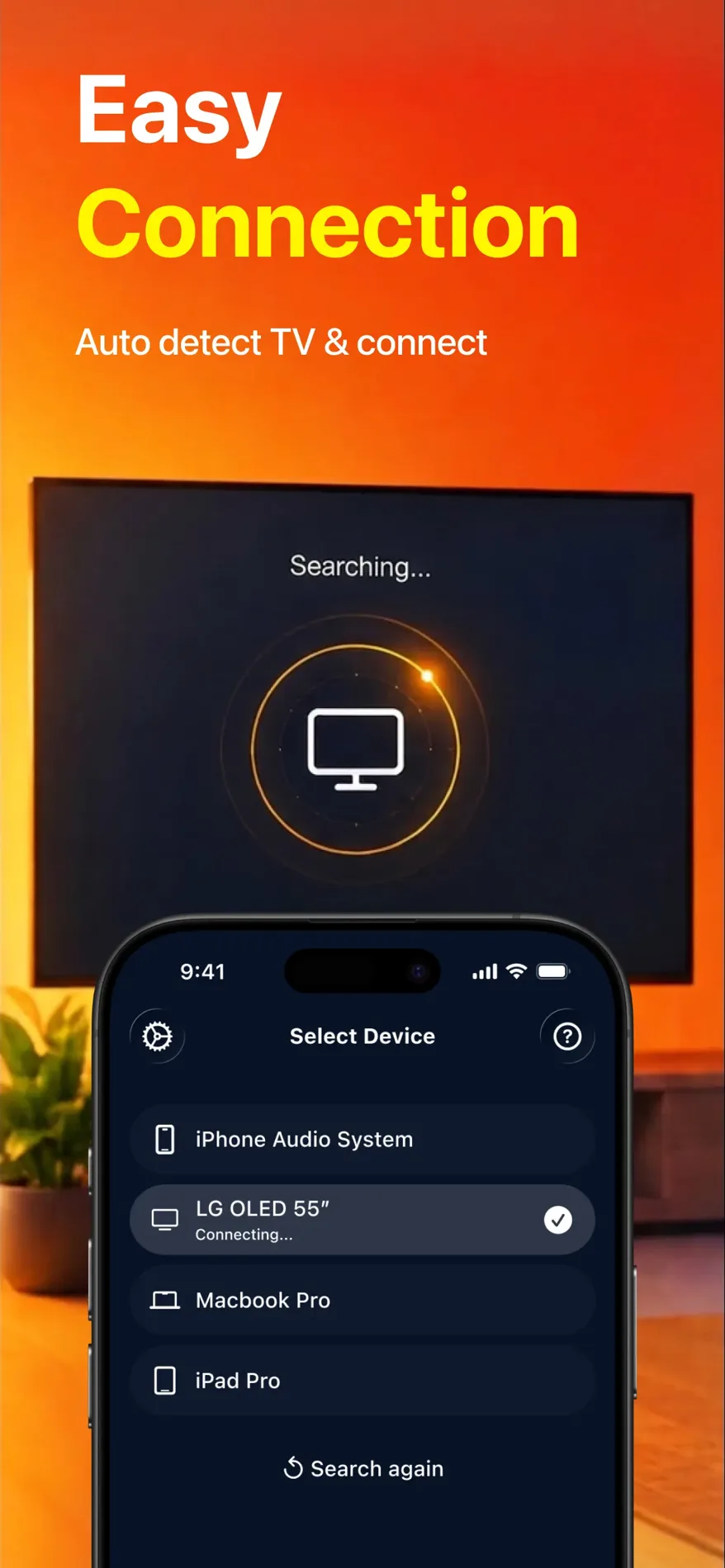
The app is compatible with AirPlay and popular streaming devices. Getting started is simple, and the first connection takes three steps:
- Connect your iPhone and the Hisense to the same Wi-Fi network.
- Open the app and select your Hisense from the list of available devices.
- Start screen mirroring, and your iPhone screen appears on the Hisense.
Hisense TV AirPlay: which models have it
AirPlay is Apple's built-in way to stream video and photos from an iPhone or mirror its whole screen, and the TV needs a receiver for it. Hisense builds its TVs on four platforms: its own VIDAA, Google TV, Roku TV and Fire TV. Built-in AirPlay varies by platform and by model, and Hisense doesn't publish a model or year list. On a set that has it, the Hisense user manual lists AirPlay as a source under Inputs.
Apple keeps its own list of AirPlay TVs, and it carries 38 Hisense entries for 2022 and 2023. The same list names four series of Hisense Laser TV projectors from 2023: L5, L9, PL1 and PX2. For everything else, the platform inside the set decides.
| What runs your Hisense | Built-in AirPlay | Good to know |
|---|---|---|
| Roku TV | Goes by Roku's rules | Roku publishes its AirPlay rules model by model, and a Hisense Roku TV follows them. The guide on how to screen mirror on Roku has the full table. |
| Fire TV | Not on every Fire TV smart TV | In Amazon's words: "AirPlay isn't compatible on all Fire TV Smart TV devices." On a set that has it, the switch is under Display & Sounds, in AirPlay & HomeKit. |
| Google TV | Up to Hisense, model by model | Google doesn't add AirPlay itself. On a Google TV set, it comes from the set maker. |
| VIDAA | On some models | Hisense's own system. There is no model list to check against. |
| Laser TV L5, L9, PL1 and PX2 (2023) | Yes | Named in Apple's list of AirPlay TVs and video accessories. |
Checked on September 9, 2026 against the Hisense user manual, Apple's list of AirPlay TVs, Amazon's Fire TV help and Google TV Help.
Why use the app instead of built-in AirPlay
If your Hisense has AirPlay, you can use it. Either way, the iPhone and the TV need to be on the same Wi-Fi network. Here is what changes with the app.
- 1AirPlay depends on the set
AirPlay needs an Apple TV 4K or an AirPlay 2-enabled smart TV on the other end, and on a Hisense that comes down to the platform and the model. The app supports Roku, the platform behind a Hisense Roku TV, plus Chromecast for the Google TV models.
- 2No codes to type
The first time you use AirPlay, the TV may show a passcode that you enter on the iPhone. The app has no codes to type.
- 3One tap next time
The iPhone's own Screen Mirroring starts in Control Center. The app remembers your TV, so after the first connection it's one tap.
- 4Built for streaming
The app streams in high quality with minimal lag. Version 1.5, released on August 26, 2026, brought a faster TV connection and improved streaming stability.
- 5Web videos and IPTV
Besides mirroring the screen, the app casts online videos straight from the web and has a built-in IPTV player.
What you can show on the Hisense
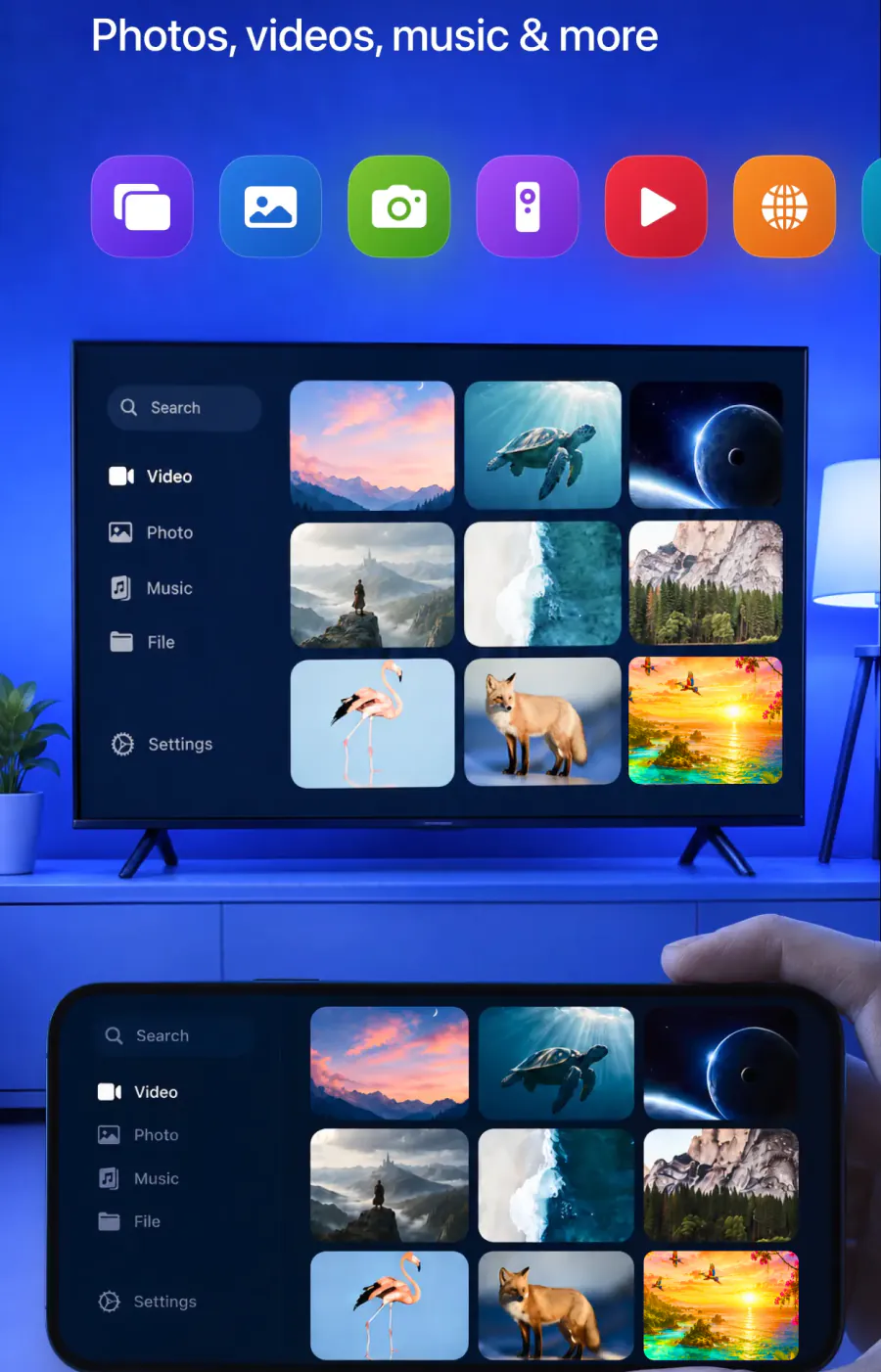
The app mirrors your iPhone screen to the TV in real time, and it's built for the uses below.
Yes. Cast them to the big screen.
Yes. Stream videos from these apps and more.
Yes. Cast online videos directly from a website.
Yes. Play on the TV for a bigger picture.
Yes. Share presentations and work materials with everyone watching.
Yes. Put the call on the TV so it's easier to see.
Yes. Watch it in the app's built-in IPTV player.
No. The iPhone and the Hisense need to be on the same network.
What you need before you start
The list is short, and there's no extra hardware to buy.
| You need | Details |
|---|---|
| An iPhone | Running iOS 15.0 or later. The app is made for iPhone. |
| One Wi-Fi network | The iPhone and the Hisense connect to the same network. |
| The app | Free download from the App Store, made by AQUIN VENTURES LTD and listed there since November 2023. The subscription is billed by Apple inside the app. |
| Nothing else | No cables, no complicated setup and no additional hardware. |
If your Hisense isn't in the list
Start with the network, then the phone.
Check that the iPhone and the Hisense show the same network name in their Wi-Fi settings. The app needs both on one network.

For best performance, turn off any VPN or proxy on the iPhone before you connect.

Using AirPlay instead? Go through the checks in our AirPlay not working guide.

Still no TV? Our screen mirroring not working guide has more checks.
FAQ
Connect your iPhone and the Hisense Roku TV to the same Wi-Fi network, open Screen Mirroring · Smart TV, which supports Roku, select the TV from the list and start mirroring. The app remembers your TV, so next time it's one tap, with no codes to type.
Some models do. It depends on the platform (VIDAA, Google TV, Roku TV or Fire TV), and Hisense publishes no model list. Apple's list of AirPlay TVs carries 38 Hisense entries for 2022 and 2023. Screen Mirroring · Smart TV is compatible with AirPlay and supports Roku, so a Hisense Roku TV is covered either way. Select the TV in the app and start mirroring.
Other TV brands
Setting up a TV from another brand? Start with our main guide, Connect iPhone to TV, or pick the brand below. TCL, Sharp and Philips make Roku TV models too.
Put your iPhone on the Hisense
Select your Hisense once, and the app remembers it for next time. There are no codes to type.
Subscription is billed by Apple inside the app. 4.61★ from 7,860 ratings.