How to Cast iPad to Samsung TV
By  Vlad Karatai · Updated · 3 min read
Short answer
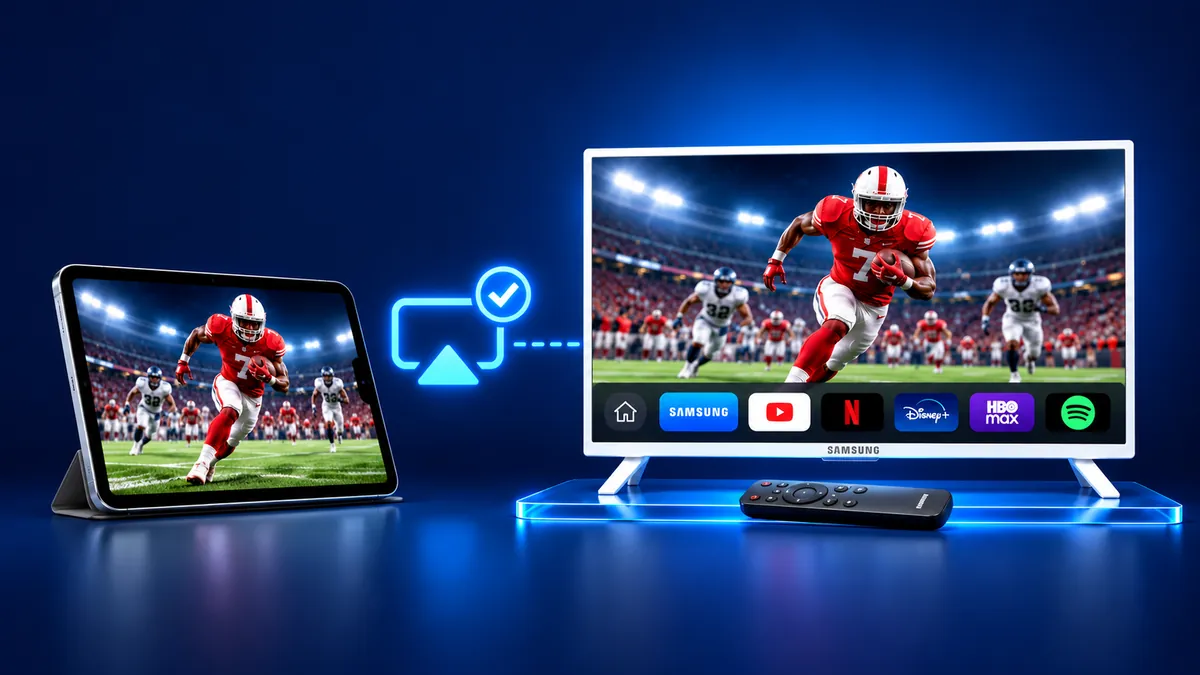
Yes, you can cast iPad to Samsung TV with AirPlay if the set is one of the select 2018 to 2025 models. Open Control Center, tap Screen Mirroring and pick the TV, with both on one Wi-Fi network. If the TV menu has no Apple AirPlay Settings, the Screen Mirroring · Smart TV app works on Samsung TVs instead.
Contents
Does a Samsung TV take AirPlay from an iPad?
Only some do. Samsung's AirPlay page covers select 2018 to 2025 models and gives no model list, so check the TV menu for Apple AirPlay Settings.
This route needs a supported set, a shared Wi-Fi network, the TV setting and Control Center. The TV may also ask for a code. A mobile hotspot breaks it, Samsung warns.
How to cast iPad to Samsung TV with AirPlay
Do these five steps in order to mirror iPad to Samsung TV. AirPlay has to be switched on in the TV menu first.
- On the TV, go to Settings (All Settings), then General, then Apple AirPlay Settings, and switch AirPlay on. On 2023 and newer sets, look under Connection instead of General. Samsung's page also gives 2022 to 2025 for Connection.
- Join the iPad to the TV's Wi-Fi network.
- On an iPad with iPadOS 13 or later, swipe down from the upper-right corner to open Control Center.
- Tap Screen Mirroring and pick the Samsung from the list.
- The TV may ask for a code the first time, so type it on the iPad. To stop, tap Screen Mirroring in Control Center again, then Stop Mirroring.
A shorter path: the app finds your TV on its own and remembers it. Our Samsung TV screen mirroring page covers the other ways to connect.
Why won't my iPad connect to my Samsung TV?
Try the app first: Screen Mirroring · Smart TV finds your TV on its own when both share a Wi-Fi network.
Still want AirPlay? It stops working when AirPlay is off on the TV, the devices sit on different networks, or the set has no AirPlay. Go down the list:
- AirPlay is switched off in Apple AirPlay Settings on the TV.
- The iPad or the TV is on a different network or a mobile hotspot.
- The TV is not one of Samsung's select models.
- Apple's checklist says to update both devices and restart them.
- Samsung lets you require a code the first time or every time.
- Reset Paired Devices in the same menu clears every iOS device the TV remembers.
How to connect iPad to Samsung TV without Apple AirPlay?
Use the app. It works on iPhone and iPad. Choose your Samsung once, and the app remembers your TV: next time is one tap, no codes.
Select the TV from the list and start mirroring. Free download on the App Store.
Still want a wire? Apple says to use a VGA, Digital AV, or HDMI adapter matching the iPad's connector: USB-C, Lightning or 30-pin. Some streaming apps need HDCP, and VGA carries no audio.
What to remember
- AirPlay reaches select Samsung models from 2018 to 2025; Samsung lists no models.
- Open Control Center, tap Screen Mirroring and pick your TV, with both on one Wi-Fi network.
- Sets without AirPlay take the app or an adapter.
Read next
More guides
- Why Netflix Won't Mirror or AirPlay From an iPhone
- Arcelik TV Screen Mirroring From an iPhone (2026)
- Vestel TV Screen Mirroring: iPhone and Android (2026)
- How to Mirror iPad to Roku TV: Steps and Models (2026)
- TV Not Showing Up on AirPlay? How to Fix It (2026)
- AirPlay Password: Where the TV Code Comes From (2026)
- How to Fix No Sound in Screen Mirroring (2026)
- Apple TV Screen Mirroring From iPhone (2026)
- Hisense TV AirPlay: How to AirPlay on Hisense TV (2026)
- TCL TV AirPlay: How to AirPlay to TCL TV (2026)
- How to AirPlay on Google TV: Which TVs Have It (2026)
- How to Cast to Chromecast From an iPhone (2026)
- What Is Screen Mirroring? How It Works on iPhone
- Apple AirPlay TV List: Which TVs Have AirPlay (2026)
- Vizio AirPlay: Mirror Your iPhone to a Vizio TV (2026)
- What Is AirPlay? How It Works on iPhone and TV (2026)
- Can You AirPlay to Firestick? Only Some Fire TVs (2026)
- LG TV AirPlay: Which Models Have It and How to Use It
- How to AirPlay on Roku: iPhone Steps and Models (2026)
- How to Turn Off AirPlay on iPhone, iPad, Mac and TV
