How to AirPlay on Roku
By  Vlad Karatai · Updated · 6 min read
Short answer
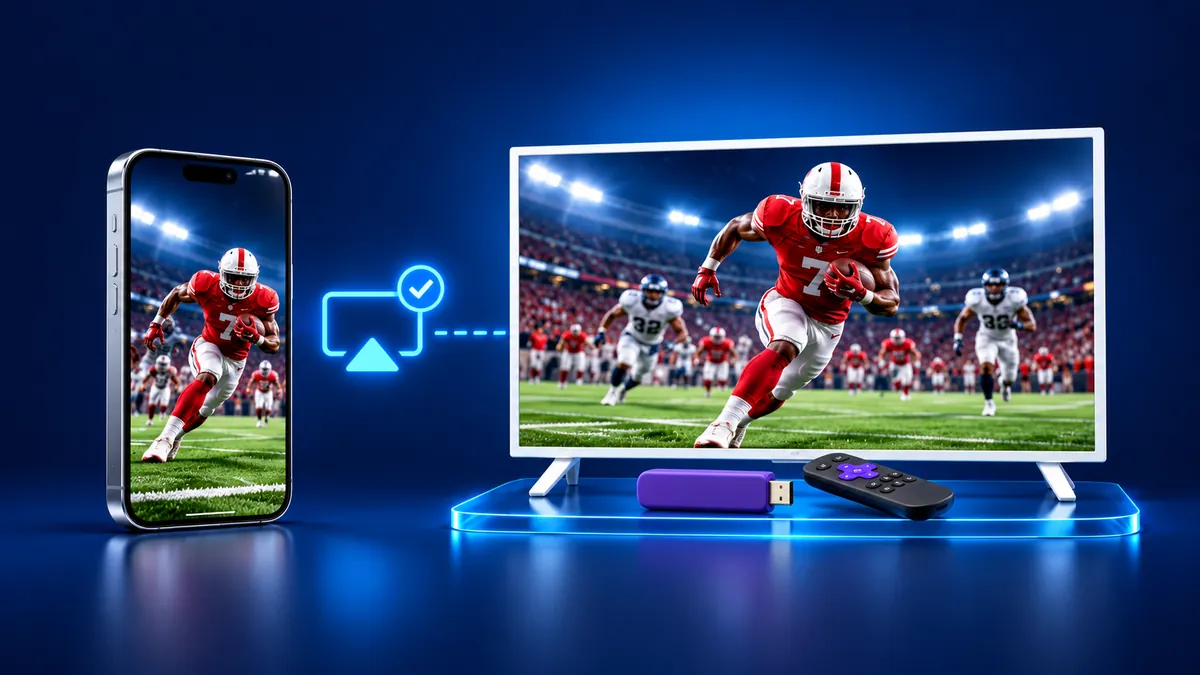
To AirPlay on Roku, set AirPlay to On in the Roku settings, then pick the Roku under Screen Mirroring in Control Center. Most listed models need Roku OS 9.4 or higher, a few need 10.0, and Roku Select and Plus Series TVs work on any version. No AirPlay on yours? The Screen Mirroring · Smart TV app supports Roku.
Will AirPlay work on your Roku?
Answer two quick questions and see the steps for your player.
What kind of Roku is it?
Contents
Does Roku have AirPlay?
Yes, on the Roku models Roku lists. Roku publishes two lists split by software version, plus one exception: Roku Select and Plus Series TVs support Apple AirPlay and HomeKit regardless of Roku OS version.
Can you AirPlay to a Roku TV or a Roku stick? The answer depends on the model number. The table below combines Roku's two lists. Model numbers come from the Roku support article.
| Roku model | AirPlay | Roku OS it needs |
|---|---|---|
| Roku TV models A####, C####, C##GB, 7#### | Yes | 9.4 or higher |
| Streambar 9102; Streambar Pro 9101R2; Smart Soundbar 9101; onn. Smart Soundbar 9100; Streaming Stick+ 3810/3811; Streaming Stick 4K 3820; Streaming Stick 4K+ 3821; Express 4K 3940; Express 4K+ 3941; Premiere 3920/4620; Premiere+ 3921/4630; Ultra 4600/4640/4660/4661/4670/4800/4802/4850; Ultra LT 4662/4801 | Yes | 9.4 or higher |
| Roku TV 5xxx, 6xxx; Roku Express 3700; Roku Express+ 3710; Roku 4 (440) | Yes | 10.0 or higher |
| Roku Select and Plus Series TVs | Yes | Any version |
| Express 3900/3930/3960; Streaming Stick 3400/3500/3600/3800; Roku 1/2/3; Roku LT | Not listed | None of Roku's lists |
How to set up AirPlay on Roku TV: what you need first
AirPlay on a Roku takes six things. The first is the model. Press Home on the Roku remote, then select Settings > System > About. That screen shows the Roku OS version and the device model.
- Use an iPhone, iPad, or iPod touch with iOS 12.3 or later, or a Mac with macOS Mojave 10.14.5 or later.
- Put the iPhone and the Roku on the same wireless network.
- Set AirPlay to On under Settings > Apple AirPlay and HomeKit.
- Turn on Fast TV start on a Roku TV, or Fast start on a Streambar. Roku says the device may not stay on your wireless network when powered off without it. The setting sits under Settings > System > Power.
- If a passcode appears on the TV screen, enter it on your iPhone.
How to AirPlay to Roku TV from your iPhone: mirror the screen
This path puts everything on your iPhone screen onto the Roku. The first two steps set up the Roku. The rest happen on the iPhone.
- On your Roku remote, press Home, then scroll and select Settings.
- Select Apple AirPlay and HomeKit, then make sure AirPlay is set to On.
- Connect your iPhone to the same Wi-Fi network as the Roku. On the Roku, Settings > Network > About shows its network.
- On your iPhone, open Control Center. On iPhone X or later, swipe down from the upper-right corner of the screen. On iPhone 8 or earlier, swipe up from the bottom edge.
- Tap the Screen Mirroring button.
- Select your Roku from the list.
- If an AirPlay passcode appears on your TV screen, enter the passcode on your iPhone.
- To stop, open Control Center, tap Screen Mirroring, then tap Stop Mirroring. Roku adds that pressing Home on the Roku remote ends streaming with AirPlay too.
How to use AirPlay on Roku TV for one video, song or photo
To send one video, song or photo instead of the whole screen, use the AirPlay button inside the app. AirPlay must be On and both devices on one network. Once playback begins, you can pause, fast forward and rewind from the iPhone or with the Roku remote.
- On your iPhone, find the video, song or photo you want to share.
- Tap the AirPlay button. In some apps, you might need to tap a different button first. In the Photos app, tap the Share button, then tap the AirPlay button.
- Choose your Roku from the list.
- To stop streaming, tap the AirPlay button in the app you are streaming from, then tap your iPhone in the list.
Apple notes that some video apps might not support AirPlay. To have the iPhone suggest the Roku next time, open Settings > General > AirPlay & Continuity, tap Automatically AirPlay, then choose Ask or Automatic. Apple says Ask gives suggested connections and Automatic connects on its own, for video from apps.
Why isn't AirPlay showing up on my Roku TV?
One option is the app: Screen Mirroring · Smart TV supports Roku, Fire TV, Chromecast, Samsung, LG and other major Smart TVs. It finds your TV on its own on the same Wi-Fi.
Still want AirPlay? The model and the Roku OS version come first. If the Roku is not in the table above, or runs older Roku OS than its row needs, Roku does not list AirPlay for it.
For a Roku that does not appear, Roku lists three checks. Do the Roku and the Apple device both support AirPlay 2? Are they on the same wireless network? Is AirPlay set to On under Settings > Apple AirPlay and HomeKit?
Sound and picture problems have their own guide: Roku AirPlay not working.
What to do if your Roku has no AirPlay
The Screen Mirroring · Smart TV setup takes three steps: connect your iPhone and the Roku to the same Wi-Fi network, select your Roku from the list of available devices, then start screen mirroring.
The app remembers the Roku after the first pick, so the next session is one tap. There are no codes. Sound plays on your TV speakers, and the app has no ads. It works on iPhone and iPad. Free download on the App Store.
Prefer AirPlay? Plug an Apple TV 4K into the TV. Apple says AirPlay to a TV needs an Apple TV 4K or an AirPlay 2-enabled smart TV.
A cable also works. Apple says an iPhone with a USB-C port connects to an HDMI display or TV with a USB-C to HDMI adapter or cable. The iPhone 16e and 17e do not output video over USB-C. A Lightning iPhone needs a Digital AV adapter with a Lightning connector.
What to remember
- Check the model and Roku OS under Settings > System > About: the table rows need 9.4 or 10.0, except Select and Plus Series TVs.
- Set AirPlay to On under Settings > Apple AirPlay and HomeKit, and use one Wi-Fi network for both devices.
- Roku lists none of the players in the last table row. Apple TV or an HDMI adapter covers them, as two separate routes. The app supports Roku.
Questions people ask
Can I mirror my iPhone to my Roku?
Yes, if the Roku is on Roku's AirPlay lists. On iPhone X or later, swipe down from the upper-right corner to open Control Center, tap Screen Mirroring and select the Roku. The iPhone needs iOS 12.3 or later, and both devices need the same Wi-Fi network.
Why won't AirPlay work with Roku?
The model and Roku OS version come first: Roku lists AirPlay only for the models and versions in the table above. If yours is listed, the network and the AirPlay setting come next. Our guide goes through each fix in order.
Read next
More guides
- Why Netflix Won't Mirror or AirPlay From an iPhone
- Arcelik TV Screen Mirroring From an iPhone (2026)
- How to AirPlay to Samsung TV: Steps and Menu (2026)
- Vestel TV Screen Mirroring: iPhone and Android (2026)
- TV Not Showing Up on AirPlay? How to Fix It (2026)
- AirPlay Password: Where the TV Code Comes From (2026)
- How to Fix No Sound in Screen Mirroring (2026)
- Apple TV Screen Mirroring From iPhone (2026)
- Hisense TV AirPlay: How to AirPlay on Hisense TV (2026)
- TCL TV AirPlay: How to AirPlay to TCL TV (2026)
- How to AirPlay on Google TV: Which TVs Have It (2026)
- How to Cast to Chromecast From an iPhone (2026)
- How to Cast iPad to Samsung TV (2026)
- How to Mirror iPad to TV: 3 Ways That Work (2026)
- AirPlay Not Working on Samsung TV: Fixes (2026)
- What Is Screen Mirroring? How It Works on iPhone
- Apple AirPlay TV List: Which TVs Have AirPlay (2026)
- Vizio AirPlay: Mirror Your iPhone to a Vizio TV (2026)
- How to Cast to Samsung TV: iPhone and Galaxy (2026)
- What Is AirPlay? How It Works on iPhone and TV (2026)
