How to Mirror iPad to TV
By  Vlad Karatai · Updated · 6 min read
Short answer
On iPadOS 13 or later, swipe down from the upper-right corner, tap Screen Mirroring and pick your TV. That needs an Apple TV 4K or a smart TV with AirPlay 2, usually on one Wi-Fi network. Without AirPlay, a cable works, and so does the Screen Mirroring · Smart TV app, which supports 12 platforms.
Which way fits your TV?
Pick what your TV has and get the matching route.
What does your TV have?
Contents
How to mirror iPad to TV: three ways
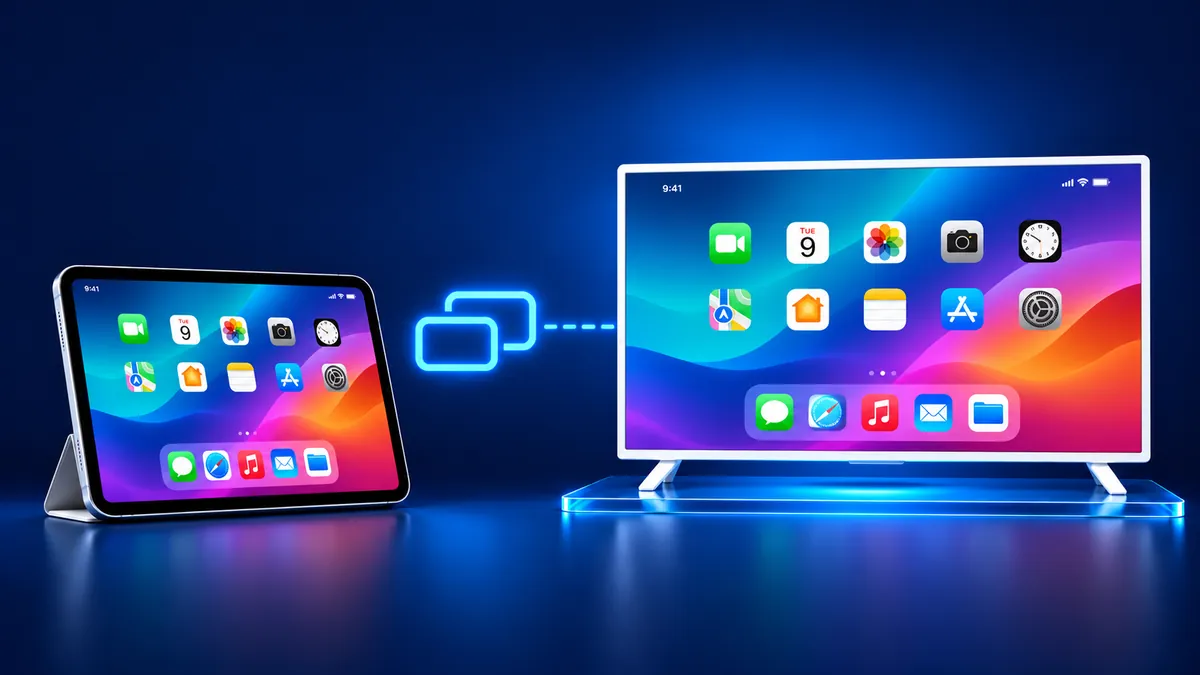
Three ways put an iPad on a TV: AirPlay, a cable and an app. The TV decides which one you get. For AirPlay, Apple's iPad guide says the TV must be an Apple TV 4K or an AirPlay 2-enabled smart TV.
Own a Samsung or a Roku? See the guides for Samsung and for Roku.
| Way | What the TV needs | What you get |
|---|---|---|
| AirPlay | An Apple TV 4K, or a smart TV with AirPlay 2 | The whole iPad screen, wirelessly |
| Cable | An HDMI port and an Apple adapter for your iPad | The iPad screen over a wire |
| App | A TV on your Wi-Fi, such as Roku, Fire TV, Chromecast, Samsung or LG | The iPad screen, one tap after the first time |
Where is the screen mirroring button on my iPad?
The Screen Mirroring button lives in Control Center. On an iPad with iPadOS 13 or later, you open Control Center by swiping down from the upper-right corner of the screen.
Apple's iPadOS 27 guide describes the same gesture as a swipe down from the top-right edge. The swipe up from the bottom edge belongs to iPhone 8 or earlier and iOS 11 or earlier, per Apple's AirPlay article.
Does Control Center refuse to open inside an app? Apple has a setting that blocks Control Center inside apps. Go to Settings, tap Control Center, and check the Access Within Apps switch.
How to screen mirror iPad to TV with AirPlay
AirPlay mirrors the whole iPad screen in six steps, once the TV is an Apple TV 4K or an AirPlay 2 smart TV.
AirPlay needs four things: a supported TV, one Wi-Fi network, Control Center, and sometimes a passcode the first time.
- Connect your iPad to the same Wi-Fi network as your Apple TV or AirPlay-compatible smart TV.
- Open Control Center. On an iPad with iPadOS 13 or later, swipe down from the upper-right corner of the screen.
- Tap the Screen Mirroring button.
- Select your TV from the list.
- If an AirPlay passcode appears on your TV screen, enter the passcode on your iPad.
- To stop, open Control Center, tap Screen Mirroring, then tap Stop Mirroring.
To send one video instead of the whole screen, tap the AirPlay button in a supported video app and choose the TV. Apple notes that some video apps might not support AirPlay.
No Wi-Fi at all? Apple TV HD (tvOS 9 or later) and Apple TV 4K (tvOS 11 or later) accept peer-to-peer AirPlay. The iPad must be from late 2012 or later and run the latest iPadOS.
How do I mirror my iPad to my TV without Apple TV?
Install Screen Mirroring · Smart TV on the iPad. It works on iPhone and iPad. It mirrors to Roku, Fire TV, Chromecast, Samsung, LG and other major Smart TVs, with no additional hardware.
Connect the iPad and the TV to the same Wi-Fi network. The app finds your TV on its own, and you pick it from the list once. After that the app remembers your TV, so mirroring is one tap. No codes to type. Sound plays on your TV speakers. The app has no ads. If your TV has Chromecast built-in, the app casts to it. Free download on the App Store.
Still want AirPlay? A smart TV can take it without an Apple TV, but only some do.
- Samsung offers AirPlay 2 on select models from 2018 to 2025, and it publishes no model list.
- LG's table runs from webOS 4.0 (2018) to webOS 24 (2024) and does not cover 2025 and 2026 sets.
- Roku lists AirPlay for models on Roku OS 9.4 or higher, and some on 10.0 or higher. Roku Select and Plus Series TVs have it regardless of Roku OS version.
- Fire TV Stick has no AirPlay, and Amazon lists iOS among the devices that don't support screen mirroring.
- Chromecast and Google TV Streamer have no AirPlay: Google's own docs offer Cast only.
How to connect iPad to TV with a cable
Plug an Apple adapter into the iPad's charging port, run an HDMI cable to the TV, and switch the TV to that input.
Which adapter you need depends on the iPad's connector, as Apple's iPad cable guide explains. A cable needs no Wi-Fi, so the TV's network does not matter.
Skip VGA if you want sound: Apple says a VGA adapter doesn't carry audio signals.
- A USB-C iPad takes a USB-C Display AV Adapter or a USB-C VGA Multi-port Adapter, plus an HDMI or VGA cable.
- An iPad with a Lightning connector takes a Lightning Digital AV Adapter or a Lightning to VGA Adapter, plus an HDMI or VGA cable.
- To charge the iPad while it is connected, use the extra port on the adapter.
- Movies and some streaming apps require HDCP. Without it, as with the Apple VGA Adapter, an alert asks for an HDCP-compatible device.
Why can't I screen mirror my iPad?
A TV with no AirPlay receiver will not appear in Screen Mirroring. The app finds it on its own over Wi-Fi.
Still want AirPlay? Work through Apple's checklist for a TV that does not show up.
For the full fix list, read our guide on AirPlay not working. If the picture drops, see the screen mirroring troubleshooting guide.
- Turn on both devices and keep them near each other.
- Update both to the latest software and join the same Wi-Fi network.
- Restart the iPad and the TV.
- If you use a VPN on the iPad, make sure it doesn't block local networking.
- Switch AirPlay on in the TV's own menu. Samsung keeps it under Apple AirPlay Settings.
- Don't use a mobile hotspot as the TV's internet. Samsung says AirPlay will not work on one.
What to remember
- The Screen Mirroring button sits in Control Center on an iPad with iPadOS 13 or later.
- AirPlay needs an Apple TV 4K or an AirPlay 2 smart TV, and usually one Wi-Fi network.
- A cable needs the adapter that matches the iPad's USB-C or Lightning connector.
Questions people ask
How do I cast my iPad to my TV?
Open Control Center, tap Screen Mirroring and pick your TV. That works with an Apple TV or an AirPlay 2 smart TV on the same Wi-Fi network. Without AirPlay, use a cable with an Apple adapter, or the app.
How do I connect my iPad to my TV wirelessly?
Wireless means AirPlay or an app. AirPlay needs an Apple TV 4K or an AirPlay 2-enabled smart TV on the same Wi-Fi network. Without one, install the app and pick your TV once. The app remembers it, so next time is one tap.
How do I connect my iPad to a smart TV?
If you don't know the model, the app finds the TV on its own over Wi-Fi. For AirPlay, check the TV first: Samsung says select 2018 to 2025 models have AirPlay 2, and LG's table runs from webOS 4.0 to webOS 24. Then mirror from Control Center.
Read next
More guides
- Why Netflix Won't Mirror or AirPlay From an iPhone
- Arcelik TV Screen Mirroring From an iPhone (2026)
- How to AirPlay to Samsung TV: Steps and Menu (2026)
- Vestel TV Screen Mirroring: iPhone and Android (2026)
- TV Not Showing Up on AirPlay? How to Fix It (2026)
- AirPlay Password: Where the TV Code Comes From (2026)
- How to Fix No Sound in Screen Mirroring (2026)
- Apple TV Screen Mirroring From iPhone (2026)
- Hisense TV AirPlay: How to AirPlay on Hisense TV (2026)
- TCL TV AirPlay: How to AirPlay to TCL TV (2026)
- How to AirPlay on Google TV: Which TVs Have It (2026)
- How to Cast to Chromecast From an iPhone (2026)
- AirPlay Not Working on Samsung TV: Fixes (2026)
- What Is Screen Mirroring? How It Works on iPhone
- Apple AirPlay TV List: Which TVs Have AirPlay (2026)
- Vizio AirPlay: Mirror Your iPhone to a Vizio TV (2026)
- How to Cast to Samsung TV: iPhone and Galaxy (2026)
- What Is AirPlay? How It Works on iPhone and TV (2026)
- Can You AirPlay to Firestick? Only Some Fire TVs (2026)
- LG TV AirPlay: Which Models Have It and How to Use It
