How to Screen Mirror on Philips TV in One Tap
You pick your Philips Roku TV from a list in our app the first time. After that the app remembers your TV, so mirroring takes one tap, with no codes to type. Your iPhone needs iOS 15.0 or later and the same Wi-Fi network as the TV. The TV's built-in AirPlay needs at least Roku OS 9.4.
 4.61
4.61How to cast to Philips TV from your iPhone
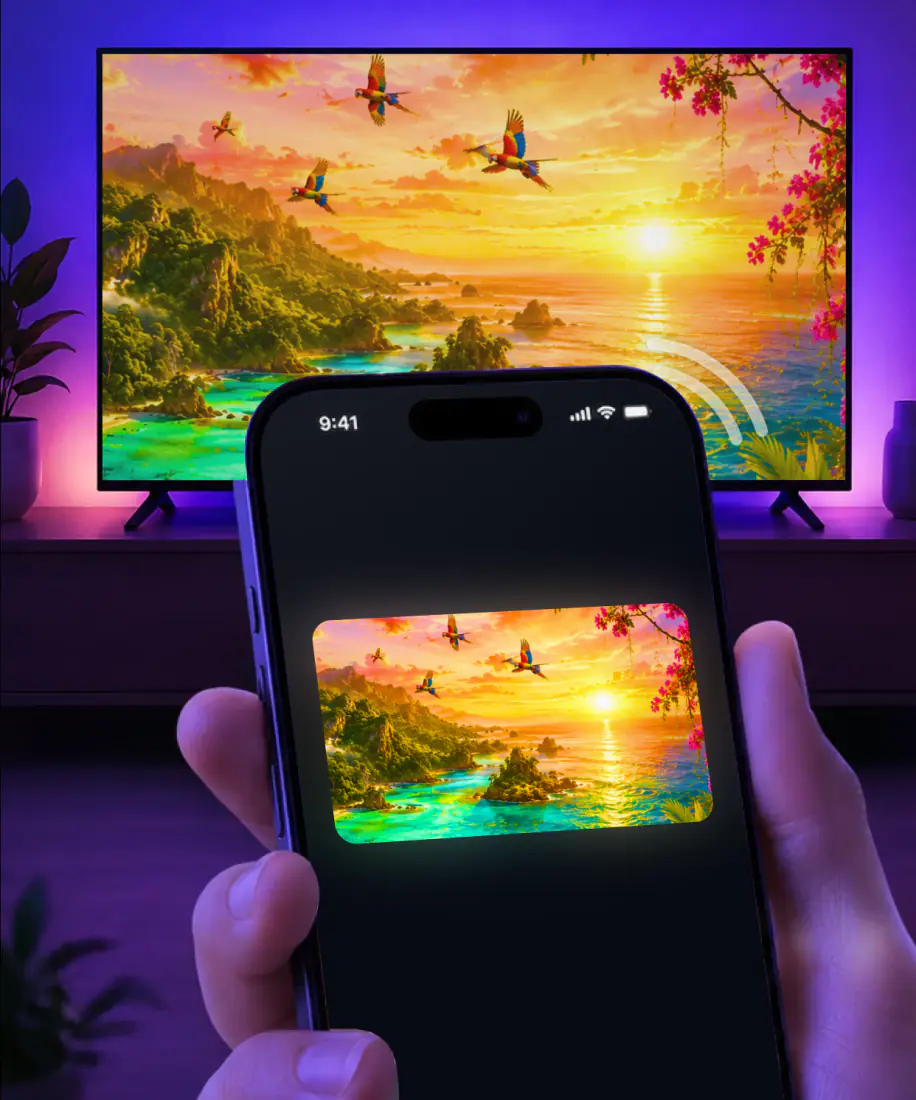
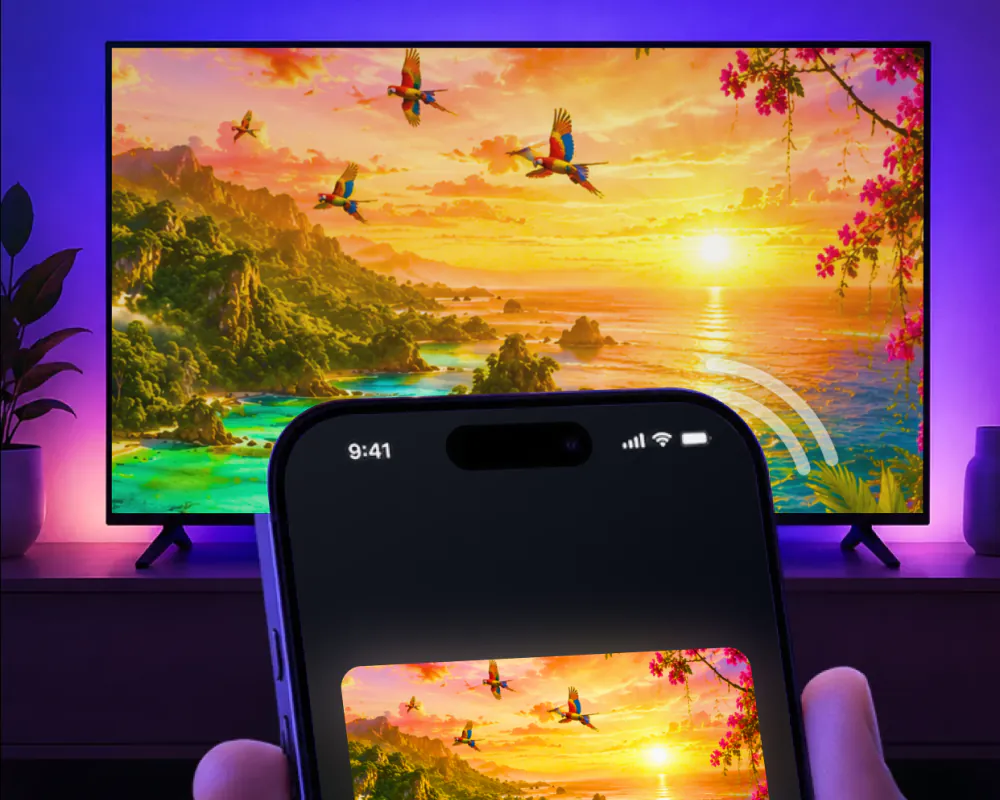
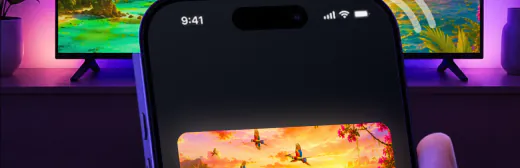
Screen Mirroring · Smart TV mirrors your iPhone screen to your TV in real time. Roku is one of the platforms it supports, and a Philips Roku TV runs Roku OS. No cables or additional hardware are needed.
You choose the TV only the first time. From then on the app remembers your TV, so mirroring starts with one tap, and there are no codes to type. The first time takes three steps:
Start mirroringPhilips TV AirPlay: which models have it
Philips Roku TV has AirPlay built in and appears on Apple's own list of AirPlay TVs. It follows Roku's rules for software and models, so AirPlay needs Roku OS 9.4 or higher on some models and Roku OS 10.0 or higher on others. Our guide on how to screen mirror on Roku has the model-by-model details.
Beyond the Roku OS version, AirPlay has a few conditions:
- It needs a receiver on the TV side. Apple asks for an Apple TV 4K or an AirPlay 2-enabled smart TV.
- Like the app, it needs the iPhone and the TV on the same Wi-Fi network.
- The first time you connect, the TV may show a passcode that you type on the iPhone.
- Some video apps might not support AirPlay.
AirPlay or the app on a Philips Roku TV
Both routes put your iPhone on the Philips. Here is where they differ.
| On a Philips Roku TV | Built-in AirPlay | Screen Mirroring · Smart TV |
|---|---|---|
| Support | Philips Roku TV is on Apple's list of AirPlay TVs | The app supports Roku |
| Software | AirPlay needs Roku OS 9.4 or higher, or 10.0 or higher on some models | The app needs iOS 15.0 or later on the iPhone |
| First connection | The TV may show an AirPlay passcode to type on the iPhone | In the app you pick the TV from a list, with no codes to type |
| Next time | For video from apps you use often, the iPhone can suggest the TV or connect to it on its own | The app remembers your TV, so it takes one tap |
| What reaches the TV | AirPlay sends video from apps that support it, your photos, or your whole screen | The app sends your whole screen in real time, photos and videos from your gallery, web video, YouTube and IPTV |
What you can put on the Philips
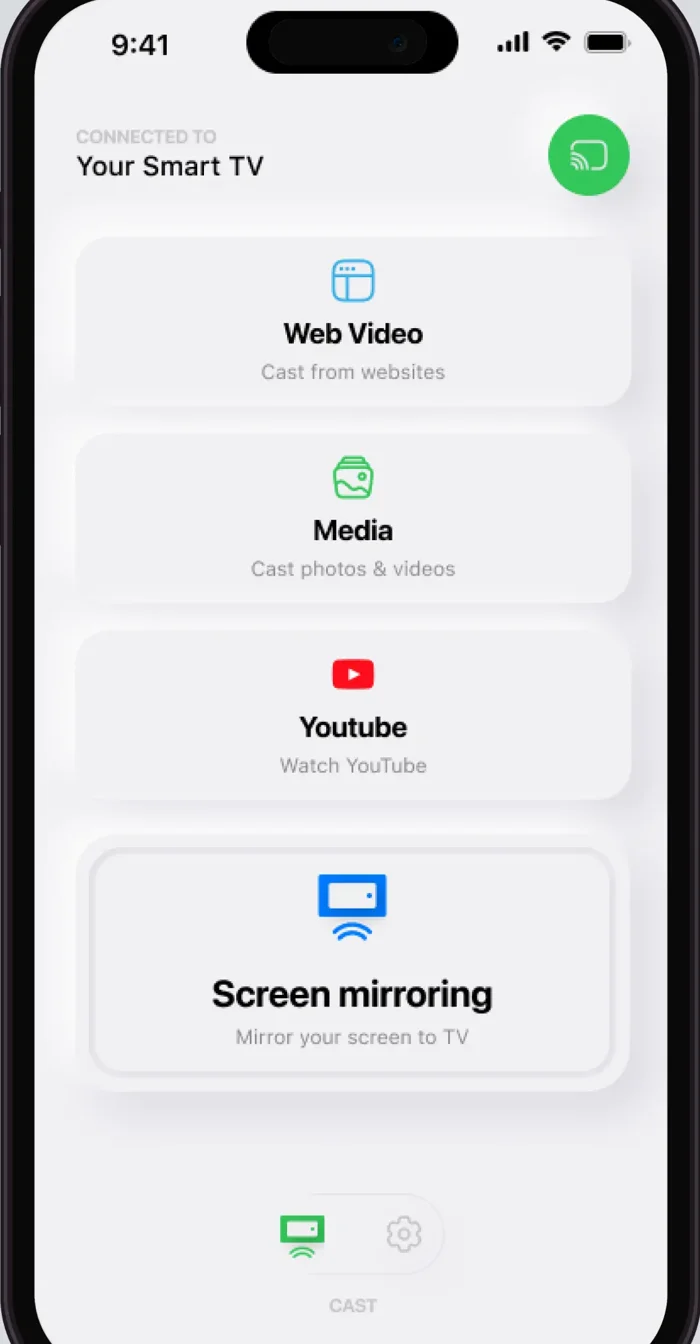
Once the app is connected, this is what it can send to the TV, plus the two cases it can't cover. To stop a photo or video you sent from the app, tap the stop button in the app.
Your iPhone screen
Yes. Mirrored in real time, so apps, games and presentations show on the big screen.
Photos and videos from your gallery
Yes. Cast them from the app straight to the TV.
Instagram, TikTok and YouTube
Yes. Stream videos from these apps and more.
Video from websites
Yes. Cast online videos directly from the web.
IPTV
Yes. Watch it in the app's built-in IPTV player.
Video calls
Yes. Put the call on the TV so everyone can see it better.
A TV on another Wi-Fi network
No. The app needs the iPhone and the TV on the same network.
An iPhone on iOS 14
No. The app requires iOS 15.0 or later.
If the Philips doesn't show up
Start with three quick checks. The cards after them lead to our longer guides.
Same network. Check that your iPhone and the Philips are on the same Wi-Fi network.

VPN or proxy. For best performance, turn it off on your iPhone before connecting.

iOS version. The app requires iOS 15.0 or later.

AirPlay not working on your Philips? That guide walks through what to check.
Screen mirroring not working on other TVs too? Start with the checks in that guide.
Another TV in the house? Our main guide, How to Connect iPhone to TV, covers the other brands.
What the app costs and what it needs
Subscriptions are billed by Apple inside the app, on a yearly or a weekly plan. You can cancel in Settings on your iPhone. With Family Sharing turned on, some in-app purchases and subscriptions may be shareable with your family group.
The app works on iPhone and iPad, on iOS 15.0 or later. It comes from AQUIN VENTURES LTD and has been on the App Store since November 2023. Version 1.5, released on August 26, 2026, made the TV connection faster and mirroring smoother, with less delay and fewer interruptions.
| Plan | Price |
|---|---|
| Yearly | $39.99 a year, which works out to $0.77 a week or about $0.11 a day |
| Weekly | $9.99 a week |
FAQ
Philips Roku TV does. It is on Apple's own list of AirPlay TVs and follows Roku's rules, so AirPlay depends on the model and its Roku OS version, starting with 9.4. Screen Mirroring · Smart TV gives you a second route: it supports Roku and mirrors your iPhone screen to the TV in real time.
Yes. Screen Mirroring · Smart TV supports Roku, so it works with a Philips Roku TV. Put the iPhone and the TV on the same Wi-Fi network and pick the TV from the list the first time. The app remembers your TV, so after that it is one tap, with no codes to type.
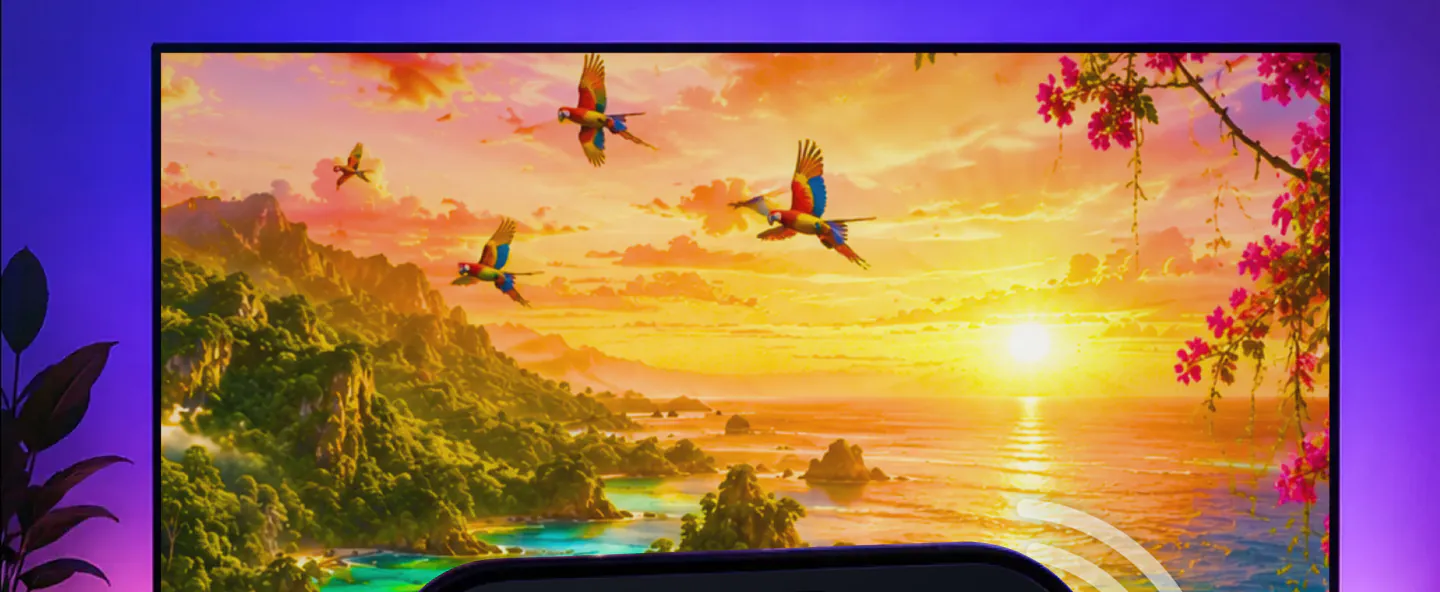
Your Philips, one tap away
Pick your Philips Roku TV from the list the first time. The app remembers it after that, and there are no codes to type.
Subscription is billed by Apple inside the app. 4.61★ from 7,860 ratings.