Apple TV Screen Mirroring From iPhone
By  Vlad Karatai · Updated · 4 min read
Short answer
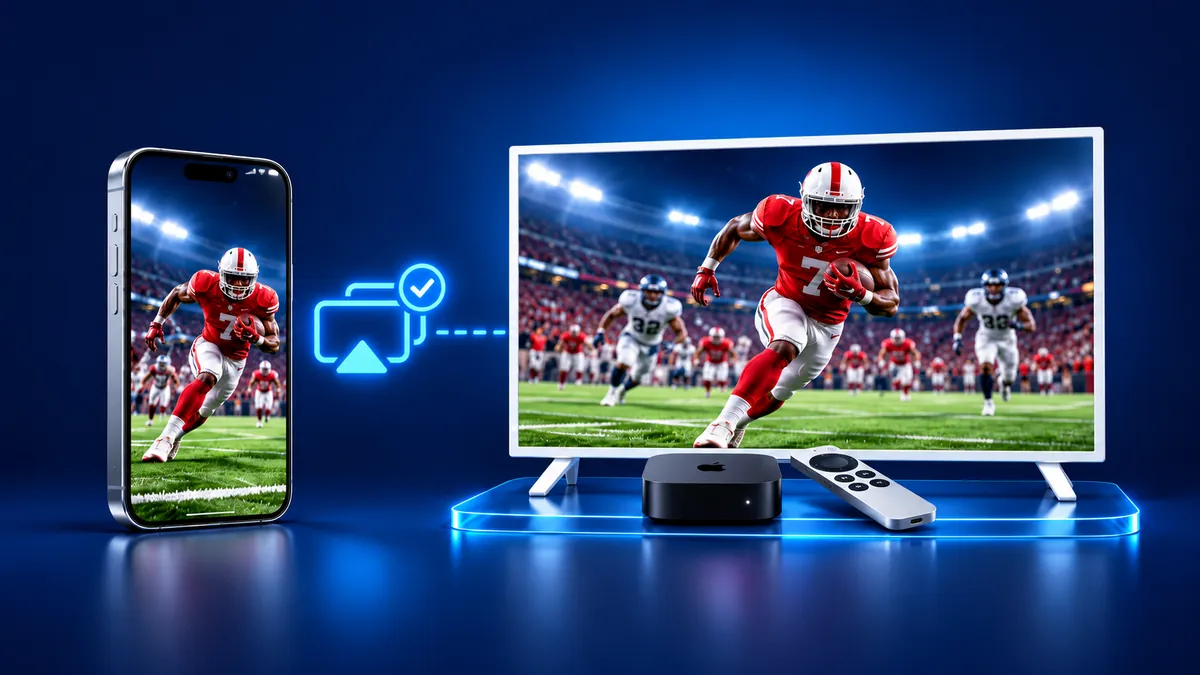
Open Control Center on your iPhone, tap Screen Mirroring, and choose your Apple TV from the list. The iPhone and the Apple TV 4K or Apple TV HD need one Wi-Fi network. The TV may ask for a code the first time. For a TV with no AirPlay, our app mirrors in one tap on iOS 15.0 or later.
Contents
How to mirror iPhone to Apple TV
Apple TV screen mirroring runs from Control Center on the iPhone, and Apple's guide gives five steps.
- Connect your iPhone to the same Wi-Fi network as your Apple TV.
- Open Control Center. On iPhone X or later, swipe down from the upper-right corner of the screen. On iPhone 8 or earlier, swipe up from the bottom edge.
- Tap the Screen Mirroring button.
- Select your Apple TV from the list.
- If an AirPlay passcode appears on the TV screen, enter it on your iPhone.
To stop, open Control Center, tap Screen Mirroring, then tap Stop Mirroring. You can also press the Menu button on your Apple TV Remote.
You need three things: an Apple TV 4K or Apple TV HD, one Wi-Fi network for both devices, and Control Center on your iPhone.
Apple TV AirPlay settings in tvOS 27
On the Apple TV, go to Settings, then AirPlay and Apple Home. A November 2025 Apple article still calls this menu AirPlay and HomeKit. The tvOS 27 guide covers each option.
The steps above use one Wi-Fi network. Apple's deployment guide also describes peer-to-peer AirPlay, which can work with no shared network. It lists an Apple TV HD on tvOS 9 or later and an Apple TV 4K on tvOS 11 or later. Ideally, keep the iPhone within 25 to 30 feet of the Apple TV. Allow Access set to Everyone lets peer-to-peer connections in.
- The AirPlay setting turns AirPlay on or off for this Apple TV 4K.
- Allow Access offers Everyone, Anyone on the Same Network, Only People Sharing This Home, and Require Password.
- Peer-to-Peer Wireless can be turned off to save energy.
Is there a difference between Apple AirPlay and screen mirroring?
Yes. AirPlay sends one video or photo to the TV, and screen mirroring shows everything on the iPhone.
| Method | How you start it | What the TV shows |
|---|---|---|
| AirPlay a video | Tap AirPlay in the video app | It plays that video. |
| AirPlay a photo | Tap Share, then AirPlay, in Photos | It shows that photo. |
| Screen Mirroring | Tap Screen Mirroring in Control Center | It shows your whole iPhone screen. |
Why won't my Apple TV show up for screen mirroring?
Apple's checklist starts with power, software and the network. Turn on both devices, keep them close and update them. Join one Wi-Fi network, then restart both devices.
Next, open the AirPlay and Apple Home menu in Settings on the Apple TV. Make sure AirPlay is on and check Allow Access, since Only People Sharing This Home leaves out anyone not added in the Home app. Our guide to the AirPlay password explains the code.
AirPlay without Apple TV
A smart TV with AirPlay 2 needs no Apple TV box. Our list of AirPlay-compatible TVs goes further.
| TV | AirPlay | The maker's wording |
|---|---|---|
| Samsung | Some models | "select Samsung TV models (2018 - 2025)" |
| LG | Some models | Listed series, from webOS 4.0 (2018) to webOS 24 (2024). |
| VIZIO | Yes, per VIZIO | "new and existing SmartCast TVs dating back to 2016" |
| Fire TV Stick | No | Amazon: "don't support screen mirroring: iOS and macOS" |
Mirroring to a TV that has no AirPlay
To mirror your iPhone to a TV without an Apple TV, install Screen Mirroring · Smart TV. The app finds your TV on its own when both share a Wi-Fi network. You pick the TV once, the app remembers your TV, and after that it is one tap, with no codes.
It supports 12 platforms: Samsung, LG, Sony, TCL, Hisense, VIZIO, Philips, Roku, Fire TV, Chromecast, Android TV and Apple TV. If your TV has Chromecast built-in, the app casts to it. Free download on the App Store.
Still want AirPlay? Add an Apple TV 4K as the receiver. A cable also works from iPhone 15 and later, except the iPhone 16e and 17e, as Apple explains.
What to remember
- Apple TV screen mirroring is Control Center, Screen Mirroring, then your Apple TV.
- The Allow Access setting under AirPlay and Apple Home decides who can connect.
- A TV with no AirPlay can use the app instead.
Questions people ask
Why can't I AirPlay to Apple TV anymore?
Check the AirPlay and Allow Access settings under AirPlay and Apple Home on the Apple TV. A different Wi-Fi network can block the connection. Then update both devices and restart them.
How do I cast to an Apple TV from my iPhone?
To send video to an Apple TV, use AirPlay. In a video app, tap the AirPlay button. For the whole screen, use Screen Mirroring in Control Center.
Can I mirror my iPhone to a TV that is not a smart TV?
Yes. Apple says a USB-C to HDMI adapter or cable connects an iPhone to a TV, on models that support it. Or add an Apple TV 4K as the AirPlay receiver.
Read next
More guides
- Why Netflix Won't Mirror or AirPlay From an iPhone
- Arcelik TV Screen Mirroring From an iPhone (2026)
- How to AirPlay to Samsung TV: Steps and Menu (2026)
- Vestel TV Screen Mirroring: iPhone and Android (2026)
- How to Mirror iPad to Roku TV: Steps and Models (2026)
- TV Not Showing Up on AirPlay? How to Fix It (2026)
- How to Fix No Sound in Screen Mirroring (2026)
- Hisense TV AirPlay: How to AirPlay on Hisense TV (2026)
- TCL TV AirPlay: How to AirPlay to TCL TV (2026)
- How to AirPlay on Google TV: Which TVs Have It (2026)
- How to Cast to Chromecast From an iPhone (2026)
- How to Cast iPad to Samsung TV (2026)
- How to Mirror iPad to TV: 3 Ways That Work (2026)
- AirPlay Not Working on Samsung TV: Fixes (2026)
- What Is Screen Mirroring? How It Works on iPhone
- Vizio AirPlay: Mirror Your iPhone to a Vizio TV (2026)
- How to Cast to Samsung TV: iPhone and Galaxy (2026)
- Can You AirPlay to Firestick? Only Some Fire TVs (2026)
- LG TV AirPlay: Which Models Have It and How to Use It
- How to AirPlay on Roku: iPhone Steps and Models (2026)
