1
Join the same Wi-Fi
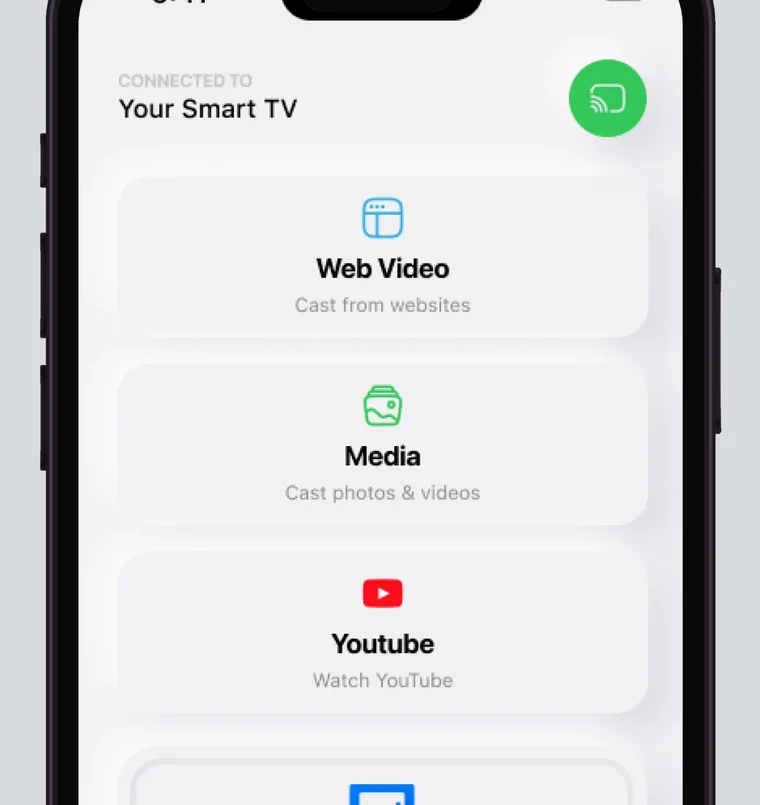
Connect your iPhone and your Roku to the same Wi-Fi network, then open the app.
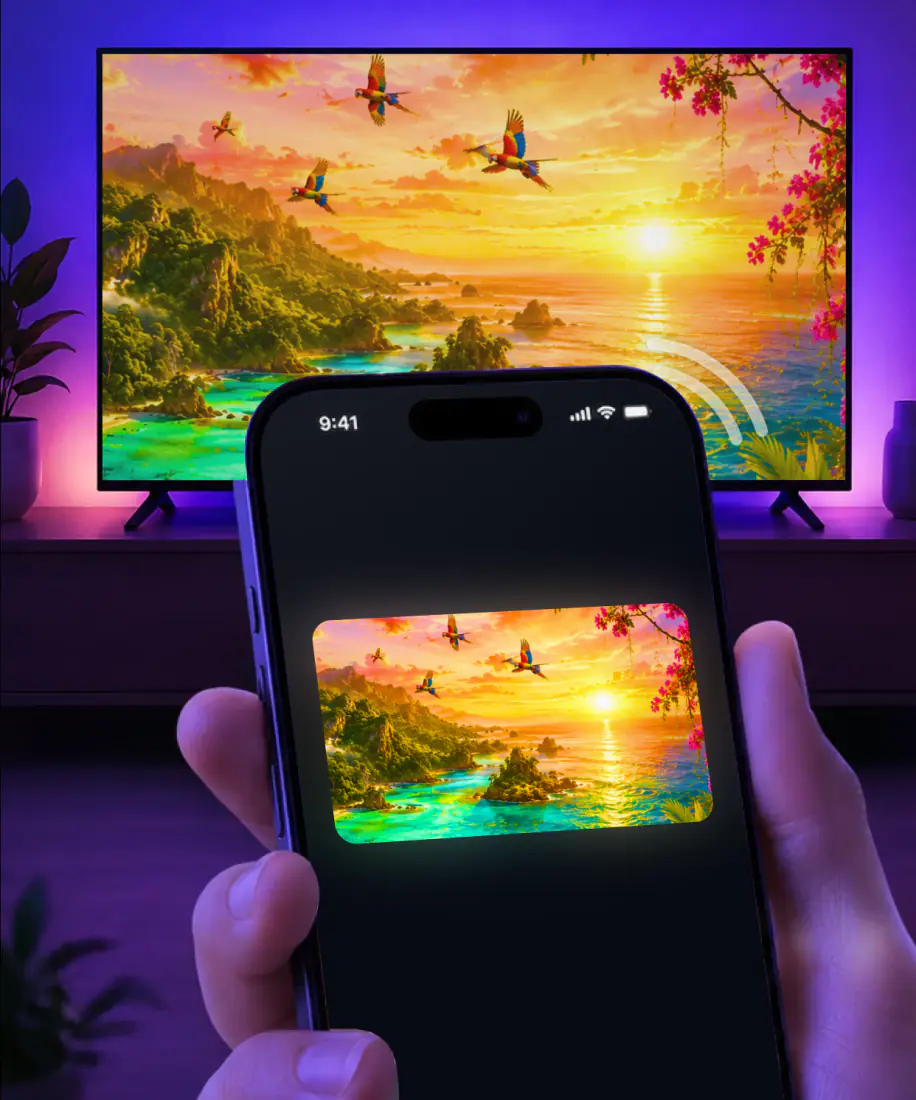
Put your iPhone and Roku on the same Wi-Fi, open the app and pick the Roku from the list. Screen Mirroring: Smart TV mirrors your screen in real time and remembers your TV, so next time is one tap with no codes to type. Built-in AirPlay depends on the Roku model, and many models need Roku OS 9.4 or 10.0.
 4.61
4.61Screen Mirroring · Smart TV takes three steps the first time you use it with your Roku. After that the app remembers your TV, so mirroring is one tap.
3seconds, typical
Connect your iPhone and your Roku to the same Wi-Fi network, then open the app.
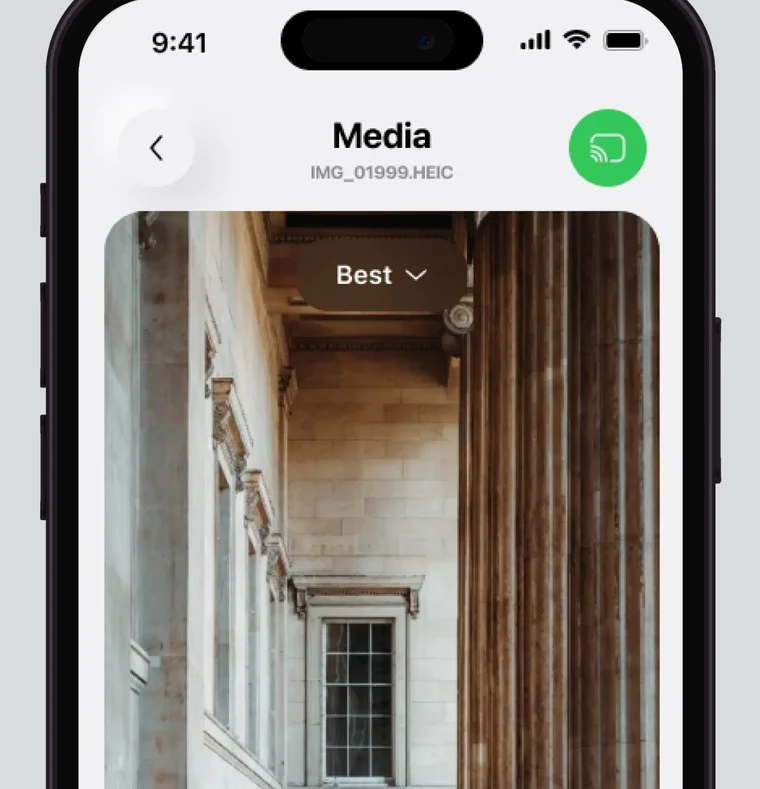
Select it from the list of available devices. The app remembers it for next time.
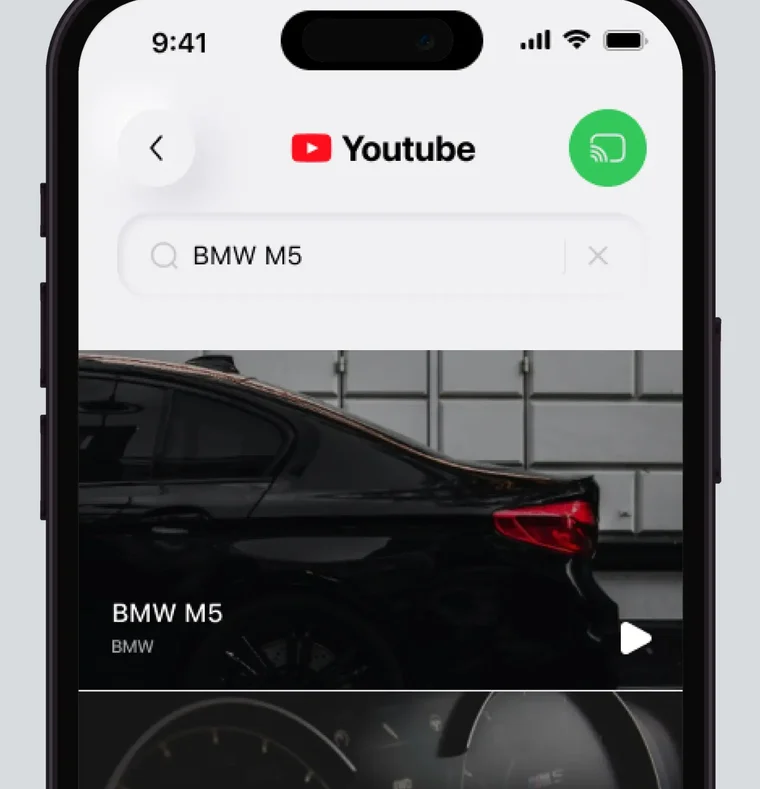
Your iPhone screen shows up on the TV in real time, with no codes to type. Next time, it's one tap.
For iPhone with iOS 15.0 or later. Free download; the subscription is billed by Apple inside the app.
AirPlay needs a receiver on the TV side. Roku builds one into many of its TVs and players and publishes which ones: some need Roku OS 9.4 or later, others need 10.0 or later, and Roku Select and Plus Series TVs support it on any Roku OS version.
On a Roku that has it, AirPlay can stream a video, share your photos or mirror your whole screen. It has to be set to On in the Roku settings, and your iPhone and Roku need to be on the same network. On the iPhone side, Apple's screen mirroring lives in Control Center.
Some older players, such as the Roku 1, 2 and 3 and the Roku LT, are missing from both of the AirPlay tables Roku publishes. The last row of the table lists them all.
| Roku model | AirPlay | Roku OS |
|---|---|---|
| Roku TV models numbered A####, C####, C##GB or 7#### | Yes | 9.4 or later |
| Roku TV models numbered 5xxx or 6xxx | Yes | 10.0 or later |
| Roku Select and Plus Series TVs | Yes | Any version |
| Streaming Stick+ 3810 and 3811, Streaming Stick 4K 3820, Streaming Stick 4K+ 3821 | Yes | 9.4 or later |
| Express 4K 3940, Express 4K+ 3941 | Yes | 9.4 or later |
| Premiere 3920 and 4620, Premiere+ 3921 and 4630 | Yes | 9.4 or later |
| Ultra 4600, 4640, 4660, 4661, 4670, 4800, 4802 and 4850; Ultra LT 4662 and 4801 | Yes | 9.4 or later |
| Streambar 9102, Streambar Pro 9101R2, Smart Soundbar 9101, onn. Smart Soundbar 9100 | Yes | 9.4 or later |
| Express 3700, Express+ 3710, Roku 4 (440) | Yes | 10.0 or later |
| Express 3900, 3930 and 3960; Streaming Stick 3400, 3500, 3600 and 3800; Roku 1, 2 and 3; Roku LT | Not in Roku's tables | Not listed |
Sources: Roku support, model list checked September 9, 2026, and Apple Support.
On the Roku models marked Yes above, AirPlay is built in. Here is what the app does differently.
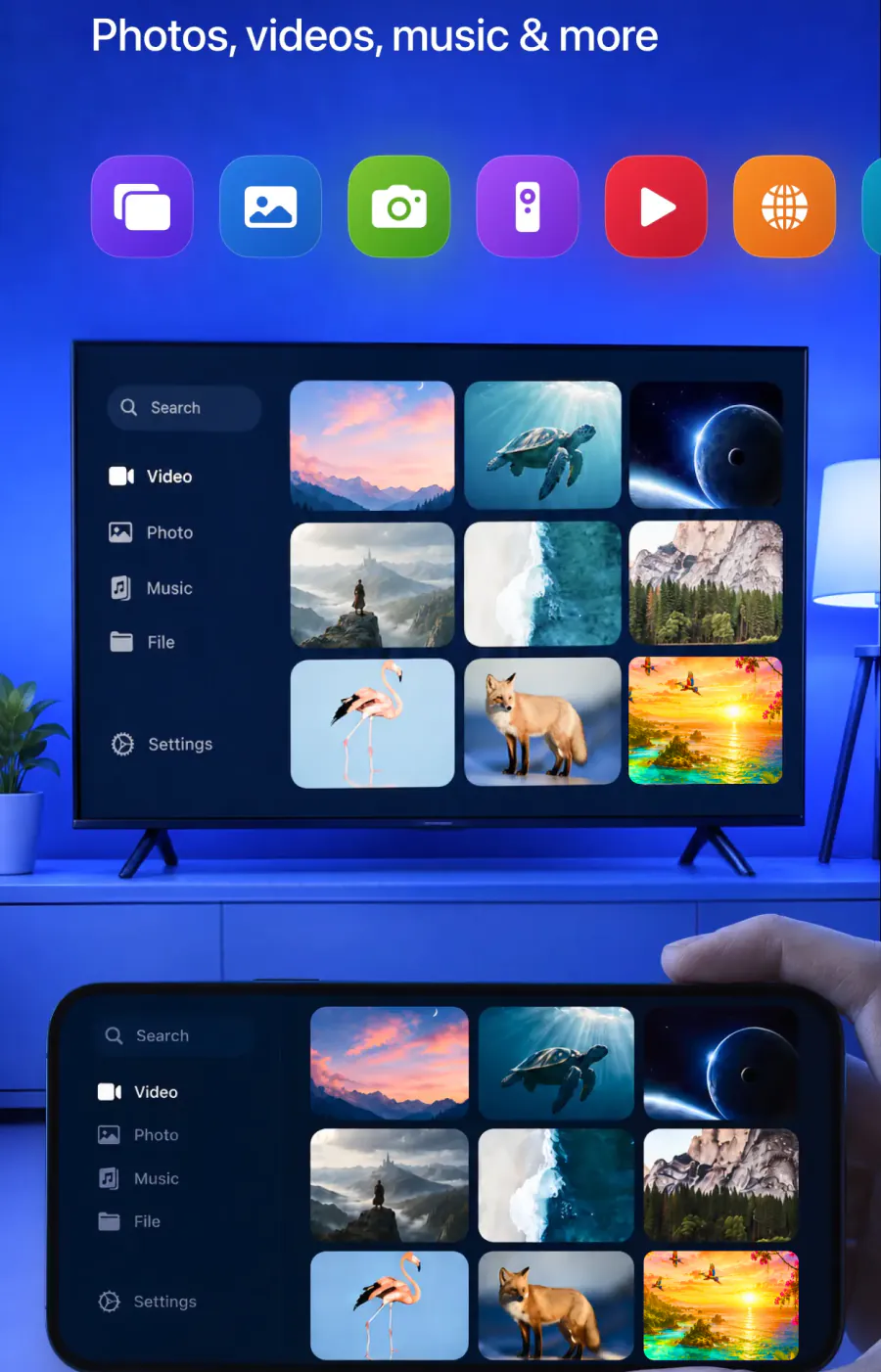
With AirPlay, the TV may show a code the first time you connect, and you type it on your iPhone. The app has no codes to type.
The app remembers your Roku. After you pick it from the list once, mirroring again takes one tap.
Getting started is simple, with no cables, no complicated setup and no extra hardware.
The same app supports Fire TV, Chromecast, Samsung, LG and other major smart TVs, and it works with AirPlay and popular streaming devices.
Some video apps might not support AirPlay. The app streams videos from apps like Instagram, TikTok and YouTube and casts online videos straight from the web.
Video streams in high quality with minimal lag over a stable wireless connection.
Mirroring puts your iPhone screen on the TV. The app can also cast photos, videos and online video directly.
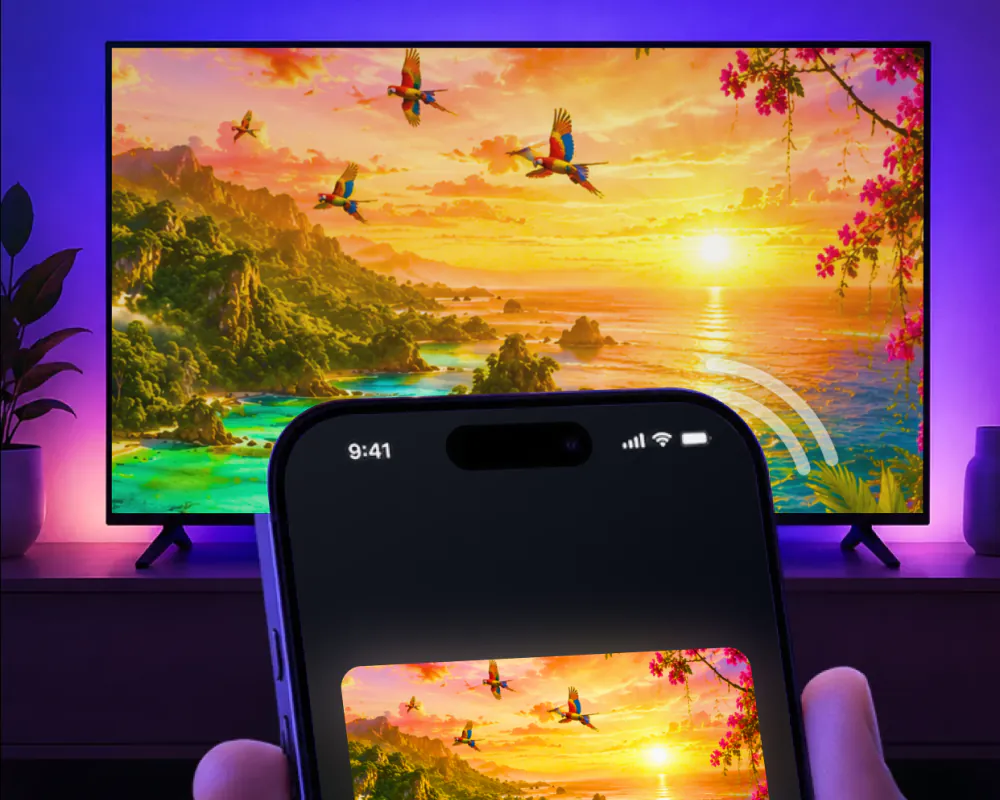
Yes. Mirrored to the TV in real time.
Yes. Cast straight to the big screen.
Yes. Streamed in high quality with minimal lag.
Yes. Cast directly from the web.
Yes. Played in the built-in IPTV player.
Yes. Played on the TV for a bigger view.
Yes. Shown on the TV so everyone can see them.
No. The app requires iOS 15.0 or later.
Start with the checks below. For more, see the guides screen mirroring not working and AirPlay not working.
Want to screen mirror without Wi-Fi? The app needs a Wi-Fi network, so that guide covers the options that don't need one.
The Roku isn't in the list. Check that your iPhone and Roku are on the same Wi-Fi network.

Mirroring stutters or drops. Turn off any VPN or proxy before connecting, and keep the app updated. Version 1.5, released August 26, 2026, brought a faster TV connection, smoother mirroring and better streaming stability.

AirPlay won't connect to the Roku. See Roku AirPlay not working for the fixes on the Roku side.

You want to stop showing your screen. Stop the broadcast on your iPhone. If you sent a photo or video from the app, tap the stop button in the app.
Roku TV is also built into sets from other brands. TCL, Hisense, Philips and Sharp all sell Roku TV models, and because the app supports Roku, the steps above work the same way on them.
AirPlay on those sets depends on the brand. Philips and Sharp Roku TVs, Sharp's 2023 OLED models included, follow Roku's own model rules from the table above. TCL has AirPlay on select TCL Roku TVs, and with Fast TV Start off, a TCL Roku TV drops off the network when it's powered off, so AirPlay can't wake it. Hisense sells TVs on VIDAA, Google TV, Roku TV and Fire TV, so AirPlay depends on the system yours runs.
Each brand has its own guide: TCL screen mirroring, Hisense screen mirroring, Sharp TV screen mirroring and screen mirror on Philips TV.
Insignia is different: it sells Fire TV models, which the app supports too. Want to screen mirror on Insignia TV? That guide has the details. For other brands, start with our main guide, Connect iPhone to TV.
Yes. With Screen Mirroring · Smart TV on your iPhone, put the iPhone and Roku on the same Wi-Fi network and select the Roku from the list of available devices. The app mirrors your screen in real time and also casts photos and videos from your gallery. It remembers your Roku, so next time is one tap.
That depends on what you want on the TV. Screen Mirroring · Smart TV mirrors your iPhone screen to a Roku in real time, casts photos and videos from your gallery, streams videos from apps like YouTube and TikTok and has a built-in IPTV player. It remembers your Roku, has no codes to type and requires iOS 15.0 or later.
Screen Mirroring · Smart TV works on iPhone and iPad. Put your iPad and Roku on the same Wi-Fi network, open the app, and select the Roku from the list. Start mirroring, and your iPad screen shows up on the TV in real time. The app remembers your Roku, so next time is one tap, with no codes to type.
Put your iPhone on the Roku
Pick your Roku once and the app remembers it. No codes to type and no extra hardware.
Subscription is billed by Apple inside the app. 4.61★ from 7,860 ratings.