Screen Mirroring Not Working? Check the Phone, the TV and the Network
Most of the time this comes down to one of three things: the phone and the TV on different Wi-Fi networks, a restart that's overdue, or a TV with no receiver for the iPhone's native mirroring. Samsung lists that receiver on select models from 2018 to 2025, LG's own table stops at 2024, and Fire TV Sticks have none.
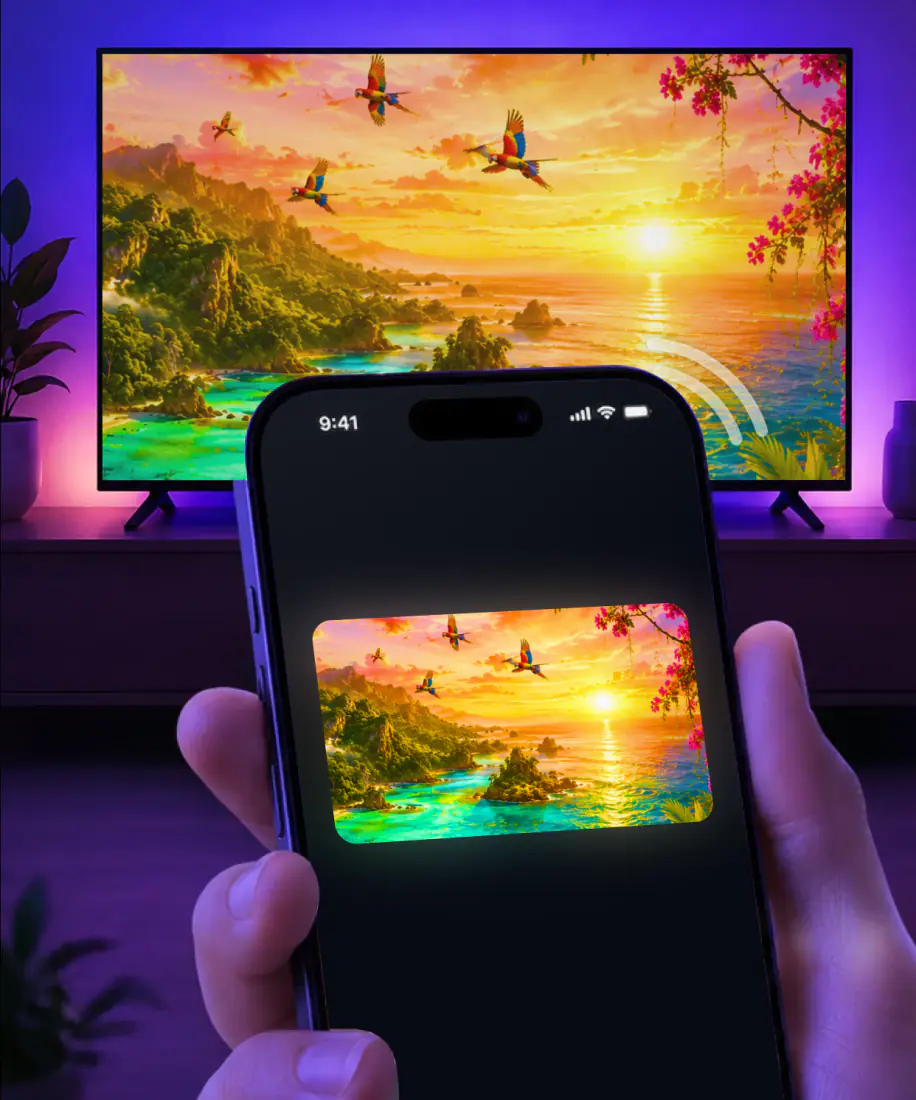
Start with three quick checks
An iPhone gets to a TV wirelessly one of two ways: Apple's AirPlay, when the TV has a receiver built in, or an app made for the job. Both depend on the same handful of basics, so it's worth ruling those out before you go brand-hunting for whether your particular set was ever built with a receiver at all.
- Both devices are switched on and within a few feet of each other.
- The iPhone and the TV show the same Wi-Fi network name.
- Both are updated to their latest software.
- You've restarted the iPhone and the TV.
Why won't my iPhone connect to my TV?
Before blaming the TV, rule out the phone. The iPhone and the TV need to show the same Wi-Fi network, and if the phone drifted onto cellular or a different network without you noticing, that alone keeps the picture from ever reaching the set. Put both back on the same network first.
A VPN can get in the way too. Apple warns that a VPN whose configuration blocks local networking may stop nearby devices from finding each other, so pause it while you mirror.
iOS also asks an app's permission before it can look for devices on your network, the first time it tries. If that request was ever declined, the app stays blind to your TV until you switch its access back on in Settings, under that app's local network permission. It's a per-app switch, so allowing one mirroring app doesn't allow another.
A private Wi-Fi address is an unlikely cause. iOS sets it to Fixed by default on a home network with WPA2 or stronger security, so the iPhone keeps the same private address on that network instead of changing it. On a weaker or open network it defaults to Rotating instead, and even there the address only changes every two weeks, far slower than a single evening of mirroring. To rule it out anyway, install the latest software update first, then try turning the feature off.
None of this applies if there's no Wi-Fi at all where you are. Screen mirror without Wi-Fi covers what still works then.
Why your TV never shows up in the list
A TV that never appears usually has nothing wrong with the network. It simply has no receiver the iPhone's native mirroring can talk to, and no setting on either device fixes that. The gap isn't only brand versus brand either: within the same brand, it usually comes down to the specific model and the year it was built. Here is where the common US brands stand, going by the makers' own support pages.
Sharp, Philips and Insignia follow whichever platform their own sets run on: Sharp Roku TVs, including its 2023 OLED sets, and Philips Roku TVs go by Roku's own rules, and Insignia's Fire TV sets go by Amazon's. Panasonic's newer Fire TV sets, from the Z95A and Z93A on, have a receiver built in. Older Roku players, including the Roku 1, 2 and 3 and the Roku LT, are missing from Roku's lists entirely, so no setting on those brings a receiver back. None of this is a setting you can switch on from the couch. It is a feature the TV either shipped with or did not, and if the table above says your model should have it, the fastest thing to check next is that same toggle inside the TV's own settings, since it can sit switched off by default. Streaming boxes and consoles built without a receiver at all include the Nvidia Shield TV and game consoles like Xbox and PlayStation.
| TV | Native receiver | Details |
|---|---|---|
| Samsung | Yes, select models | 2018 to 2025, with no public model list; the toggle on the TV is under Apple AirPlay Settings. Guide: screen mirroring iPhone to Samsung TV. |
| LG | Yes, listed series | webOS 4.0 (2018) through webOS 24 (2024), with iOS 12.4 or later on the phone; nothing listed yet for 2025 or 2026 sets. Guide: screen mirror on LG TV. |
| Vizio | Yes | SmartCast TVs dating back to 2016, with SmartCast Home and iOS 12.3 or later on the phone. Guide: Vizio screen mirroring. |
| TCL | Yes, select models | Select TCL Roku TVs, plus its newer Google TV models; on the Roku ones, Fast TV Start needs to stay on or the set drops off the network once it's powered off. Guide: TCL screen mirroring. |
| Hisense | Yes, some models | Depends on the platform the set runs, VIDAA, Google TV, Roku TV or Fire TV, and shows up as a source under Inputs once it's there. Apple's own list carries 38 Hisense entries for 2022 and 2023. Guide: Hisense screen mirroring. |
| Roku TVs and players | Yes, listed models | Needs Roku OS 9.4 or 10.0 or later depending on the model, though Roku's own Select and Plus Series TVs have it on any OS version; the toggle lives in Roku's settings. Roku AirPlay not working has the full model list. |
| Fire TV smart TVs | Some models | Amazon says not every Fire TV smart TV is compatible; where it is, the switch sits under AirPlay & HomeKit in the display settings. |
| Fire TV Stick | No | None, in any generation. Amazon's own screen mirroring page lists iOS among the devices it doesn't support. |
| Sony BRAVIA | Yes, listed series | Every Google TV BRAVIA has it out of the box; several Android TV BRAVIA series need a software update first, and older BRAVIA sets outside those lists don't have it at all. |
| Chromecast and Google TV Streamer | No | Cast only. Google's own documents never mention AirPlay for either device. |
Screen mirroring not working on hotel or dorm Wi-Fi
Shared networks fail in their own way, and nothing on the phone or the TV is actually broken. Hotel and dorm Wi-Fi commonly keeps every guest's devices walled off from each other on purpose, so the phone and the TV never see one another even while both show the same network name.
Where a hotel TV does support AirPlay, Apple's own guide describes connecting by scanning a QR code shown on the TV screen, and it notes that AirPlay in hotels isn't available in every country or region. IHG's own hotel program works the same way at more than 60 North American properties, including Kimpton, Hotel Indigo and InterContinental locations, and it erases the connection to that room's TV the moment you check out.
A travel router that creates its own small network for just your devices gets around that isolation in a lot of these places, where the property allows one.
Screen mirroring sound not working
When the picture connects but the sound does not come through, treat it as a connection problem first: restart the iPhone and the TV, update both, and confirm they are still on the same Wi-Fi network. If you are mirroring over AirPlay specifically, AirPlay not working has a section on sound just for that route.
Mirror in one tap with the app
Screen Mirroring · Smart TV mirrors your iPhone screen to your smart TV in real time. It supports Roku, Fire TV, Chromecast, Samsung, LG and other major smart TVs, receiver or no receiver.
Getting started is simple. Connect your iPhone and TV to the same Wi-Fi network, select your TV from the list of available devices, then start mirroring and enjoy your content on the big screen. You only pick the TV once: the app remembers it, so from then on mirroring is one tap, with no codes to type.
For best performance, the listing's own tip is to turn off any VPN or proxy before you connect.
Version 1.5, from August 2026, brought a faster TV connection, smoother screen mirroring and better streaming stability.
To finish, stop the broadcast on your iPhone. For photos and videos you sent from the app, tap the stop button in the app.
The app runs on iPhone with iOS 15.0 or later, and the subscription is billed by Apple inside the app. Connect iPhone to TV walks through the full setup, and the Screen Mirroring · Smart TV home page has an overview of the app.
Get Screen Mirroring · Smart TV on the App Store
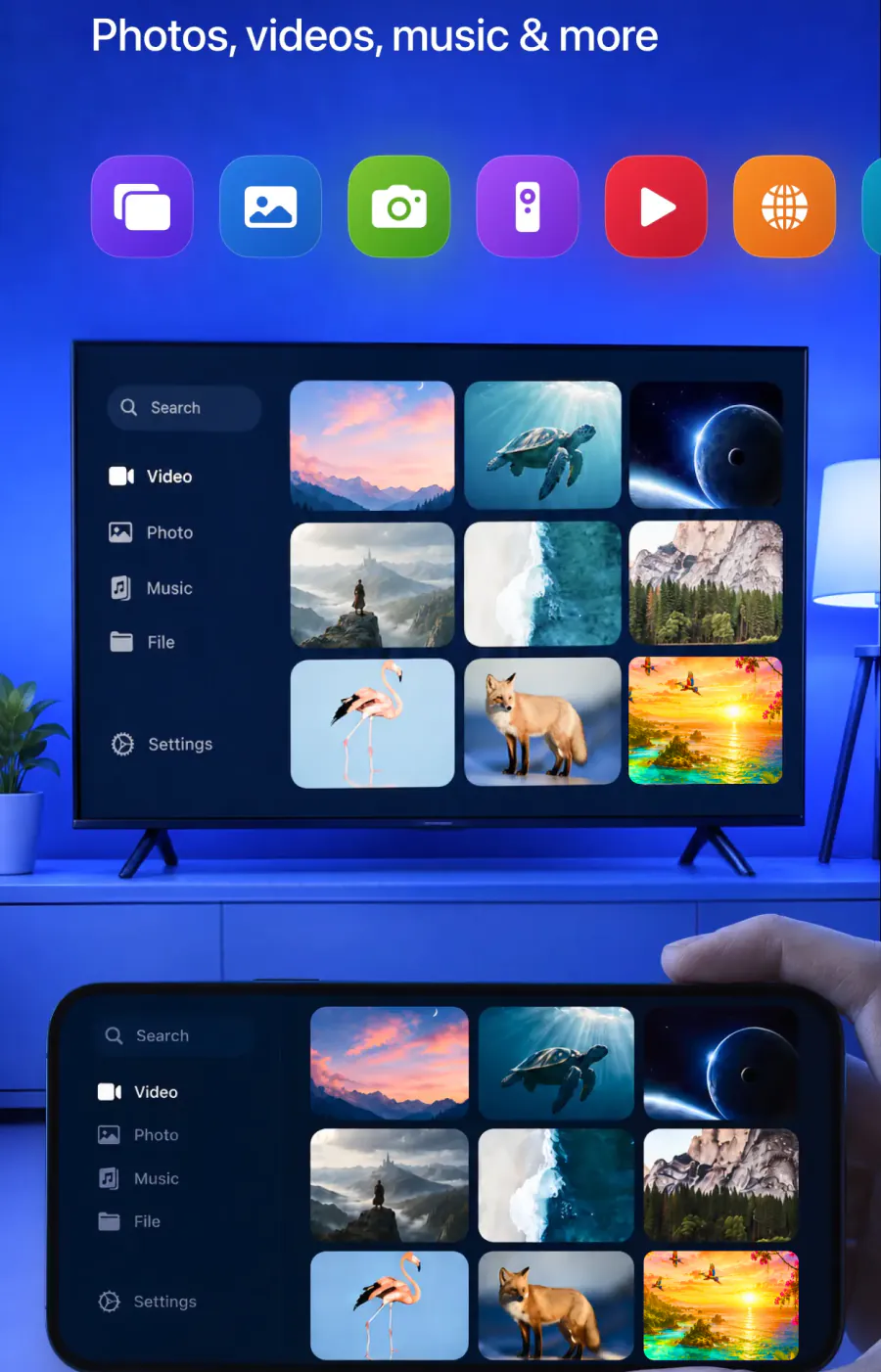
- Your whole iPhone screen, in real time
- Photos and videos from your gallery
- Videos from apps like Instagram, TikTok and YouTube
- Online videos, cast directly from the web
- Mobile games, presentations and documents
- Video calls, for better visibility
- IPTV, with the built-in player
Quick answers
Your phone only lists TVs that answer on the same network. A set with no receiver for the iPhone's native mirroring, one asleep, or one on a different Wi-Fi network never appears. Match the networks and wake the TV. If it still stays hidden, [Screen Mirroring · Smart TV](/) lists it and mirrors to it in one tap.
An iPad needs to show the same Wi-Fi network as the TV, the most common reason mirroring stalls. A VPN or proxy left on can block the connection too, so turn either off before you connect. [Screen Mirroring · Smart TV](/) picks up an iPad the same way it does an iPhone, over that same Wi-Fi network.
A slow or dropping connection is the usual reason. Restart the iPhone and the TV, update both, and make sure they are still on the same Wi-Fi network, since mirroring depends on it. If it keeps happening, [Screen Mirroring · Smart TV](/) is built for a stable connection with minimal lag, and its latest update cut delay and interruptions.
Get the phone on the TV tonight
Tell us which TV you're mirroring to. The app remembers it from the first pick, so every mirror after that is one tap, with no codes to type.
Subscription is billed by Apple inside the app. 4.61★ from 7,860 ratings.