Can You Screen Mirror Without Wi-Fi?
Do you need Wi-Fi to screen mirror? Not with a cable or an Apple TV. iPhone 15 and later models with video out over USB-C use a USB-C to HDMI cable, and one with HDMI 2.0 can carry 4K at 60Hz. Lightning iPhones use Apple's Lightning Digital AV Adapter. An Apple TV takes AirPlay peer-to-peer, with no network at all.
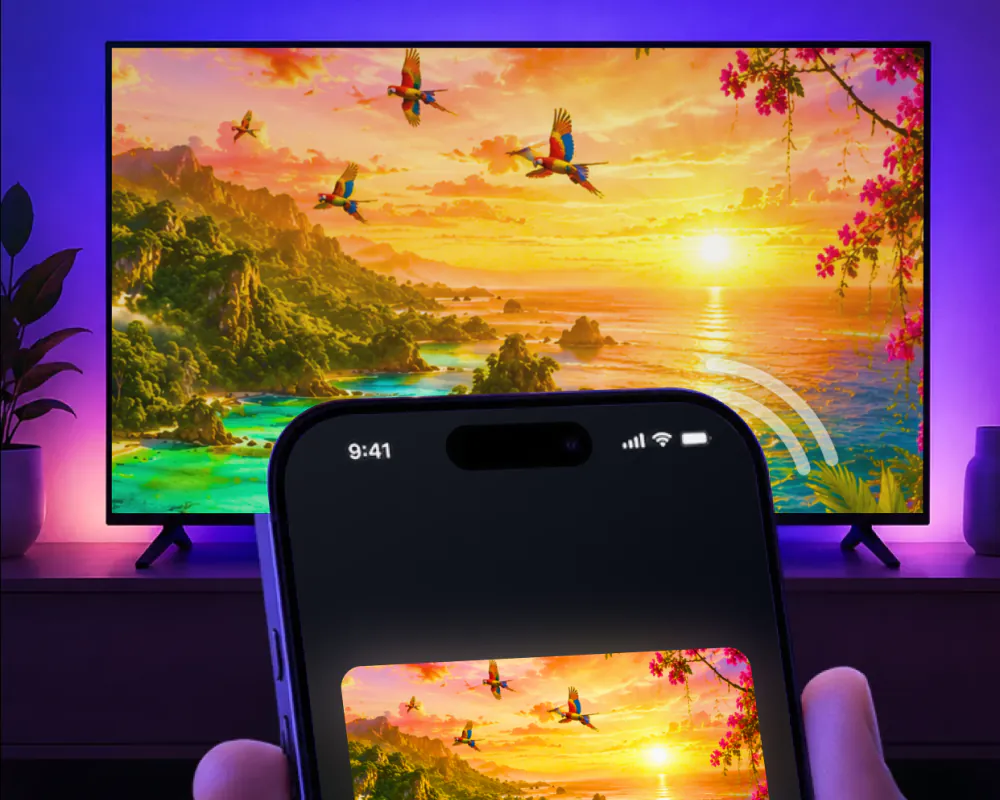
What works with no network, and what needs one
Here are the routes Apple documents for iPhone and what each one asks of your network. Two of them work anywhere. The third depends on a shared Wi-Fi network.
| Route | Works with no network? | What it takes |
|---|---|---|
| HDMI adapter or cable | Yes | An adapter that matches the iPhone's connector, USB-C or Lightning |
| Peer-to-peer AirPlay to an Apple TV | Yes | Apple TV HD with tvOS 9 or later, or Apple TV 4K with tvOS 11 or later |
| AirPlay to a smart TV | No | An AirPlay-compatible TV on the same Wi-Fi network as the iPhone |
How to connect phone to TV without Wi-Fi
On an iPhone, a wired connection doesn't use Wi-Fi at all. You plug an adapter into the charging port on the bottom of the iPhone and connect it to the TV with an HDMI cable, or use a single USB-C to HDMI cable on models that support it. The adapter has to match the iPhone's connector.
- Check the port first. iPhone 15 and later models have USB-C.
- On a USB-C iPhone, make sure the model can drive an external display. The iPhone 16e and 17e can't.
- For 4K at 60Hz, get an adapter or cable that supports HDMI 2.0.
- For long sessions, plug the charging cable into the adapter's extra port, so the iPhone charges while it's connected.
| iPhone | Connector | What to plug in |
|---|---|---|
| iPhone 15 models; iPhone 16 and 17 models except the 16e and 17e; iPhone 18 Pro models | USB-C | A USB-C to HDMI adapter or cable, or the USB-C Display AV Adapter |
| iPhone 16e and iPhone 17e | USB-C | Nothing: these models don't support an external display over USB-C, and Apple points them to AirPlay |
| iPhone with a Lightning port | Lightning | The Lightning Digital AV Adapter, or the Lightning to VGA Adapter for a VGA input |
What the TV shows, and what can block it
Once the iPhone is connected, the TV mirrors its built-in display. That doesn't apply to apps with a second-screen experience, such as video apps.
A cable has limits of its own. Movies, TV shows and some streaming video apps require HDCP, and on a connection without it, like the Apple VGA Adapter, an alert asks for an HDCP-compatible device. An app might also not be compatible with your adapter, and a VGA adapter doesn't carry audio.
The iPhone 16e and 17e can't use a cable for video at all. With no Wi-Fi around, their way to the TV is peer-to-peer AirPlay to an Apple TV.
The one wireless route that needs no network
Apple documents one way to use AirPlay without Wi-Fi: peer-to-peer to an Apple TV. The iPhone and the Apple TV don't need to be on the same network, or on any network at all. It takes an Apple TV HD on tvOS 9 and later or an Apple TV 4K on tvOS 11 and later, plus an iPhone from late 2012 or later running the latest version of iOS.
The Apple TV has to allow it. Its AirPlay access can be open to everyone, which covers peer-to-peer, or limited to devices on the same local network, which shuts an iPhone with no network out. Even with peer-to-peer, Apple encourages a network connection for software updates and for content that comes from the internet.
Smart TVs work differently. For an AirPlay-compatible smart TV, Apple's instructions put the iPhone on the same Wi-Fi network as the TV, and LG lists the same Wi-Fi as a condition on its AirPlay models. Apple doesn't document peer-to-peer AirPlay for smart TVs.
At home, on the road, in a hotel
At home with no Wi-Fi, you have the cable and an Apple TV. With a smart TV and no router, plan on the cable, since Apple documents AirPlay to smart TVs only over a shared network.
On the road, a phone hotspot can look like a stand-in for home Wi-Fi. Samsung says otherwise for its TVs: most mobile hotspots don't allow communication between devices, even on the same network, and if you use a mobile hotspot for your internet connection, AirPlay will not work. An adapter in your bag needs no network at all.
In a hotel, it depends on the TV. LG and Samsung both make hotel TVs that take AirPlay, and you join one by scanning a QR code on the screen. Apple notes that AirPlay in hotels isn't available in all countries or regions. On a hotel TV without that system, consumer AirPlay is stripped from the firmware and the hotel Wi-Fi runs client isolation, so the phone and the TV can't see each other even on the same network name. An HDMI cable at the TV gets around that, where the port isn't blocked.
When your iPhone and TV share a Wi-Fi network
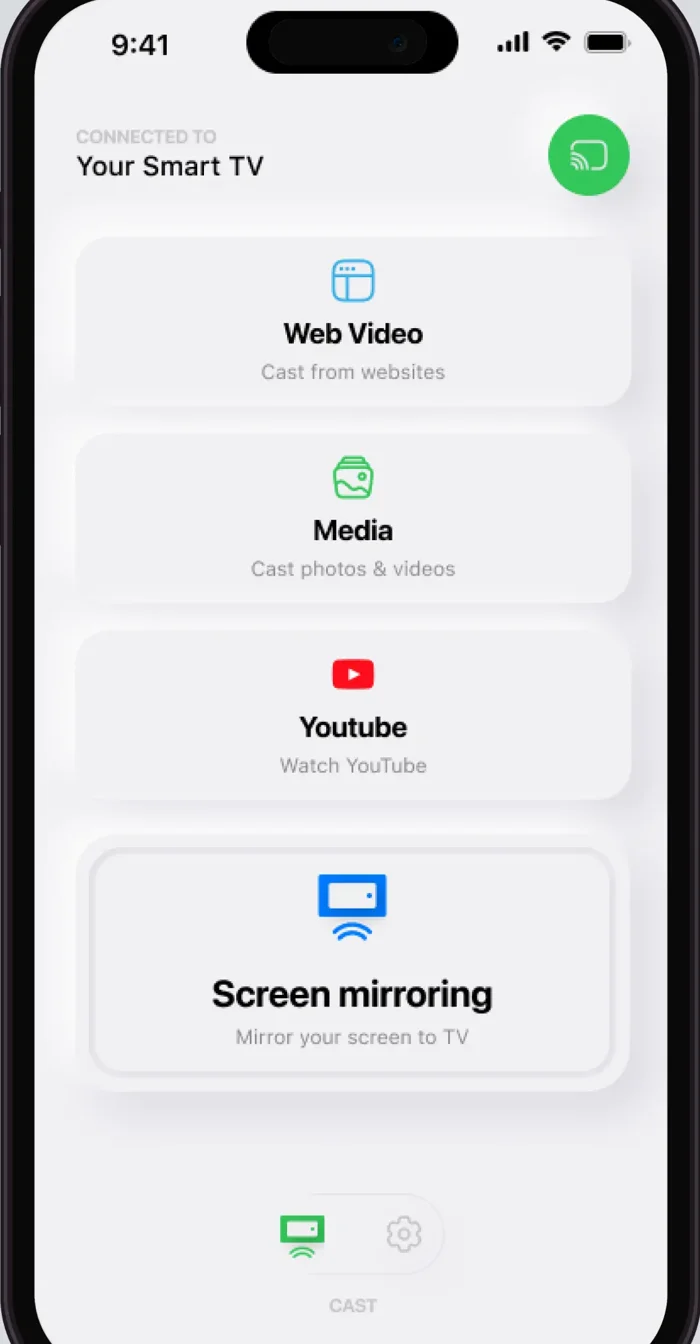
Screen Mirroring · Smart TV mirrors your iPhone screen to your TV in real time. It needs one thing from your network: the iPhone and the TV on the same Wi-Fi. The first time, you select your TV from the list of available devices. After that, the app remembers your TV, so next time it's one tap, and there are no codes to type.
Once connected, you can stream videos from apps like Instagram, TikTok and YouTube, cast photos and videos from your gallery, play mobile games on the TV, share presentations and documents, and show video calls on the big screen.
The app supports Roku, Fire TV, Chromecast, Samsung, LG and other major Smart TVs, and it's compatible with AirPlay and popular streaming devices. With a Roku TV or player, you can screen mirror on Roku the same way. For the best performance, turn off any VPN or proxy before you connect. The app is for iPhone and needs iOS 15.0 or later.
If your TV doesn't show up in the list, start with the fixes for screen mirroring not working. Our main guide, Connect iPhone to TV, covers mirroring and casting over Wi-Fi.
Next time, it's one tap
On the same Wi-Fi, pick your TV once. The app remembers it, and there are no codes to type.
Subscription is billed by Apple inside the app. 4.61★ from 7,860 ratings.