1
Join one Wi-Fi network
Connect your iPhone and the Insignia to the same Wi-Fi network. If a VPN or proxy is on, turn it off before you connect for the best performance.
Put your iPhone and the Insignia on the same Wi-Fi, then pick the TV in our app and start mirroring. The app remembers your TV, so next time it's one tap, with no codes to type. Insignia's 4K UHD Fire TV (2020) and F30 Series run Fire TV, and Amazon says not every Fire TV smart TV supports AirPlay.
 4.61
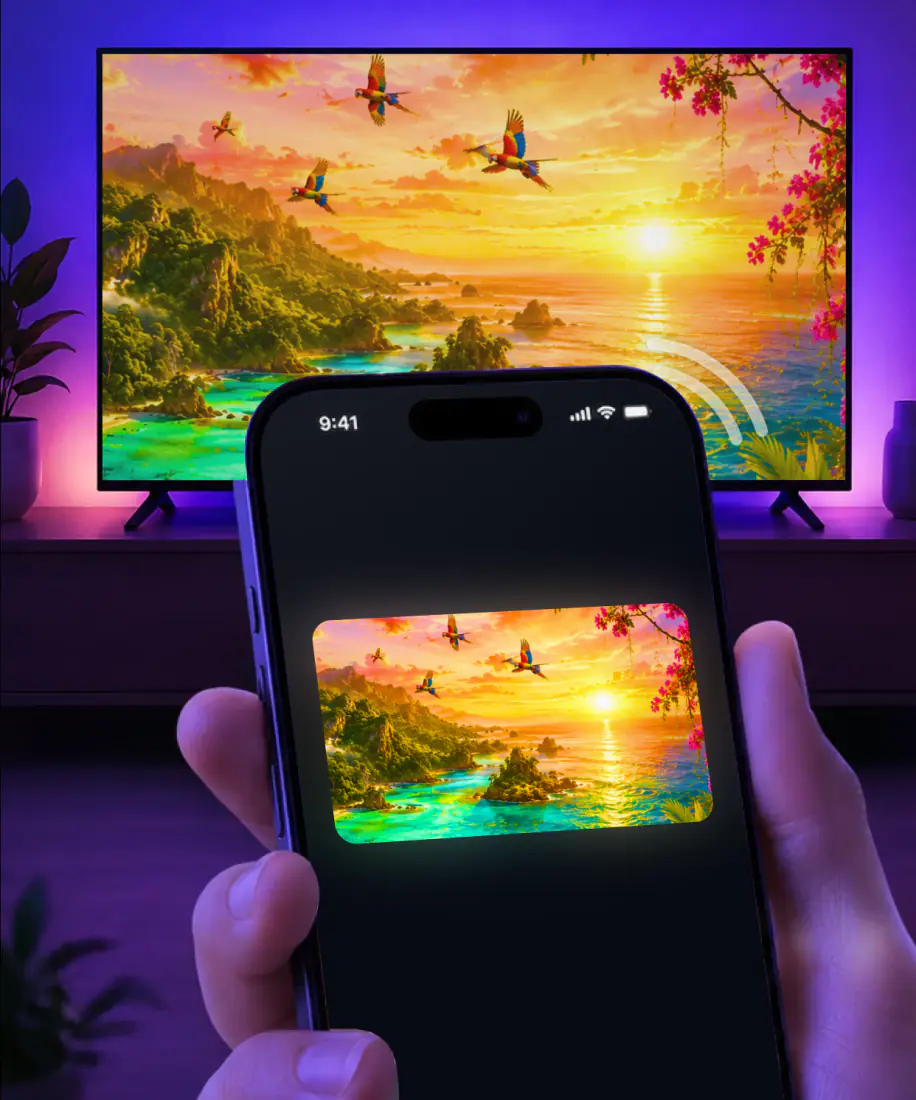
4.61Screen Mirroring · Smart TV mirrors your iPhone screen to the TV in real time, and Fire TV is one of the systems it supports. The first connection takes three steps. After that, the app remembers your Insignia and it's one tap.
3seconds, typical
Connect your iPhone and the Insignia to the same Wi-Fi network. If a VPN or proxy is on, turn it off before you connect for the best performance.
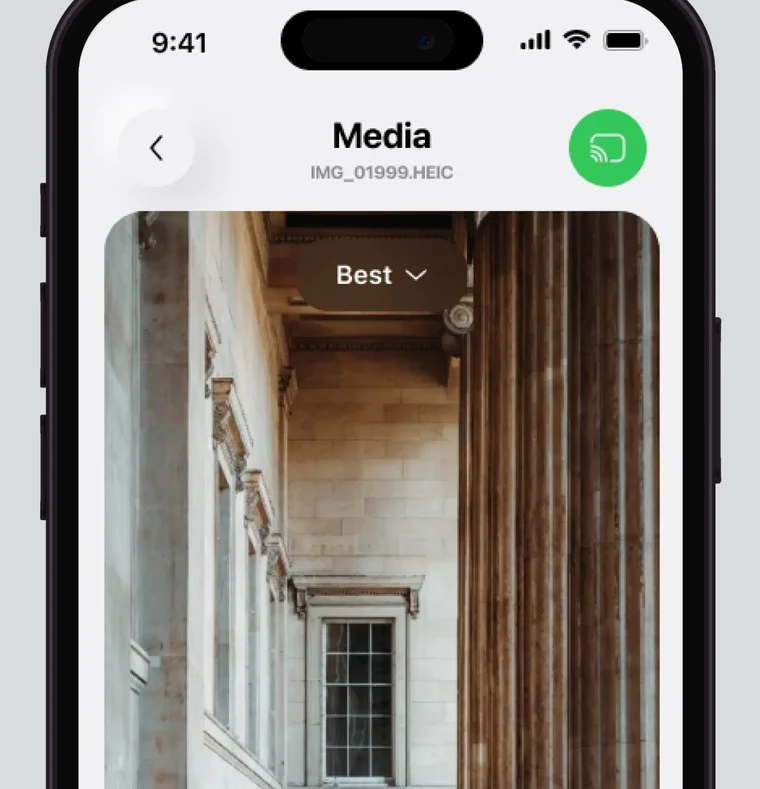
Select it from the list of available devices. The app remembers your TV, so next time it's one tap.
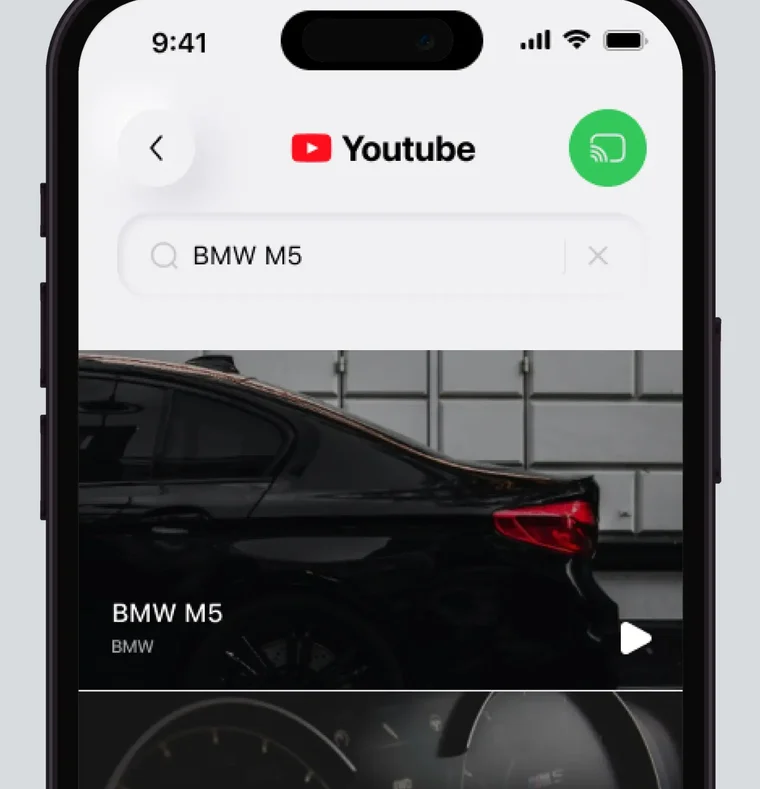
Your iPhone screen shows up on the Insignia in real time, with no codes to type.
For iPhone with iOS 15.0 or later. Free download; the subscription is billed by Apple inside the app.
Insignia is Best Buy's house brand, and its Fire TV models, such as the 4K UHD Fire TV from 2020 and the F30 Series, run Amazon's Fire TV system. AirPlay on these sets follows Amazon's rule for Fire TV smart TVs: not every one supports it.
We found no model-by-model confirmation from Best Buy, so the TV itself is the place to check. On a Fire TV smart TV that has AirPlay, the setting is in Settings under Display & Sounds, in AirPlay & HomeKit. The app supports Fire TV, the system these Insignia sets run.
| Device | AirPlay | Details |
|---|---|---|
| Insignia 4K UHD Fire TV (2020) | Some sets | Amazon's rule for Fire TV smart TVs applies. |
| Insignia F30 Series Fire TV | Some sets | Same Amazon rule. |
| Fire TV Stick in an HDMI port | No | No generation of the stick has AirPlay. |
| Fire TV's own screen mirroring | No iPhone | Amazon lists iOS and macOS as unsupported. |
AirPlay model data checked September 9, 2026.
Fire TV's built-in screen mirroring doesn't accept an iPhone, since Amazon lists iOS among unsupported devices. Use the app instead: put the iPhone and the Insignia on the same Wi-Fi, pick the TV from the list and start mirroring. Fire TV is on the app's supported list, and after the first time it's one tap.
AirPlay comes with your iPhone, but it needs a receiver on the TV side. On an Insignia, that depends on the set.
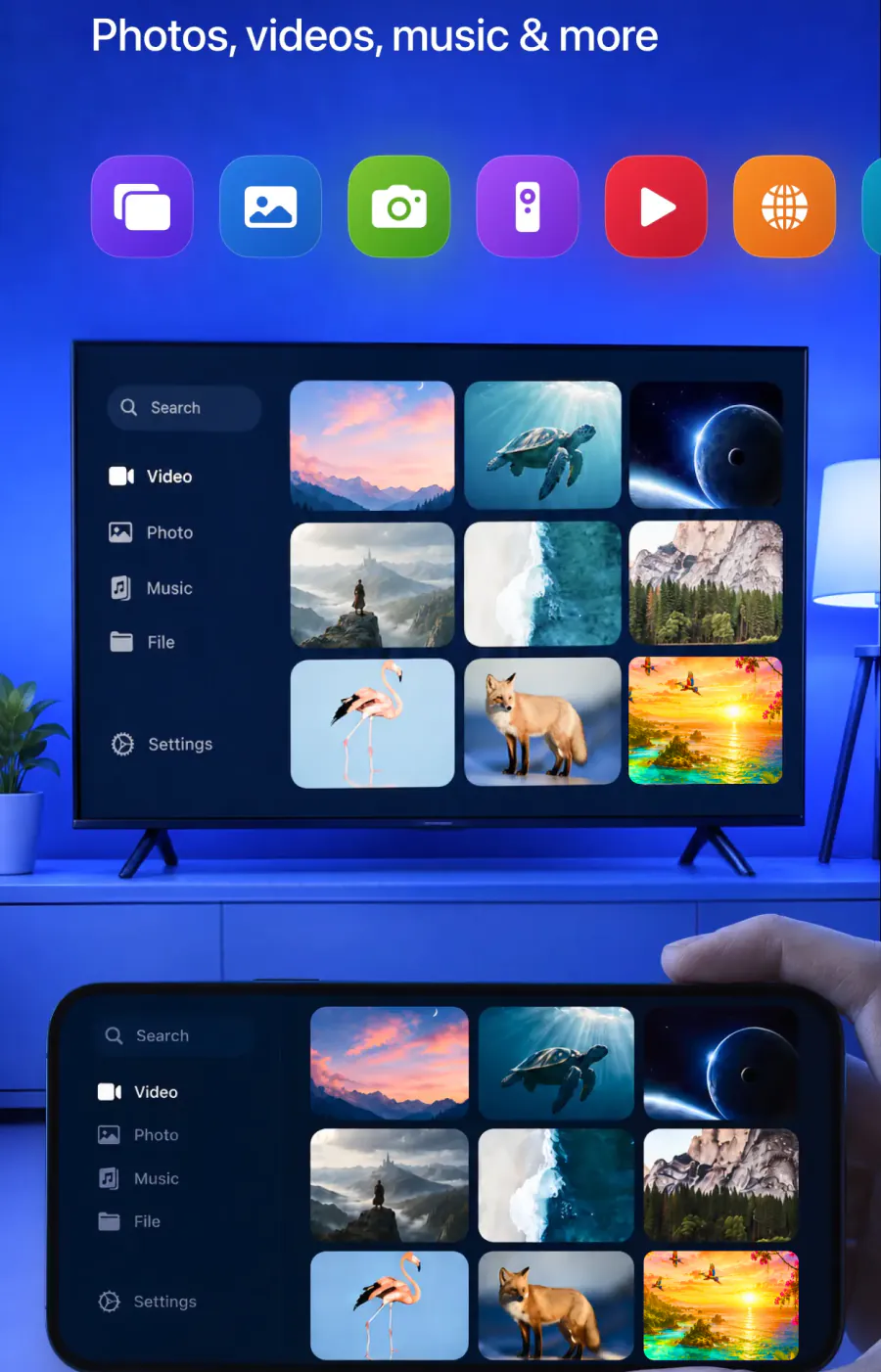
The Screen Mirroring button in Control Center needs an AirPlay receiver at the TV, such as an Apple TV 4K or a smart TV with AirPlay 2.
No Fire TV Stick has AirPlay, in any generation, so a stick in the Insignia's HDMI port can't receive it.
The first AirPlay connection can put a passcode on the TV that you type into your iPhone. The app has no codes to type.
Pick your Insignia once and the app remembers it. Next time it's one tap.
No cables to run and no extra hardware to buy. Getting started is simple.
Beyond the whole screen, the app casts photos and videos from your gallery and streams videos from apps and the web in high quality, with minimal lag. Version 1.5, released August 26, 2026, mirrors with less delay and fewer interruptions. To finish, stop the broadcast on your iPhone, or tap the stop button in the app when you're showing photos and videos from it.
Yes. Mirrored to the Insignia in real time.
Yes. Cast to the big screen from inside the app.
Yes. Streamed from the apps you already use.
Yes. Cast directly from the web.
Yes. Played on the TV for a bigger view.
Yes. Work materials and calls on a screen everyone can see.
Yes. Played in the app's built-in IPTV player.
Start with the network, then work through the guides below.
The Insignia isn't in the list. Check that the iPhone and the TV are on the same Wi-Fi network, and turn off any VPN or proxy on the iPhone.

AirPlay can't find the TV. Our AirPlay not working checklist covers what to try next.

The picture starts, then stops. The screen mirroring not working guide lists what to check.
Besides Fire TV, the app supports Roku, Chromecast, Samsung, LG and other major smart TVs.
If there's a Roku player in another room, here is how to screen mirror on Roku. For a Fire TV Stick, the Fire TV guide shows the steps to cast to Firestick. For Samsung and LG TVs, start with our main guide, How to connect iPhone to TV.
Your iPhone on the Insignia
Pick your Insignia from the list once. After that, the app remembers it, and there are no codes to type.
Subscription is billed by Apple inside the app. 4.61★ from 7,860 ratings.