What Is Screen Mirroring?
By  Vlad Karatai · Updated · 7 min read
Short answer
Screen mirroring shows your phone's screen on a TV in real time. The phone sends the picture over Wi-Fi or a cable. Over Wi-Fi, the TV needs a receiver such as an Apple TV 4K or an AirPlay 2-enabled smart TV. On iPhone you start it from Control Center. Our app finds your TV on its own.
Contents
- What is screen mirroring?
- How does screen mirroring work?
- What is screen mirroring on iPhone?
- Screen mirroring steps on iPhone
- What is needed for screen mirroring?
- What shows on the TV during screen mirroring?
- Screen Mirroring and iPhone Mirroring are different
- A shorter way: the Screen Mirroring app
- Questions people ask
What is screen mirroring?
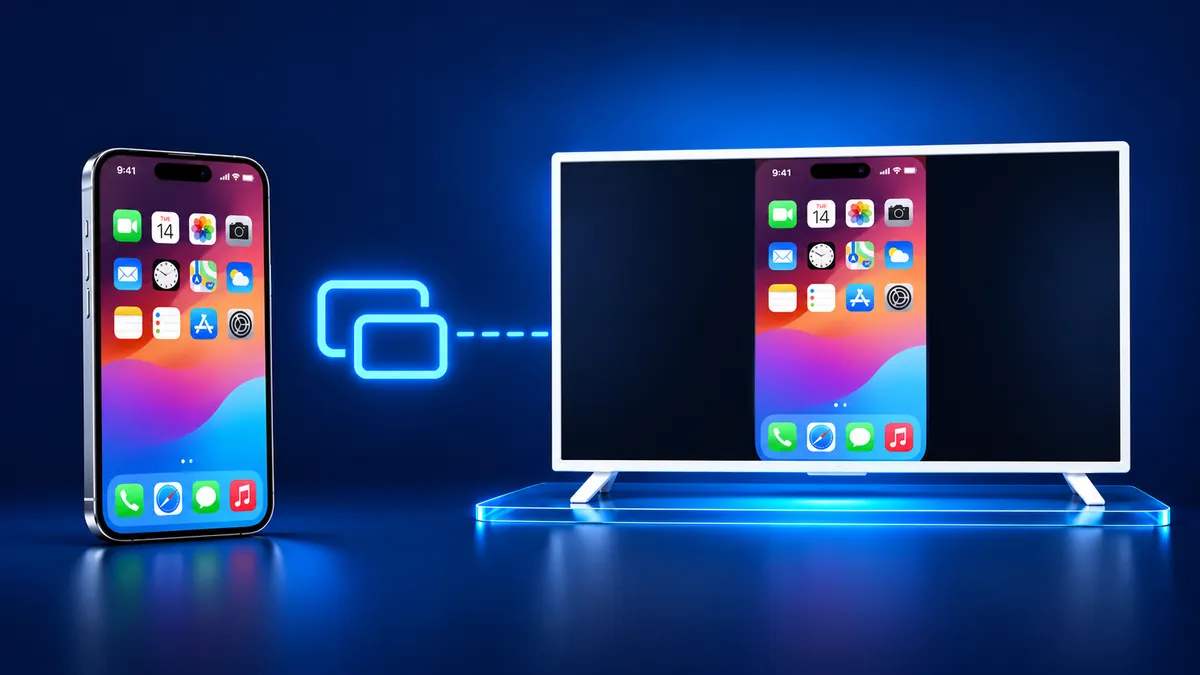
Screen mirroring puts what is on your phone screen onto a TV, live. The TV repeats what you do, so a tap, a swipe or a new app shows up there as it happens.
A mirror shows a copy, and here the copy is your screen. People use it to watch videos, share photos, play mobile games and show a presentation on a larger screen.
Brands give the feature different names. On an iPhone the button is called Screen Mirroring. Samsung calls this feature Smart View. On a Samsung phone you open Settings, tap Connected Devices, then tap Smart View. Google describes casting an Android screen as a direct connection between the phone and a TV that works with Google Cast.
How does screen mirroring work?
The phone sends a live picture of its screen, and the TV shows it. Over Wi-Fi, both devices must be on the same network. Apple's instructions start with connecting your iPhone to the same Wi-Fi network as your Apple TV or AirPlay-compatible smart TV.
A cable works without a network. Plug an iPhone into an HDMI display or TV with a USB-C to HDMI adapter or cable. The display then mirrors the built-in display of your iPhone. iPhone 15 and later models have USB-C. Apple's list of iPhones that support an external display does not include the iPhone 16e or iPhone 17e.
Mirroring is different from streaming one video. With a video stream, you tap the AirPlay button in the video app and pick the TV as the playback destination. With mirroring, the TV repeats the whole screen, home screen and menus included.
| What you send | What the TV shows | Where you start it |
|---|---|---|
| Screen mirroring | The TV shows whatever appears on your iPhone. | You start it in Control Center. |
| AirPlay video | The TV shows the video you picked. | You start it with the AirPlay button in the video app. |
| AirPlay photo | The TV shows the photo you picked. | You start it in Photos with Share, then AirPlay. |
What is screen mirroring on iPhone?
On iPhone it is a button named Screen Mirroring in Control Center. Tap it, pick a TV from the list, and the iPhone screen appears on that TV.
It belongs to AirPlay, Apple's name for sending video, photos and your screen to an Apple TV, an AirPlay-compatible smart TV or a Mac. Apple's page names three things you can do: stream a video, share your photos, or mirror your screen.
When your phone says Screen Mirroring and shows a list of names, those are devices you can choose from. They can be Apple TVs, smart TVs and Macs.
Screen mirroring steps on iPhone
These are Apple's steps for an iPhone X or later.
- Connect your iPhone to the same Wi-Fi network as your Apple TV or AirPlay-compatible smart TV.
- Open Control Center: swipe down from the upper-right corner of the screen.
- Tap the Screen Mirroring button.
- Select your TV from the list.
- If an AirPlay passcode appears on your TV screen, enter the passcode on your iPhone.
To stop, open Control Center, tap Screen Mirroring, then tap Stop Mirroring. On an iPhone 8 or earlier, swipe up from the bottom edge of the screen to open Control Center.
The usual method has four conditions. The TV needs an AirPlay receiver. Both devices need one shared Wi-Fi network. A passcode may appear the first time. The path goes through Control Center. The app section below shows a shorter way.
What is needed for screen mirroring?
You need three things: a phone that can send its screen, a TV that can receive it, and one shared Wi-Fi network or a cable.
- The TV side needs a receiver. For AirPlay, Apple asks for an Apple TV 4K or an AirPlay 2-enabled smart TV.
- Both devices need Wi-Fi turned on and a connection to the same network.
- The TV may show an AirPlay passcode the first time, and you type it on the iPhone.
- A cable replaces the network. Use a USB-C to HDMI adapter or cable, or an adapter that matches your iPhone's connector.
What shows on the TV during screen mirroring?
The TV shows everything that is on the iPhone screen. Apple says that on an Apple TV 4K or a smart TV you can show whatever appears on your iPhone.
On iOS 27, notifications are allowed by default during Screen Mirroring. You can turn them off if you don't want them to appear during a session. The switch is in Settings, then Notifications, then Screen Sharing, then Allow Notifications.
You stop it from the iPhone: open Control Center, tap Screen Mirroring, then tap Stop Mirroring. Or press the Menu button on your Apple TV Remote.
Screen Mirroring and iPhone Mirroring are different
iPhone Mirroring is a Mac feature. Apple says it lets you wirelessly interact with your iPhone and its apps and notifications from your Mac, while the iPhone stays locked.
The requirements differ too. It needs macOS Sequoia 15 or later on the Mac and iOS 18 or later on the iPhone. Both must use the same Apple Account. Apple lists iPhone Mirroring as currently unavailable in the European Union. To end a session, quit the iPhone Mirroring app. Unlocking your iPhone also ends it.
Apple's notification page for Mac separates the two as well. The Allow Notifications setting under Screen Sharing belongs to SharePlay and Screen Mirroring. It is not related to iPhone Mirroring.
A shorter way: the Screen Mirroring app
Screen Mirroring · Smart TV mirrors your iPhone screen to your Smart TV in real time. Connect your iPhone and TV to the same Wi-Fi network, and the app finds your TV on its own.
Pick the TV once. The app remembers your TV, so next time is one tap, with no codes to type. The sound plays on your TV speakers, and there are no ads.
It supports Roku, Fire TV, Chromecast, Samsung, LG and other major Smart TVs, and works on iPhone and iPad. Free download on the App Store.
What to remember
- Screen mirroring shows your phone screen on a TV in real time, so the TV repeats what you do.
- On iPhone it is the Screen Mirroring button in Control Center, and Stop Mirroring ends it.
- Over Wi-Fi, AirPlay needs a receiver on the TV and one shared network. A cable needs neither.
- On iOS 27, notifications are allowed by default during a session, and a setting turns them off.
- iPhone Mirroring is a different feature: it lets you use your iPhone from your Mac.
Questions people ask
What does it mean when your phone says screen mirroring?
It is the name of the button that sends your phone's screen to a TV. On iPhone it sits in Control Center, and tapping it opens a list of Apple TVs, smart TVs and Macs to pick from. On a Samsung phone, Samsung calls its version Smart View.
What is a screen mirroring button on a phone?
It is the control that copies your phone screen to a TV or a Mac. On iPhone it is called Screen Mirroring and is in Control Center. Tapping it shows a list of devices, and picking one starts the session.
What does screen mirroring do on iPhone?
It shows whatever appears on your iPhone on the TV, live. Apps, photos and the home screen all show on the TV. On iOS 27, notifications are allowed by default during a session, and you can turn them off in Settings under Notifications.
Is screen mirroring the same as casting?
No. Google uses casting for sending media from a Cast-enabled app to a Chromecast or a TV with Google Cast. Mirroring repeats the whole screen. Android can also cast its screen, which Google describes as a direct connection between the phone and the TV.
Read next
More guides
- Why Netflix Won't Mirror or AirPlay From an iPhone
- Arcelik TV Screen Mirroring From an iPhone (2026)
- How to AirPlay to Samsung TV: Steps and Menu (2026)
- Vestel TV Screen Mirroring: iPhone and Android (2026)
- How to Mirror iPad to Roku TV: Steps and Models (2026)
- TV Not Showing Up on AirPlay? How to Fix It (2026)
- AirPlay Password: Where the TV Code Comes From (2026)
- How to Fix No Sound in Screen Mirroring (2026)
- Apple TV Screen Mirroring From iPhone (2026)
- Hisense TV AirPlay: How to AirPlay on Hisense TV (2026)
- TCL TV AirPlay: How to AirPlay to TCL TV (2026)
- How to AirPlay on Google TV: Which TVs Have It (2026)
- How to Cast to Chromecast From an iPhone (2026)
- How to Cast iPad to Samsung TV (2026)
- How to Mirror iPad to TV: 3 Ways That Work (2026)
- AirPlay Not Working on Samsung TV: Fixes (2026)
- Vizio AirPlay: Mirror Your iPhone to a Vizio TV (2026)
- How to Cast to Samsung TV: iPhone and Galaxy (2026)
- Can You AirPlay to Firestick? Only Some Fire TVs (2026)
- LG TV AirPlay: Which Models Have It and How to Use It
