AirPlay Only Playing Audio
AirPlay only playing audio usually means the video never left the phone. Some apps simply do not turn on AirPlay video, so only the sound goes through, and Netflix is a separate case: it has not supported AirPlay at all since 2019. Our app mirrors the whole iPhone screen instead, no AirPlay needed, and runs on iOS 15.0 or later.
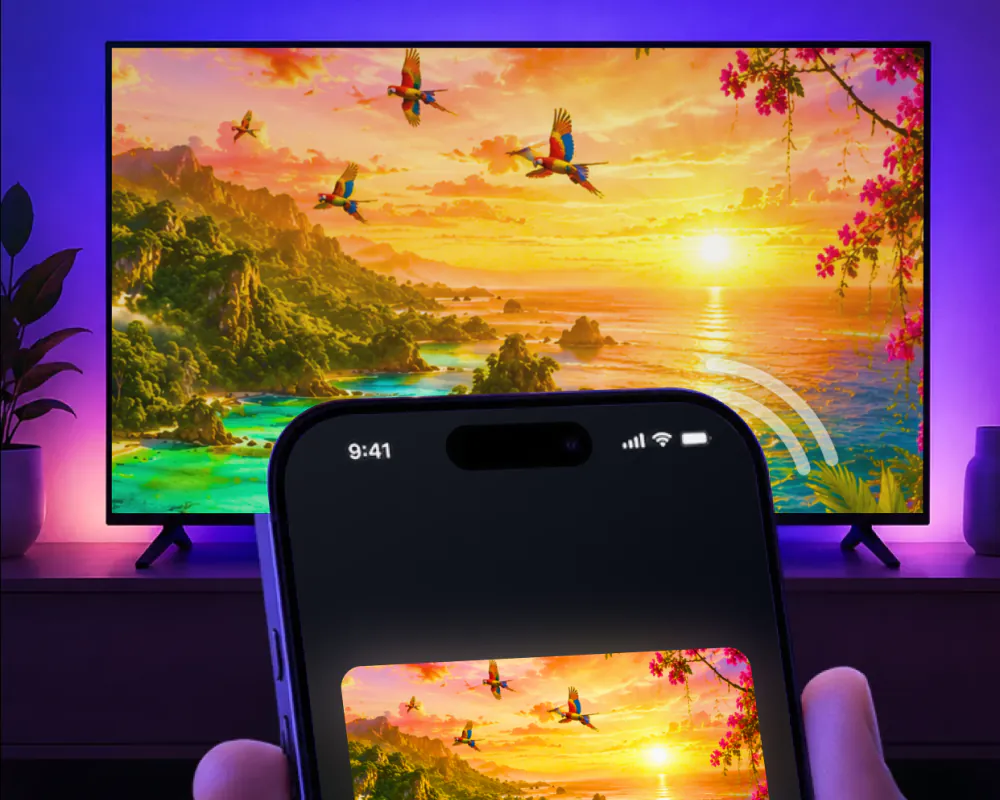
AirPlay not showing video
When AirPlay sends sound and nothing else, the connection between the iPhone and the TV is not broken. Apple documents streaming audio over AirPlay as a feature of its own, separate from streaming or mirroring video, and plenty of apps use exactly that audio path on purpose.
Whether the picture comes along depends on the app doing the casting. Apple notes that some video apps might not support AirPlay, and when an app has not turned that on, AirPlay carries only what it is given: the sound.
Apps that do support it show video without trouble. The Apple TV app plays its video over AirPlay the ordinary way, on-screen controls included, which is a sign that the AirPlay path itself works fine once the app on the other end allows it.
So the first thing worth checking is not the TV or the network, it is the app. Try a different video app, or send a photo from the camera roll instead. If a picture gets through from somewhere else, AirPlay and the TV are fine, and the app you started with is the one holding the video back.
Netflix skips AirPlay entirely
Netflix is worth ruling out first if that is where you saw this. Netflix does not support AirPlay in any form, sound included, so there is no partial connection to fix inside the Netflix app itself.
Netflix removed AirPlay from its iPhone app back in 2019. Casting Netflix to a TV now means opening Netflix on the TV or on the streaming box connected to it: same account, same show, picked up right from the TV's own screen.
If the picture shows up but the sound doesn't
The opposite problem has a simpler fix. If the picture is on the TV and the sound is missing, Apple's advice is to check the volume: turned up and not muted, on both the iPhone and the TV or receiver it plays through.
Neither problem means the AirPlay connection itself is broken. Both come down to what the app sent, or what got muted, rather than a fault with the iPhone or the TV. If checking the app and the volume doesn't explain what you're seeing, the wider AirPlay not working guide covers the TV side, and screen mirroring not working covers a shaky connection once the picture is already there.
Mirror the whole screen and skip AirPlay
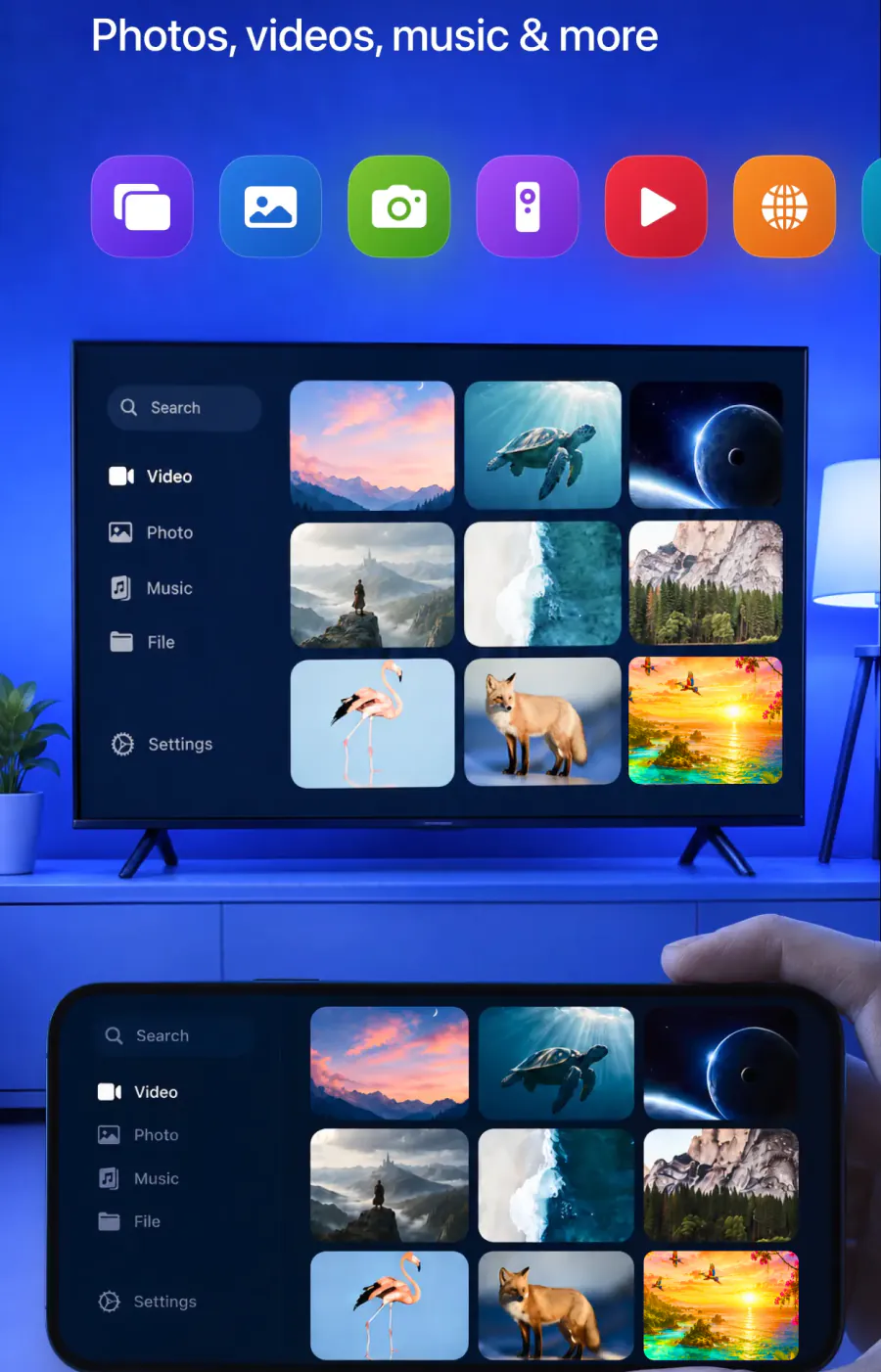
For the apps that never turn on AirPlay video, and for photos or video straight from the camera roll, Screen Mirroring · Smart TV takes a different route to the TV: it mirrors your iPhone screen in real time, without going through AirPlay at all.
It supports Roku, Fire TV, Chromecast, Samsung, LG and other major smart TVs, and it's compatible with AirPlay and popular streaming devices. Getting started is simple: connect your iPhone and the TV to the same Wi-Fi network, select the TV from the list of available devices, and start screen mirroring.
The app remembers your TV, so next time it's one tap, and there are no codes to type. To stop mirroring, stop the broadcast on your iPhone; photos and videos sent from the app stop with the stop button in the app.
Setting up a different TV? Our connect iPhone to TV guide has the rest. The app runs on iPhone with iOS 15.0 or later. Free download on the App Store.
Read next
Every method, every brand and every thing that goes wrong, written out.

Get the picture back on the TV
Pick your TV from the list once. After that the app remembers it, and there are no codes to type.
Subscription is billed by Apple inside the app. 4.61★ from 7,860 ratings.