Mirror Screen to Roku App: When Do You Need One?
By  Vlad Karatai · Updated · 5 min read
Short answer
Yes, an iPhone app can mirror your screen to a Roku. You need one when your Roku is not on Roku's AirPlay lists (they ask for Roku OS 9.4 or 10.0) or when Control Center is too many steps. Both devices share one Wi-Fi network. Screen Mirroring · Smart TV takes three steps once, then one tap.
Contents
What a screen mirroring app for Roku does
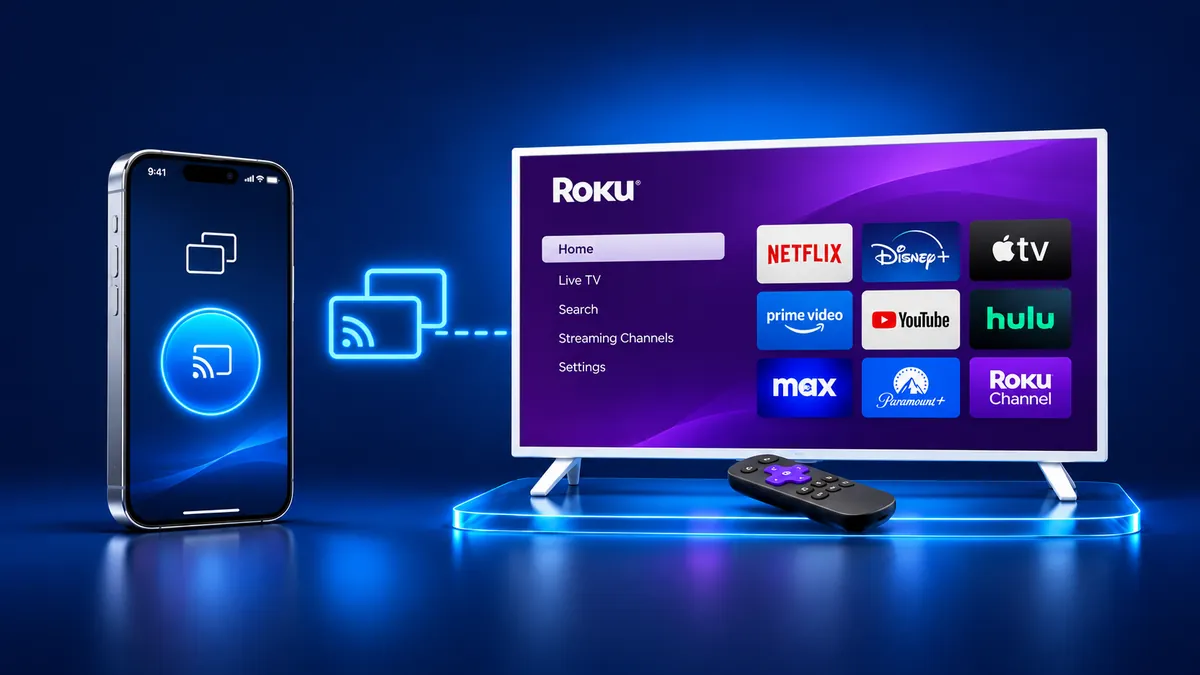
A screen mirroring app for Roku is an iPhone app that shows your screen on the TV in real time, over your home Wi-Fi. Videos, photos, games and websites appear on the Roku as they look on the phone.
Screen Mirroring · Smart TV mirrors your iPhone screen to Roku, Fire TV, Chromecast, Samsung, LG and other major Smart TVs. It runs on iPhone and iPad. It finds your TV on its own once both are on the same Wi-Fi, and the sound plays on your TV speakers. There are no ads and no extra hardware. Free download on the App Store
Roku's page on screen mirroring covers Android and Windows. For an iPhone, iPad or Mac it points to AirPlay. An app is the third route. The next section says when you need one.
When you need a Roku mirror app
You need an app in two cases: your Roku has no AirPlay, or AirPlay takes more steps than you want.
Roku sorts AirPlay support by software. Most models need Roku OS 9.4 or higher, a few need 10.0 or higher, and Roku Select and Plus Series TVs have it on any version. Older players such as the Streaming Stick 3800, the Express 3900 and the Roku 3 are on neither list: Roku does not list AirPlay for them.
Roku's two pages disagree about two models. The page for Android and Windows mirroring excludes the Roku Express 3700 and Express+ 3710, yet the AirPlay page lists both on Roku OS 10.0 or higher. They are separate features, and an iPhone uses AirPlay, so that is the list to read.
| Route | What it takes |
|---|---|
| AirPlay | A Roku on Roku's lists and one Wi-Fi network; you start from Control Center, and a passcode may appear on the TV |
| App | iPhone and Roku on one Wi-Fi network; pick the TV once |
| HDMI adapter | A USB-C to HDMI adapter or cable into the TV; iPhone 16e and 17e don't support video out over USB-C |
The standard AirPlay route to a Roku
If your Roku is on the lists, AirPlay takes four things: the model, one Wi-Fi network, the Control Center path, and a passcode you may be asked for the first time. Our guide for AirPlay on Roku has the full model table. The short version, from Apple's guide:
- Connect your iPhone and your Roku to the same Wi-Fi network.
- Open Control Center. On iPhone X or later, swipe down from the upper-right corner of the screen.
- Tap the Screen Mirroring button, then select your Roku from the list.
- If an AirPlay passcode appears on the TV screen, enter it on your iPhone.
To end it, open Control Center, tap Screen Mirroring, then tap Stop Mirroring.
Start mirroring to Roku in three steps
Only the first connection takes any setup. A VPN or proxy can get in the way, so turn it off on the iPhone before you connect.
- Connect your iPhone and your Roku to the same Wi-Fi network.
- Open the app and select your Roku from the list of available devices. There is no code to type.
- Start screen mirroring, and your iPhone screen appears on the TV.
The app remembers your TV. Next time is one tap, and the picture is up in about 3 seconds. To end the session, stop the broadcast on your iPhone.
What to check in a screen mirroring app for Roku
Five checks match the five biggest complaints. In 1,895 one- and two-star English App Store reviews of iPhone mirroring apps, these problems come up most.
- Not working at all: 24.2% of reviews (459). Confirm the app names Roku as a supported TV before you install.
- Lag and freezing: 7.6% (144). Play a video and see whether the picture keeps up with the phone.
- Ads: 6.4% (122). Open the app twice and see what appears before the TV does.
- Payment before any result: 6.3% (120). Read the plan before you tap, and know that Apple's cancel steps start in Settings on your iPhone.
- TV not found: 2.5% (47). Both devices need one Wi-Fi network, so check that first.
If the app can't find your Roku
Start with the network: on a Roku, the iPhone and the TV must be on the same Wi-Fi network.
Next, check the Local Network switch. Since iOS 14, any app must ask permission the first time it browses your network. Apple's path to change it is Settings, Privacy & Security, Local Network, where you turn access on for the app.
Then turn off any VPN or proxy, restart the iPhone and the Roku, and open the app again. If AirPlay is what fails, read our guide on Roku AirPlay not working.
What to remember
- A Roku mirroring app shows the iPhone screen on the TV over Wi-Fi, with both devices on one network.
- You need one when the Roku is not on Roku's AirPlay lists or Control Center takes too many steps for you.
- To start, join one Wi-Fi network, pick the Roku from the list and start mirroring.
- The five biggest complaints about mirroring apps are that they do not work (24.2%), lag (7.6%), ads (6.4%), payment up front (6.3%) and no TV found (2.5%).
Questions people ask
Is there a Roku cast app for iPhone?
Yes. Screen Mirroring · Smart TV casts photos and videos from your gallery to a Roku, and mirrors your iPhone screen in real time. The iPhone and the Roku need the same Wi-Fi network. If your Roku is on Roku's AirPlay lists, AirPlay is the other route.
Does a Roku screen mirroring app work on iPad?
Yes. Screen Mirroring · Smart TV works on iPhone and iPad. Put the iPad and the Roku on the same Wi-Fi network, select the Roku from the list of available devices, and start screen mirroring. Your iPhone and iPad steps are the same.
Is a Roku mirroring app the same as AirPlay?
No. AirPlay is built into the iPhone. It needs a Roku on Roku's lists, and you start mirroring from Control Center. An app starts from its own screen. It supports Roku among other Smart TVs and needs no extra hardware. On a Roku, both routes need one Wi-Fi network.
What is the best screen mirroring app for Roku?
No single app wins for everyone, so test before you commit. Judge any app on the five problems reviewers report most: it does not work, it lags, it shows ads, it asks for payment first, or it cannot find the TV. Try each one on your own Roku.
Read next
More guides
- Why Netflix Won't Mirror or AirPlay From an iPhone
- Arcelik TV Screen Mirroring From an iPhone (2026)
- How to AirPlay to Samsung TV: Steps and Menu (2026)
- Vestel TV Screen Mirroring: iPhone and Android (2026)
- How to Mirror iPad to Roku TV: Steps and Models (2026)
- TV Not Showing Up on AirPlay? How to Fix It (2026)
- AirPlay Password: Where the TV Code Comes From (2026)
- How to Fix No Sound in Screen Mirroring (2026)
- Apple TV Screen Mirroring From iPhone (2026)
- Hisense TV AirPlay: How to AirPlay on Hisense TV (2026)
- TCL TV AirPlay: How to AirPlay to TCL TV (2026)
- How to AirPlay on Google TV: Which TVs Have It (2026)
- How to Cast to Chromecast From an iPhone (2026)
- How to Cast iPad to Samsung TV (2026)
- How to Mirror iPad to TV: 3 Ways That Work (2026)
- AirPlay Not Working on Samsung TV: Fixes (2026)
- What Is Screen Mirroring? How It Works on iPhone
- Apple AirPlay TV List: Which TVs Have AirPlay (2026)
- Vizio AirPlay: Mirror Your iPhone to a Vizio TV (2026)
- How to Cast to Samsung TV: iPhone and Galaxy (2026)
