Roku AirPlay Not Working? What to Check First
Roku lists which TVs and players take AirPlay: most need Roku OS 9.4 or higher, some 10.0, and Roku Select and Plus Series TVs have it on any version. If yours is listed, check three things: AirPlay set to On in the Roku's settings, the iPhone and the Roku on one Wi-Fi network, and current software on both.
Why can't I AirPlay to my Roku TV?
Roku publishes which of its TVs and players take AirPlay, in two lists split by software: models that need Roku OS 9.4 or higher and models that need Roku OS 10.0 or higher. Roku Select and Plus Series TVs are the one exception to that split: Roku states they carry AirPlay and HomeKit no matter which Roku OS version is installed.
So when AirPlay is missing on a Roku, start with two questions: which model is it, and which Roku OS does it run? A listed model on older software needs a Roku OS update. The older players in the last row of the table below don't appear on either list.
The model number matters more than the name. A Streaming Stick 3800 and a Streaming Stick+ 3810 sit in different rows, and so do an Express 3900 and an Express 4K 3940.
| Roku model | AirPlay | Roku OS it needs |
|---|---|---|
| Roku TV models A####, C####, C##GB and 7#### | Yes | 9.4 or higher |
| Roku TV 5xxx and 6xxx models | Yes | 10.0 or higher |
| Roku Select and Plus Series TVs | Yes | Any version |
| Streaming Stick+ 3810/3811, Streaming Stick 4K 3820, Streaming Stick 4K+ 3821 | Yes | 9.4 or higher |
| Express 4K 3940, Express 4K+ 3941 | Yes | 9.4 or higher |
| Premiere 3920/4620, Premiere+ 3921/4630 | Yes | 9.4 or higher |
| Ultra 4600/4640/4660/4661/4670/4800/4802/4850, Ultra LT 4662/4801 | Yes | 9.4 or higher |
| Streambar 9102, Streambar Pro 9101R2, Smart Soundbar 9101, onn. Smart Soundbar 9100 | Yes | 9.4 or higher |
| Express 3700, Express+ 3710, Roku 4 (440) | Yes | 10.0 or higher |
| Express 3900/3930/3960, Streaming Stick 3400/3500/3600/3800, Roku 1, 2 and 3, Roku LT | Not on Roku's lists | Not listed |
AirPlay won't connect to Roku: what to check
If your Roku is on one of the lists above and AirPlay still won't connect, work through the settings, the network and the software, in the order below.
Roku's own support page for AirPlay asks for one thing first: the iPhone and the Roku on the same Wi-Fi network, with AirPlay turned on in the Roku's settings.
See our guide to screen mirror on Roku for the setup from the beginning.
- Same network: put the iPhone and the Roku on the same Wi-Fi network.
- AirPlay setting: make sure AirPlay is set to On in the Roku's settings.
- Software: update the Roku and the iPhone, since most Roku models need Roku OS 9.4 or 10.0 for AirPlay.
- Power and distance: keep both devices turned on and near each other.
- Restart: restart the Roku and the iPhone, then try again.
- VPN: if a VPN runs on the iPhone, make sure its configuration doesn't block local networking.
- Code on the TV: the first connection can bring up a code on the TV screen that you type on the iPhone.
- TCL Roku TVs: keep Fast TV Start on so the TV stays on the network while it's powered off.
Why is my Roku not showing up on screen mirroring?
Your iPhone lists a Roku for screen mirroring only when the Roku is a listed model running the Roku OS it needs, AirPlay is set to On in its settings, and the phone and the Roku share one Wi-Fi network. Our app needs that same network too, and it remembers your Roku, so next time it's one tap.
Roku AirPlay no sound: start with the volume
When the picture reaches the Roku and the sound doesn't, check the volume first. Apple's advice for streamed video without sound is to make sure the volume is turned up and not muted on both the iPhone and the TV or receiver.
That can mean three places: the iPhone, the TV and a soundbar or AV receiver, if the TV's sound runs through one. Roku's Streambar, Streambar Pro and Smart Soundbar models are on Roku's AirPlay list in their own right, so with one of them in the setup, its volume and mute count too.
If the volume checks out, Apple's general steps for streaming trouble come next: update the iPhone and the Roku to the latest software, then restart both.
Roku AirPlay video not working while the sound plays
When the Roku plays the sound and the picture never appears, look at the app you're playing from. AirPlay can carry audio by itself: Apple lists streaming audio from an iPhone to a TV as a feature of its own, separate from streaming video.
Whether video comes along depends on the app you're playing from. Apple notes that some video apps might not support AirPlay, and when one of them doesn't, the sound is still all that AirPlay was given to send.
A quick test shows which case you're in. Play something from a different video app. If that picture shows up on the Roku, the Roku and the network are working, and the limit sits with the first app.
If no app puts a picture on the Roku, update and restart both devices, the general steps Apple gives for streaming trouble.
If AirPlay fails with other TVs too, see our AirPlay not working guide. For trouble with the mirrored screen itself, see screen mirroring not working.
How our app works with your Roku
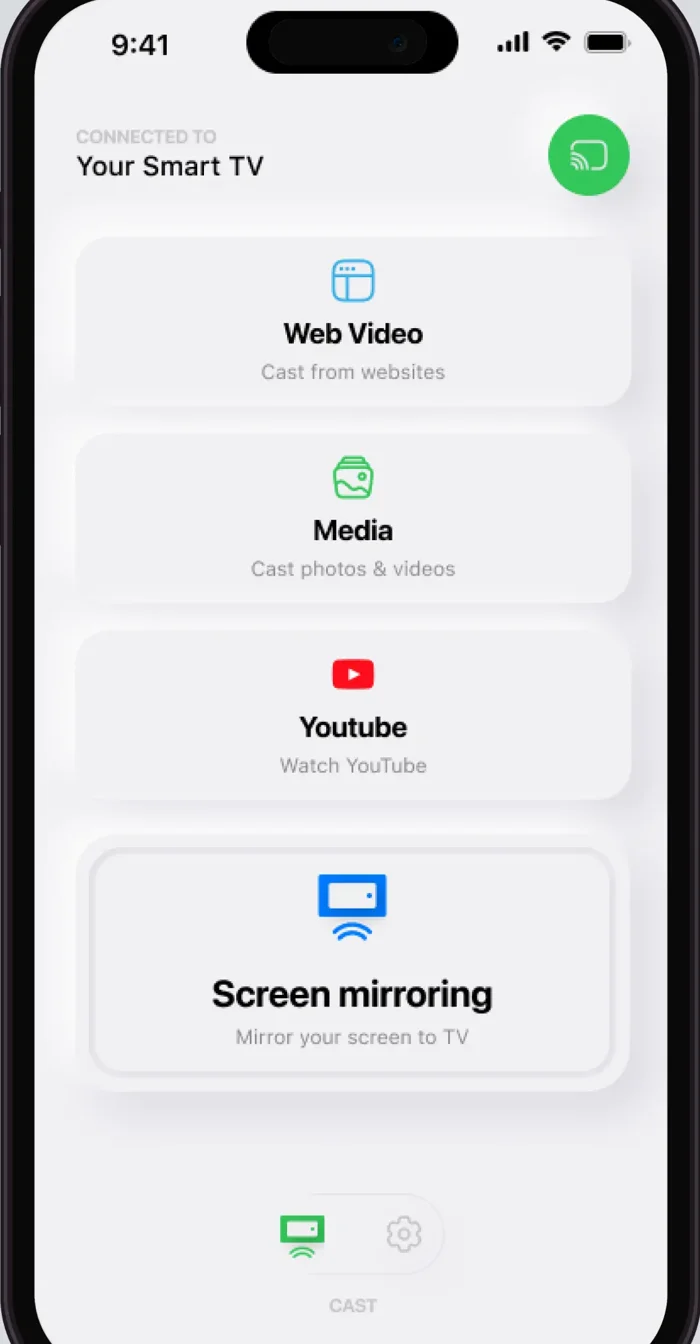
Screen Mirroring · Smart TV is our iPhone app for putting your screen on a TV. It supports Roku, Fire TV, Chromecast, Samsung, LG and other major smart TVs, and it's compatible with AirPlay and popular streaming devices. That includes Roku TVs from TCL, Sharp, Philips and Hisense.
It mirrors your iPhone screen to the TV in real time, and it can also stream videos from apps like Instagram, TikTok and YouTube, cast photos and videos from your gallery, and put games, presentations and video calls on the big screen.
Getting started takes three steps: connect your iPhone and the Roku to the same Wi-Fi network, select your Roku from the list of available devices, and start screen mirroring. The app remembers your TV, so next time it's one tap, and there are no codes to type.
For best performance, turn off any VPN or proxy on the iPhone before connecting. To stop mirroring, stop the broadcast on your iPhone; photos and videos sent from the app stop with the stop button in the app.
Setting up a TV that isn't a Roku? Our connect iPhone to TV guide covers every other option. The app runs on iOS 15.0 or later. Free download on the App Store.
Read next
Every method, every brand and every thing that goes wrong, written out.
Your Roku, one tap away
Pick your Roku from the list the first time. After that the app remembers your TV, and there are no codes to type.
Subscription is billed by Apple inside the app. 4.61★ from 7,860 ratings.