How to Turn Off Screen Mirroring
Screen mirroring started from the app on this page stops when you stop the broadcast on your iPhone, and a single photo or video from it stops with its own stop button instead. Apple's built-in screen mirroring works differently: open Control Center, tap Screen Mirroring, then tap Stop Mirroring. Screen Mirroring: Smart TV runs on iOS 15 and later.
Why the TV Keeps Reconnecting on Its Own
A television that lights up without anyone touching a phone is rarely the app on this page, since nothing in it starts a session by itself. The usual cause is an iPhone feature built for video played inside apps that support AirPlay: once an iPhone and a TV it has used before are on the same Wi-Fi network, iOS can suggest that TV again, or connect to it automatically, the next time a video starts playing somewhere else.
Screen Mirroring itself, the feature behind Control Center's Stop Mirroring button, only ever starts when someone opens it by hand, so a set that lights up on its own is rarely a mirrored screen at all.
Some of this arrives as a notification asking first, rather than connecting outright, but either way it is the same setting deciding what happens, and the same switch stops both.
The Wi-Fi network decides more of this than the setting does. An iPhone away from that network, on mobile data or a different Wi-Fi entirely, cannot reconnect to a television automatically no matter what the setting says, so a TV that keeps lighting up is proof the two are on the same network right now.
The first time an iPhone reaches a new television, nothing connects on its own no matter how the setting is configured. The automatic part only ever applies to a television that phone has already used.
What keeps coming back on its own is almost always that other setting, not a mirrored screen and not the app on this page.
Turning Off the Automatic Connection
That setting is called Automatically AirPlay, and it sits under AirPlay & Continuity on the iPhone. Switching it off stops an app from choosing a TV for you: after that, a video reaches a television only when you pick one yourself, the same way a manual AirPlay session already works. Both devices still need to be on the same Wi-Fi network before any of this happens, automatic or not.
This is a setting on the phone, not on the television, so nothing about it changes what the TV itself can receive from any device in the house.
None of this needs a restart of the phone or the television. The setting takes effect the next time a video would have jumped to a TV on its own, and that moment simply does not arrive.
Turning it off does not remove screen mirroring from the iPhone, and it does not touch a TV chosen on purpose. A video started in a familiar app still plays there the moment someone picks that television. What disappears is only the part nobody asked for: the television lighting up because a video decided it should, on its own, while the phone sat untouched.
What Happens to Notifications During a Mirrored Session
Notifications do not disappear automatically once a screen mirroring session starts. Apple's iPhone guide says that during SharePlay or Screen Mirroring, notifications are allowed by default, and that a switch in the iPhone's notification settings turns them off if you would rather they stayed private.
That switch is specific to Screen Mirroring and SharePlay. Apple's own support page notes that the Allow Notifications setting in Screen Sharing is not related to iPhone Mirroring on a Mac, a different feature with a similar name, so switching it changes what a mirrored screen shows without touching anything else on the phone.
Someone on a work call while mirroring a screen may want that switch off before starting, since messages and calls keep arriving in the background either way; for a movie mirrored for the family, the switch changes nothing else about the session.
Either way, the switch only changes what a mirrored screen shows. It does not start or stop the session itself, and leaving it on default does not make a screen mirror for longer or shorter than it otherwise would.
Screen Mirroring and a Single AirPlay Video Are Different
Screen mirroring and a single AirPlay video are not the same thing on an iPhone, and they do not stop the same way either. A mirrored screen, the whole picture Screen Mirroring shows, stops only from Control Center. A video sent from inside one app, rather than mirrored from the whole screen, uses a different control: the AirPlay icon inside that app's own player, next to the normal playback buttons.
Tapping that icon and choosing the iPhone from the list is what brings a single video back to the phone, and it happens inside whichever app started it, not through Control Center. Someone who stops a mirrored screen and still sees a video playing through an app, or the other way around, is not seeing a bug: the two just use separate controls.
The Photos app can send an album to a television this same way, from its own Share button rather than the whole screen, and stopping that album from there leaves anything mirrored separately untouched.
What Turning It Off Does Not Change
Turning off Automatically AirPlay, or stopping a session from Control Center, does not remove screen mirroring or AirPlay from the iPhone. A television can still be chosen on purpose at any time, whether that means mirroring the whole screen or sending one video from an app. The only difference is who makes the decision: a person, rather than a setting reacting to a video that already started playing, or to a screen that was never meant to leave the phone.
A television chosen on purpose still shows whatever gets sent to it afterward, mirrored screen or single video, exactly as before.
The App This Page Is About
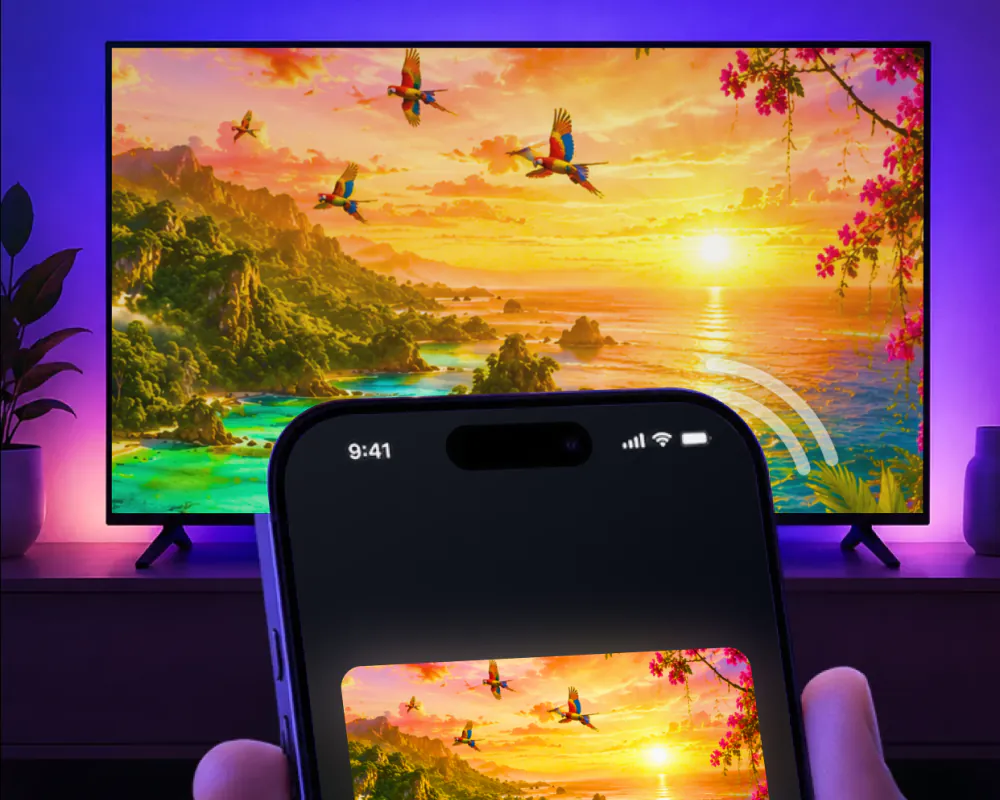
Screen Mirroring · Smart TV is the app this page is mostly about. A mirrored screen it started stops when you stop the broadcast on your iPhone. Sending a photo or a video from the app instead of the whole screen stops with the stop button inside the app itself, on the same screen that started it.
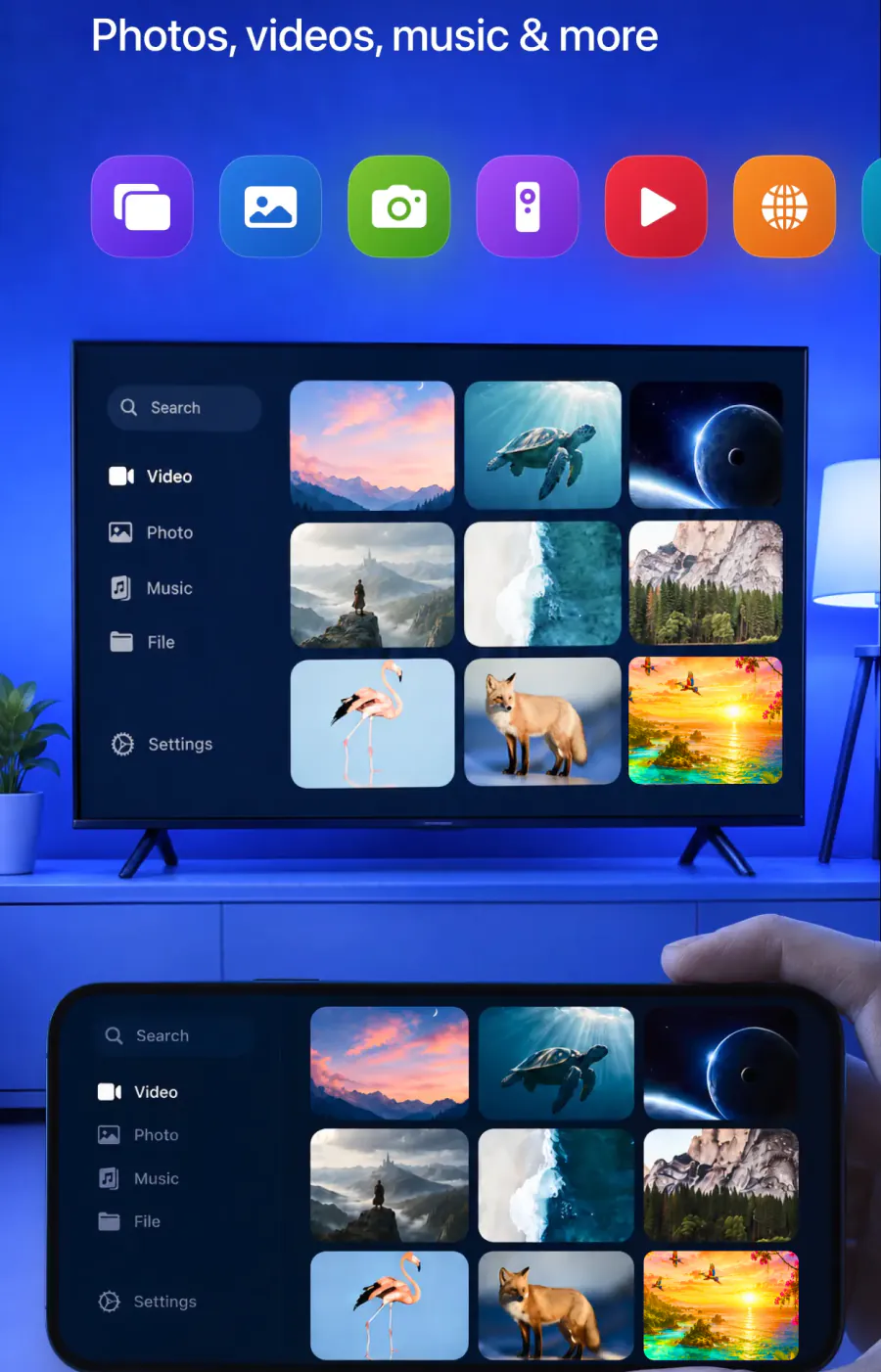
Its listing describes an app that mirrors an iPhone screen to a Smart TV in real time, streams video from apps like Instagram, TikTok and YouTube, casts photos and videos from the camera roll, plays mobile games on the bigger screen, and shares presentations and documents. It names Roku, Fire TV, Chromecast, Samsung, LG and other major Smart TVs as supported, alongside AirPlay and other popular streaming devices.
It streams with a stable connection and minimal lag over the home Wi-Fi network, with no additional hardware needed.
The app remembers your TV, so picking it again later is one tap, with no code to type.
For the first-time setup, see connect iPhone to TV. For the Apple feature with the same name, the separate guide to turn off AirPlay covers Control Center and the setting that reconnects it on its own.
Put the TV on Only When You Tap
Screen Mirroring: Smart TV remembers your TV, so picking it again is one tap, with no code to type.
Subscription is billed by Apple inside the app. 4.61★ from 7,860 ratings.