Panasonic VIERA Screen Mirroring for iPhone and Android
By  Vlad Karatai · Updated · 5 min read
Short answer
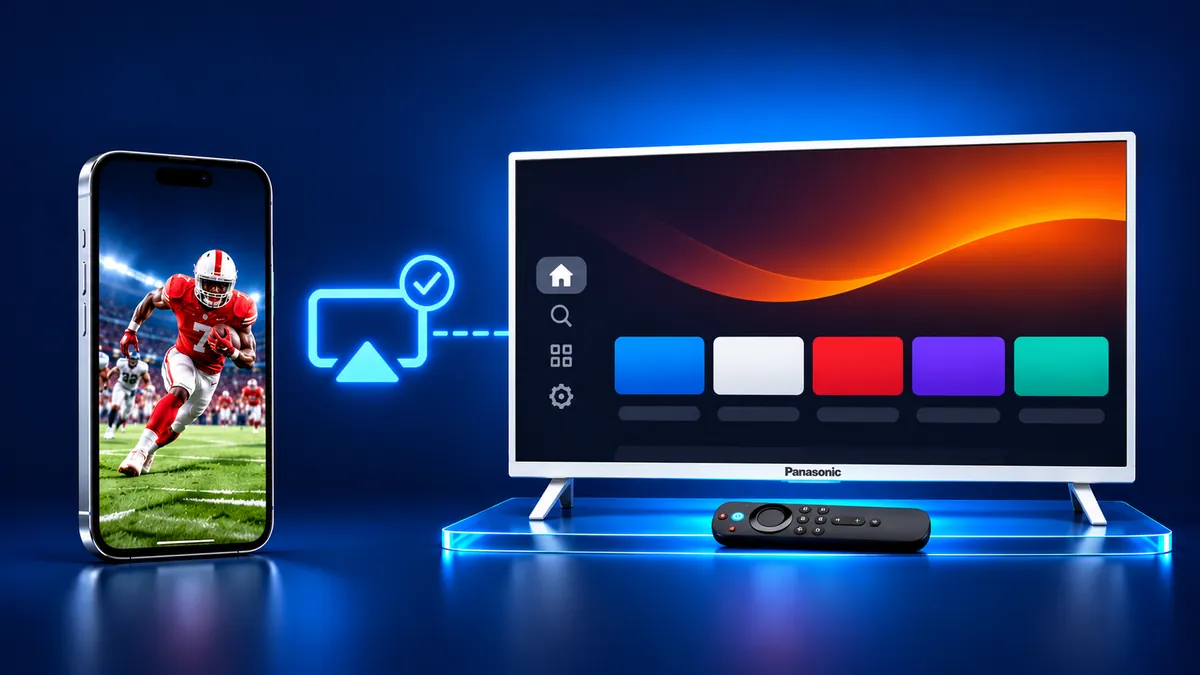
Panasonic VIERA screen mirroring from an iPhone uses AirPlay 2 on Fire TV models from 2024, and those model numbers start with TV-. Amazon notes that AirPlay isn't compatible on all Fire TV Smart TV devices, so check your model below. No AirPlay on your TV? Try the Screen Mirroring · Smart TV app.
Which VIERA do you have?
Pick the start of your model number and get the matching steps.
What does the model number start with?
Contents
Which Panasonic VIERA models can mirror an iPhone?
Panasonic lists AirPlay 2 for its Fire TV VIERA models. Its first Fire TV sets were the 2024 models. The Fire TV feature page has an Apple AirPlay 2 section and lists iPhone and iPad as sources. Panasonic lists every Fire TV model by year on its Fire TV support page.
| Model year | VIERA series on Fire TV |
|---|---|
| 2024 | OLED Z95A, Z93A, Z90A, Z85A; LCD W95A, W90A, W80A |
| 2025 | OLED ZS9, ZS8, Z95B, Z90B; LCD W95B, W90B, W80B |
| 2026 | OLED Z95C; LCD W97C, W95C, W93C, W80C, A90B, A80B, G90B, G80B, S60C |
How to tell if your VIERA runs Fire TV
Start with the model number. Panasonic prints it on the back nameplate, or on the label that runs from the lower left side to the back, as you face the TV.
- All models on Panasonic's Fire TV list start with TV-.
- Panasonic's Fire TV pages send owners of TH- models to a separate page.
- If your model series is in the table, your set runs Fire TV.
How to mirror your iPhone to a Fire TV VIERA with AirPlay
This path needs four things: a Fire TV VIERA, one Wi-Fi network for the TV and the iPhone, AirPlay switched on in the TV settings, and the Control Center route on the iPhone. Panasonic also recommends the latest version of iOS.
- Connect your iPhone to the same Wi-Fi network as the VIERA.
- On the TV, go to Settings from the Fire TV menu.
- Select Display & Sounds, then select AirPlay & HomeKit (Amazon's Fire TV help).
- Follow the on-screen instructions. Panasonic's Japanese help says to set AirPlay to On (オン) on that screen.
- On your iPhone, open Control Center. On iPhone X or later, swipe down from the upper-right corner of the screen. On iPhone 8 or earlier, swipe up from the bottom edge.
- Tap the Screen Mirroring button, then select your VIERA from the list.
- The TV may ask for a code the first time. If an AirPlay passcode appears on your TV screen, enter the passcode on your iPhone.
- To stop, open Control Center, tap Screen Mirroring, then tap Stop Mirroring (Apple's AirPlay guide).
iPhone with no AirPlay on the TV: start with the app
Screen Mirroring · Smart TV supports Roku, Fire TV, Chromecast, Samsung, LG and other major Smart TVs. It finds your TV on its own on the same Wi-Fi. Pick the TV once. The app remembers your TV, so the next time is one tap, with no codes. Free download on the App Store
Still want AirPlay? Panasonic's mirroring page for the TH-43LF1 says iOS devices are not supported.
Want a wired or Apple TV route? Apple says to use a Digital AV or HDMI adapter with the same connector as your iPhone. An Apple TV box on an HDMI input has a built-in AirPlay receiver. Our guide to Apple TV screen mirroring has the steps.
How to mirror an Android phone to a Panasonic VIERA
Panasonic gives Android phones a mirroring setting on the TV. The menu depends on the set.
- Fire TV VIERA: press Home, choose the three-line menu, then the gear icon for Settings. Select Display & Sounds, then "ミラーリングを有効にする" (Enable mirroring), then press OK. Panasonic says the TV is then ready to mirror (ミラーリングできる状態になります).
- TH- sets: press Home, choose "接続機器一覧" (Connected devices), then "ミラーリング" (Mirroring), then press the button labeled 決定 (OK).
- TH- sets other than the TH-43LF1 can also use the Menu button on the remote, then "ミラーリング" (Mirroring), as the Panasonic page shows.
What to remember
- Panasonic lists Fire TV VIERA sets from 2024, 2025 and 2026, and its Fire TV feature page lists AirPlay 2.
- Android phones use Panasonic's Mirroring setting, and the menu path differs between Fire TV and TH- sets.
- An iPhone with no AirPlay on the TV can use the Screen Mirroring · Smart TV app or a cable.
Questions people ask
Why can't I mirror my iPhone to my Panasonic TV?
Your set may have no AirPlay, or your iPhone may be on another network. On a Fire TV VIERA, the Screen Mirroring · Smart TV app finds your TV on its own on the same Wi-Fi. Still want AirPlay? Check that AirPlay is On in Display & Sounds and that both devices share one network. On other sets, see the app section above.
Does the Panasonic TVシェア app mirror an iPhone screen?
No. Panasonic describes TVシェア as a way to watch network video and phone photos, videos and music on the TV. It works with iOS 11 or later and Android 5.0 or later. Panasonic says Fire TV VIERA models do not support it.
How do I set up screen mirroring on a Panasonic VIERA?
A model on Panasonic's Fire TV list has AirPlay for an iPhone and ミラーリング (Mirroring) for Android. On a TH- set, Android uses the Home or Menu button path, as the Android section above shows. For an iPhone, try the app or a cable.
Read next
More guides
- Why Netflix Won't Mirror or AirPlay From an iPhone
- Smart View App on Galaxy and iPhone (2026)
- Onvo TV Screen Mirroring on iPhone: What Works (2026)
- Philco TV Screen Mirroring From iPhone (2026)
- Beko TV Screen Mirroring for iPhone Owners (2026)
- Sunny TV Screen Mirroring From iPhone (2026)
- Grundig TV Screen Mirroring: What Works on iPhone (2026)
- Arcelik TV Screen Mirroring From an iPhone (2026)
- How to AirPlay to Samsung TV: Steps and Menu (2026)
- Vestel TV Screen Mirroring: iPhone and Android (2026)
- How to Mirror iPad to Roku TV: Steps and Models (2026)
- AirPlay Password: Where the TV Code Comes From (2026)
- How to Fix No Sound in Screen Mirroring (2026)
- Apple TV Screen Mirroring From iPhone (2026)
- Hisense TV AirPlay: How to AirPlay on Hisense TV (2026)
- TCL TV AirPlay: How to AirPlay to TCL TV (2026)
- How to AirPlay on Google TV: Which TVs Have It (2026)
- How to Cast to Chromecast From an iPhone (2026)
- How to Cast iPad to Samsung TV (2026)
- How to Mirror iPad to TV: 3 Ways That Work (2026)
